Playback starts YouTube’s embedded player (privacy-enhanced mode).
ArchiCAD Tutorial | How to Import 3D Objects from IFC and DWG files
ChannelARCHICAD Tutorials by Eric BobrowDescription from the creator
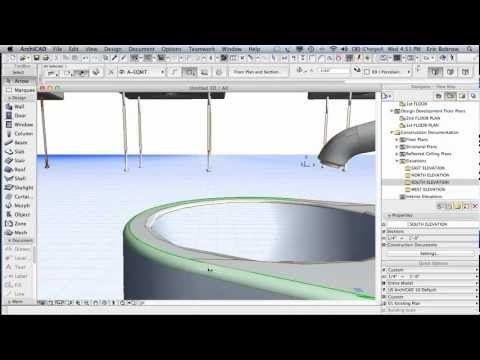
In this ArchiCAD tutorial excerpted from the Best Practices Course (acbestpractices.com) you'll learn how to import manufacturer components as 3D library parts. These are becoming more widely available in IFC and DWG formats from many websites, and allow you to place highly accurate representations of actual real world equipment and furniture into your ArchiCAD models.
ArchiCAD 16 makes this an easy process. You can import IFC files directly using the File menu - File Special - Merge command, which will create a new library part and immediately place it. If it appears faceted (due to curved or detailed surface models), you may select a copy of the new object and use the Design menu - Convert to Morph command, then adjust the Morph settings to make the edges "Soft". This will make both the 2D plan view and the 3D window (and Elevation) views much cleaner.
A similar process may be followed to import a DWG file using the File menu - Libraries and Objects - Open Object command.
Note that you can add Listing parameters to these new objects for your Schedules by changing the Object Subtype from Model Element to a more specific type of element.
WEB PAGES SHOWN IN THE VIDEO:
IFC download of NBL sink: nationalbimlibrary.com/GenericBIMObject?id=345
DWG download of Duravit sink: duravit.co.uk/website/homepage/products/product…
Note that access to files on nationalbimlibrary.com requires registration, which is free.
ArchiCAD 16 makes this an easy process. You can import IFC files directly using the File menu - File Special - Merge command, which will create a new library part and immediately place it. If it appears faceted (due to curved or detailed surface models), you may select a copy of the new object and use the Design menu - Convert to Morph command, then adjust the Morph settings to make the edges "Soft". This will make both the 2D plan view and the 3D window (and Elevation) views much cleaner.
A similar process may be followed to import a DWG file using the File menu - Libraries and Objects - Open Object command.
Note that you can add Listing parameters to these new objects for your Schedules by changing the Object Subtype from Model Element to a more specific type of element.
WEB PAGES SHOWN IN THE VIDEO:
IFC download of NBL sink: nationalbimlibrary.com/GenericBIMObject?id=345
DWG download of Duravit sink: duravit.co.uk/website/homepage/products/product…
Note that access to files on nationalbimlibrary.com requires registration, which is free.
About this tutorial
ARCHICAD Tutorials by Eric Bobrow published this 35:18 video tutorial on October 29, 2013. It has been watched 159,135 times on YouTube.
- Category
- Education
- Duration
- 35:18
- Published
- October 29, 2013
- Views
- 159,135
- Likes
- 410
Tags
Share
This tutorial in other languages
- FRArchiCAD Tutoriel | Comment importer des objets 3D à partir de fichiers IFC et DWG
- ESArchiCAD Tutorial | Cómo importar objetos 3D a partir de archivos IFC y DWG
- PTArchiCAD Tutorial | Como importar objetos 3D a partir de arquivos IFC e DWG
- ITArchiCAD Tutorial | Come importare oggetti 3D da file IFC e DWG
- DEArchiCAD Tutorial | Wie man Import von 3D-Objekte von IFC und DWG-Dateien
- NLArchiCAD Tutorial | Hoe te importeren 3D-objecten van IFC en DWG-bestanden
- RUArchiCAD Учебник | Как Импорт 3D объектов из МФК и DWG файлов
- PLArchiCAD Tutorial | Jak importować obiekty 3D z plików DWG i IFC
- JAArchiCADのチュートリアル|どのようにIFCとDWGファイルからインポートした3Dオブジェクトへ
- ARأركيكاد دروس | كيفية كائنات استيراد 3D من ملفات IFC وDWG
- HIArchiCAD ट्यूटोरियल | कैसे आईएफसी और DWG फ़ाइलों से आयात 3 डी वस्तुओं के लिए
- IDArchiCAD Tutorial | Cara Impor 3D Objects dari IFC dan DWG file