Playback starts YouTube’s embedded player (privacy-enhanced mode).
How to Create a Quiz Online
ChannelProProfsChapters
Description from the creator
How to Create a Quiz Online
Create A Quiz In ProProfs Online Quiz Maker: proprofs.com/quiz-school/create-a-quiz/
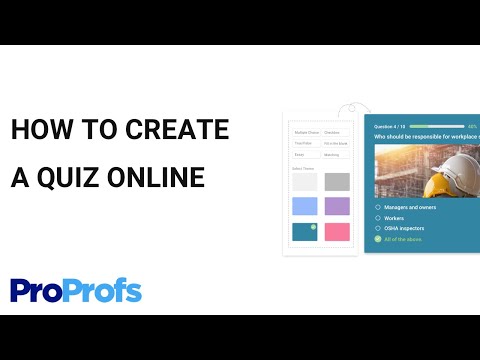
This tutorial shows how to create a quiz or an online test using ProProfs Quiz Maker. ProProfs offers a powerful free version that anyone can use to make online quizzes.
ProProfs Quiz Maker: bit.ly/2GsJuX6
Who does not enjoy attempting those exciting and witty quizzes online? You can also create a quiz all by yourself within a matter of a few minutes. ProProfs Quiz Maker offers ready-made template which can be used to develop different quizzes to surprise your viewers. The video is more like a tutorial that takes you through the process of developing and delivering a quiz that is capable of surprising your viewers and competitors.
Further, the content begins and also proceeds with a step-by-step explanation on how you can create such a quiz with the help of ProProfs Quiz Maker (bit.ly/2DuZBPI):
Step 1 :
Either ‘Click’ to ‘Login’ into the Quiz Maker and enter your credentials, else,
Sign-up into the Maker if you happen to be the first time user.
Step 2 :
‘Click’ the tab, ‘Create a Quiz’ and then select the type of quiz you wish to create.
ProProfs has created the different categories of quizzes to serve the different purposes. They include:
#1. Scored Quiz
This is mostly used for skilled assessments, educational testing, and training.
To create a Scored Quiz, you need to:
Enter a unique title with a proper and matching description.
Add images, links and other elements for further customization.
#2. Multiple Choice Questions
No. of questions to be added under this category of the quiz is unlimited.
You can mix and match your questions with the sample questions already given in the Quiz Maker
Apart from the mentioned types, there are other quiz types available which include:
Check boxes
Fill-in-the-blanks, and
Essays.
Also, you can further incorporate a separate area to receive ‘Feedback’ after each attempted question. You can add supplementary documents such as videos, images, and presentations to facilitate the purpose of a knowledge base if required later.
Finally, the page next to creating the quiz allows you to configure the settings for security, setting a timer as well as performance assessment and scoring of the participants.
Integrate the Quiz Maker of ProProfs into the training modules created on ProProfs Training Maker to assess the training progress made by individual participants. The tool is ideal for training and testing the retention power of the trainees.
But, they are not all designed to test your knowledge or retention power. Instead, ProProfs Quiz Maker creates fun quizzes to entertain your audience as well.
00:00 - Getting Started
00:25 - Choosing a Quiz Type
00:38 - Adding a Title & Description
00:50 - Adding Questions
01:31 - Adding Feedback
01:37 - Adding Videos & Documents
01:49 - Reordering Questions
01:58 - Configuring Settings
02:08 - Outro
For further details, stop by ProProfs today!
----------------------------------------------------------------------------------
Try for Free: bit.ly/2GsJuX6
Take a Tour: bit.ly/2X561y4
STAY TUNED:
Facebook ► facebook.com/proprofs
Twitter ► twitter.com/proprofs
Linkedin ► linkedin.com/company/proprofs
-------------------------------
#quizmakersoftware #createquizzes #onlinequizmaker
Create A Quiz In ProProfs Online Quiz Maker: proprofs.com/quiz-school/create-a-quiz/
This tutorial shows how to create a quiz or an online test using ProProfs Quiz Maker. ProProfs offers a powerful free version that anyone can use to make online quizzes.
ProProfs Quiz Maker: bit.ly/2GsJuX6
Who does not enjoy attempting those exciting and witty quizzes online? You can also create a quiz all by yourself within a matter of a few minutes. ProProfs Quiz Maker offers ready-made template which can be used to develop different quizzes to surprise your viewers. The video is more like a tutorial that takes you through the process of developing and delivering a quiz that is capable of surprising your viewers and competitors.
Further, the content begins and also proceeds with a step-by-step explanation on how you can create such a quiz with the help of ProProfs Quiz Maker (bit.ly/2DuZBPI):
Step 1 :
Either ‘Click’ to ‘Login’ into the Quiz Maker and enter your credentials, else,
Sign-up into the Maker if you happen to be the first time user.
Step 2 :
‘Click’ the tab, ‘Create a Quiz’ and then select the type of quiz you wish to create.
ProProfs has created the different categories of quizzes to serve the different purposes. They include:
#1. Scored Quiz
This is mostly used for skilled assessments, educational testing, and training.
To create a Scored Quiz, you need to:
Enter a unique title with a proper and matching description.
Add images, links and other elements for further customization.
#2. Multiple Choice Questions
No. of questions to be added under this category of the quiz is unlimited.
You can mix and match your questions with the sample questions already given in the Quiz Maker
Apart from the mentioned types, there are other quiz types available which include:
Check boxes
Fill-in-the-blanks, and
Essays.
Also, you can further incorporate a separate area to receive ‘Feedback’ after each attempted question. You can add supplementary documents such as videos, images, and presentations to facilitate the purpose of a knowledge base if required later.
Finally, the page next to creating the quiz allows you to configure the settings for security, setting a timer as well as performance assessment and scoring of the participants.
Integrate the Quiz Maker of ProProfs into the training modules created on ProProfs Training Maker to assess the training progress made by individual participants. The tool is ideal for training and testing the retention power of the trainees.
But, they are not all designed to test your knowledge or retention power. Instead, ProProfs Quiz Maker creates fun quizzes to entertain your audience as well.
00:00 - Getting Started
00:25 - Choosing a Quiz Type
00:38 - Adding a Title & Description
00:50 - Adding Questions
01:31 - Adding Feedback
01:37 - Adding Videos & Documents
01:49 - Reordering Questions
01:58 - Configuring Settings
02:08 - Outro
For further details, stop by ProProfs today!
----------------------------------------------------------------------------------
Try for Free: bit.ly/2GsJuX6
Take a Tour: bit.ly/2X561y4
STAY TUNED:
Facebook ► facebook.com/proprofs
Twitter ► twitter.com/proprofs
Linkedin ► linkedin.com/company/proprofs
-------------------------------
#quizmakersoftware #createquizzes #onlinequizmaker
About this tutorial
ProProfs published this 2:20 video tutorial on November 5, 2011. It has been watched 100,350 times on YouTube.
Tags
Share
This tutorial in other languages
- FRComment faire pour créer un quiz en ligne
- ESCómo crear un cuestionario en línea
- PTComo criar um quiz online
- ITCome creare un quiz online
- DEWie ein Quiz Online erstellen
- NLHoe maak je een quiz online maken
- RUКак создать тест онлайн
- PLJak utworzyć Quiz Online
- JAクイズをオンラインで作成する方法
- ARكيفية إنشاء مسابقة على الانترنت
- HIकैसे एक प्रश्नोत्तरी ऑनलाइन बनाने के लिए
- IDCara Membuat Kuis online