Playback starts YouTube’s embedded player (privacy-enhanced mode).
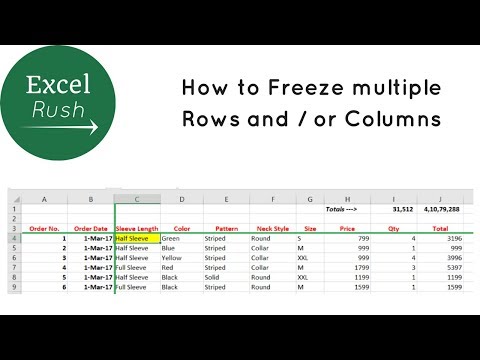
How to Freeze Multiple Rows and or Columns in Excel using Freeze Panes
ChannelExcel Rush .comIn brief
Master how to keep specific rows and columns visible while scrolling in Excel, even when freezing multiple rows or columns at once. This is useful for tracking data in large spreadsheets where headers or key reference points need to stay in view.
Questions & answers
Can I freeze more than one row or column at the same time?
Yes, the method works for freezing multiple rows and columns together.
Description from the creator
Freeze panes in Excel means to freeze certain rows and columns that you want to see always even while scrolling up and down, left and right.
Freezing 1st row or 1st column is easy and straightforward, but freezing multiple rows and columns together requires an additional step. Here you will understand how to freeze more than 1 rows and columns together.
SUBSCRIBE NOW!
youtube.com/channel/UC8S-Az-vTSItYE-XR9Fb1Zg?su…
Click this link to learn more awesome functions in Excel
youtube.com/playlist?list=PLsHesq9dVLnIs6bmsI1F…
Click this link to learn how to manage your personal finance using Excel
youtube.com/playlist?list=PLsHesq9dVLnKFoNtLSrL…
Freezing 1st row or 1st column is easy and straightforward, but freezing multiple rows and columns together requires an additional step. Here you will understand how to freeze more than 1 rows and columns together.
SUBSCRIBE NOW!
youtube.com/channel/UC8S-Az-vTSItYE-XR9Fb1Zg?su…
Click this link to learn more awesome functions in Excel
youtube.com/playlist?list=PLsHesq9dVLnIs6bmsI1F…
Click this link to learn how to manage your personal finance using Excel
youtube.com/playlist?list=PLsHesq9dVLnKFoNtLSrL…
About this tutorial
Excel Rush .com published this 2:01 video tutorial on November 9, 2018. It has been watched 2,622,114 times on YouTube.
- Channel
- Excel Rush .com
- Category
- Education
- Duration
- 2:01
- Published
- November 9, 2018
- Views
- 2,622,114
- Likes
- 25,770
Tags
Share
This tutorial in other languages
- FRComment congeler plusieurs lignes et colonnes ou dans Excel à l'aide gel Feuillets
- ESCómo congelar varias filas y columnas en Excel o usando Inmovilizar paneles
- PTComo congelar várias linhas e ou colunas no Excel usando Congelar painéis
- ITCome bloccare righe e o più colonne in Excel utilizzando Blocca riquadri
- DEWie man mehrere Zeilen Frieren und oder Spalten in Excel mit Fenster fixieren
- NLHoe kan ik meerdere rijen en of kolommen Freeze in Excel met behulp van Freeze Panes
- RUКак заморозить несколько строк и столбцов или в Excel с помощью акрепляйте
- PLJak zamrażać i wiele wierszy lub kolumn w programie Excel przy użyciu Zablokuj okienka
- JAウィンドウ枠の固定を使用してExcelで複数の行や列またはを凍結する方法
- ARكيفية تجميد صفوف متعددة وأو أعمدة في Excel باستخدام تجميد الألواح
- HIफलक फ़्रीज़ का उपयोग कर Excel में एकाधिक पंक्तियों और या स्तंभों को स्थिर करने के लिए कैसे
- IDCara Freeze Beberapa Baris dan atau Kolom di Excel menggunakan Freeze Panes