Playback starts YouTube’s embedded player (privacy-enhanced mode).
How to Insert an Event to Calendar Using Android Intent
ChannelCoding DemosDescription from the creator
Hi and welcome to another tutorial from CodingDemos :)
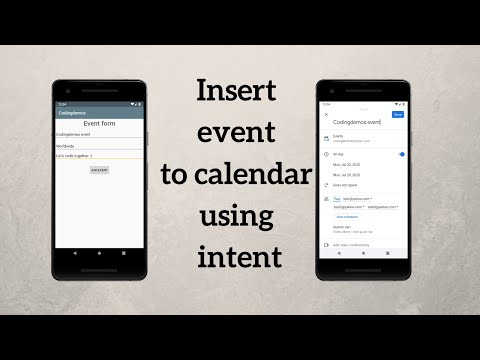
In this tutorial, you will learn how to add an event to the calendar programmatically using Android Intent.
Here are the steps:
1- Open up Android Studio.
2- Add some checking Inside the addEvent button's onClickListener to ensure that the title, location, and description edittexts are not empty. Otherwise, show an error Toast message.
if (!title.getText().toString().isEmpty() && !location.getText().toString().isEmpty() && !description
.getText().toString().isEmpty()) {
}else{
Toast.makeText(MainActivity.this, "Please fill all the fields",
Toast.LENGTH_SHORT).show();
}
3- Initialize the Android calendar Intent.
Intent intent = new Intent(Intent.ACTION_INSERT);
4- Set the Intent Datatype.
intent.setData(CalendarContract.Events.CONTENT_URI);
5- Pass the title, location, and description values inside the intent using PutExtra.
intent.putExtra(CalendarContract.Events.TITLE, title.getText().toString());
intent.putExtra(CalendarContract.Events.EVENT_LOCATION, location.getText().toString());
intent.putExtra(CalendarContract.Events.DESCRIPTION, description.getText().toString());
6- Set the event type so that it will be able available all day without start and end time.
intent.putExtra(CalendarContract.Events.ALL_DAY, true);
7- Include some emails of guests that you want them to be part of this event.
intent.putExtra(Intent.EXTRA_EMAIL, "[email protected], [email protected], [email protected]");
8- Before you can call startActivity(), you need to do some checking to ensure that there is an application that can handle this type of action. Otherwise, show an error Toast Message.
if(intent.resolveActivity(getPackageManager()) != null){
startActivity(intent);
}else{
Toast.makeText(MainActivity.this, "There is no app that support this action", Toast.LENGTH_SHORT).show();
}
9- Now build and run the app to see the result :)
Links:
Android Calendar Intent: developer.android.com/guide/components/intents-…
Website: codingdemos.com
FaceBook: facebook.com/Codingdemos
Introduction 00:00
Final output 00:15
Android Studio project introduction 01:49
Setup the Calendar event 03:54
Conclusion 18:15
In this tutorial, you will learn how to add an event to the calendar programmatically using Android Intent.
Here are the steps:
1- Open up Android Studio.
2- Add some checking Inside the addEvent button's onClickListener to ensure that the title, location, and description edittexts are not empty. Otherwise, show an error Toast message.
if (!title.getText().toString().isEmpty() && !location.getText().toString().isEmpty() && !description
.getText().toString().isEmpty()) {
}else{
Toast.makeText(MainActivity.this, "Please fill all the fields",
Toast.LENGTH_SHORT).show();
}
3- Initialize the Android calendar Intent.
Intent intent = new Intent(Intent.ACTION_INSERT);
4- Set the Intent Datatype.
intent.setData(CalendarContract.Events.CONTENT_URI);
5- Pass the title, location, and description values inside the intent using PutExtra.
intent.putExtra(CalendarContract.Events.TITLE, title.getText().toString());
intent.putExtra(CalendarContract.Events.EVENT_LOCATION, location.getText().toString());
intent.putExtra(CalendarContract.Events.DESCRIPTION, description.getText().toString());
6- Set the event type so that it will be able available all day without start and end time.
intent.putExtra(CalendarContract.Events.ALL_DAY, true);
7- Include some emails of guests that you want them to be part of this event.
intent.putExtra(Intent.EXTRA_EMAIL, "[email protected], [email protected], [email protected]");
8- Before you can call startActivity(), you need to do some checking to ensure that there is an application that can handle this type of action. Otherwise, show an error Toast Message.
if(intent.resolveActivity(getPackageManager()) != null){
startActivity(intent);
}else{
Toast.makeText(MainActivity.this, "There is no app that support this action", Toast.LENGTH_SHORT).show();
}
9- Now build and run the app to see the result :)
Links:
Android Calendar Intent: developer.android.com/guide/components/intents-…
Website: codingdemos.com
FaceBook: facebook.com/Codingdemos
Introduction 00:00
Final output 00:15
Android Studio project introduction 01:49
Setup the Calendar event 03:54
Conclusion 18:15
About this tutorial
Coding Demos published this 18:28 video tutorial on August 2, 2020. It has been watched 39,639 times on YouTube.
- Channel
- Coding Demos
- Category
- Education
- Duration
- 18:28
- Published
- August 2, 2020
- Views
- 39,639
- Likes
- 376
Tags
Share
This tutorial in other languages
- FRComment insérer un événement au calendrier Utiliser Android Intent
- ESCómo insertar un evento al calendario mediante Android Intención
- PTComo inserir um evento ao calendário Usando Android Intent
- ITCome inserire un evento al calendario utilizzando Android Intent
- DEWie ein Ereignis zum Einfügen in dem Kalender Mit Android Intent
- NLHoe kan ik een event in te voegen naar Agenda Met behulp van Android Intent
- RUКак вставить событие в календарь, используя Android Intent
- PLJak wstawić wydarzenie do kalendarza Korzystanie Android Intent
- JAAndroidのインテントを使用してカレンダーにイベントを挿入する方法
- ARكيفية إدراج حدث إلى التقويم عن طريق الروبوت النوايا
- HIएंड्रॉयड आशय का उपयोग कैलेंडर में कोई ईवेंट डालें कैसे
- IDCara Memasukkan Acara Kalender Menggunakan Android Intent