Playback starts YouTube’s embedded player (privacy-enhanced mode).
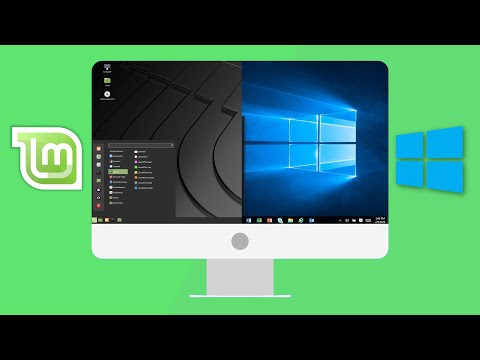
How To Install Linux Mint Alongside Windows | Get The Best of Both Worlds: Dual Boot!
ChannelLinux TVDescription from the creator
Works for Linux Mint 19.x and 20 editions! Learn the 5 easy steps to download & install Linux Mint on your PC while keeping Windows at the same time!
DOWNLOAD LINKS:
Deluge (torrent download client) - deluge-torrent.org
Linux Mint 18.2 ISO Image - linuxmint.com/edition.php?id=237
Rufus (Live USB Creator tool) - rufus.akeo.ie
MORE INFORMATION ON TORRENTS
Using a torrent or bittorrent client means that you will be downloading the Mint ISO file from other users around the world who are also using a torrent client: it's called a p2p, or peer-to-peer, connection. Once the download is complete, the torrent program will begin "seeding" the Mint ISO. In other words, it will make the Mint ISO file available to other torrent users, and can possibly use your Internet bandwidth to upload the Mind ISO file for other users.
To stop sharing the Mint ISO file after the download is complete, either uninstall Deluge, or (1) Go into the Deluge program, (2) Right-click on the Mint ISO file name in the main Deluge window, (3) Left-click "Remove torrent", (4) Once the new window opens up, left-click "Remove torrent" again. Deluge will no longer take up your Internet bandwidth to share the ISO file. Good to go! :)
DOWNLOAD LINKS:
Deluge (torrent download client) - deluge-torrent.org
Linux Mint 18.2 ISO Image - linuxmint.com/edition.php?id=237
Rufus (Live USB Creator tool) - rufus.akeo.ie
MORE INFORMATION ON TORRENTS
Using a torrent or bittorrent client means that you will be downloading the Mint ISO file from other users around the world who are also using a torrent client: it's called a p2p, or peer-to-peer, connection. Once the download is complete, the torrent program will begin "seeding" the Mint ISO. In other words, it will make the Mint ISO file available to other torrent users, and can possibly use your Internet bandwidth to upload the Mind ISO file for other users.
To stop sharing the Mint ISO file after the download is complete, either uninstall Deluge, or (1) Go into the Deluge program, (2) Right-click on the Mint ISO file name in the main Deluge window, (3) Left-click "Remove torrent", (4) Once the new window opens up, left-click "Remove torrent" again. Deluge will no longer take up your Internet bandwidth to share the ISO file. Good to go! :)
About this tutorial
Linux TV published this 24:23 video tutorial on October 28, 2017. It has been watched 294,326 times on YouTube.
Share
This tutorial in other languages
- FRComment faire pour installer Linux Mint Aux côtés de Windows | Obtenez le meilleur des deux mondes: Dual Boot!
- ESCómo instalar Linux Mint junto con Windows | Obtener el mejor de ambos mundos: Dual Boot!
- PTComo instalar o Linux Mint junto com o Windows | Obter o melhor dos dois mundos: Dual Boot!
- ITCome installare Linux Mint insieme a Windows | Ottenere il meglio dei due mondi: dual boot!
- DEWie Installieren von Linux Mint Neben Fenster | Holen Sie sich das Beste aus beiden Welten: Dual-Boot!
- NLHoe installeren van Linux Mint Naast Windows | Get The Best of Both Worlds: Dual Boot!
- RUКак установить Linux Mint Наряду с ОС Windows | Получить лучшее из обоих миров: двойной загрузки!
- PLJak zainstalować Linux Mint Obok systemu Windows | Get The Best of Both Worlds: podwójny rozruch!
- JAWindowsの並んLinuxのミントをインストールする方法|両方の長所を取得します:デュアルブート!
- ARكيفية تثبيت لينكس منت جنبا إلى جنب مع ويندوز | الحصول على أفضل ما في العالمين: التمهيد المزدوج!
- HIविंडोज के साथ-साथ लिनक्स टकसाल स्थापित करने के लिए कैसे | बोथ वर्ल्ड के सर्वश्रेष्ठ प्राप्त करें: दोहरी बूट!
- IDCara Install Linux Mint bersama Windows | Dapatkan The Best of Both Worlds: Dual Boot!