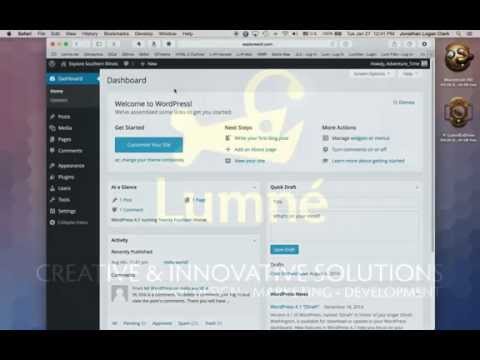
Playback starts YouTube’s embedded player (privacy-enhanced mode).
How to login to a WordPress Administration Panel
ChannelLumnéDescription from the creator
1. Open your web browser, type in your website’s URL(web address), and then add either “/wp-admin/” or “/wp-login.php” to the end of your URL. It should look like one of the following examples:
• “examplewebsite.com/wp-admin/”
• “examplewebsite.com/wp-login.php”
Hit the “Enter” or “Return” key on your keyboard to go to the web address. This should bring you to the login page for your website’s WordPress content management system.
2. Enter your user name and password into the log in page.
3. Click the “Log In” button.
• “examplewebsite.com/wp-admin/”
• “examplewebsite.com/wp-login.php”
Hit the “Enter” or “Return” key on your keyboard to go to the web address. This should bring you to the login page for your website’s WordPress content management system.
2. Enter your user name and password into the log in page.
3. Click the “Log In” button.
About this tutorial
Lumné published this 2:30 video tutorial on October 31, 2015. It has been watched 19,664 times on YouTube.
Tags
Share
This tutorial in other languages
- FRComment se connecter à un panneau d'administration WordPress
- ESCómo acceder a un panel de administración de WordPress
- PTComo para acessar um painel de administração WordPress
- ITCome accedere a un pannello di amministrazione di WordPress
- DEWie man einen Wordpress Administrationsbereich anmelden
- NLHoe in te loggen op een WordPress Administration Panel
- RUКак войти в WordPress Административная панель
- PLJak się zalogować do panelu administracyjnego WordPressa
- JAWordPressの管理パネルにログインする方法
- ARكيف للدخول إلى لوحة إدارة وورد
- HIकैसे एक WordPress प्रशासन पैनल के लिए लॉग इन करने के लिए
- IDCara login ke Administration Panel WordPress