Playback starts YouTube’s embedded player (privacy-enhanced mode).
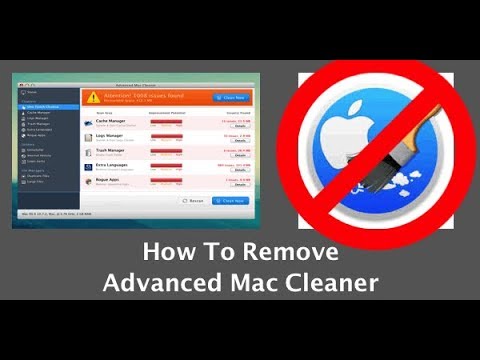
How To Remove Advanced Mac Cleaner in less than 1 minute
ChannelJerrod EwingDescription from the creator
If Advanced Mac Cleaner is on your Mac and you want it gone fast, this quick tutorial walks you through the simple steps to remove it manually.
In this video, I show you how to close Advanced Mac Cleaner, search for it in Finder, move it to the Trash, empty the Trash, and verify that it is no longer showing in Launchpad.
In this video, we cover:
✅ Close Advanced Mac Cleaner
✅ Open Finder
✅ Search for “Mac Cleaner”
✅ Click “This Mac”
✅ Right-click the Advanced Mac Cleaner icon
✅ Move it to Trash
✅ Empty the Trash
✅ Check Launchpad to confirm it is gone
If this video helped you, please like the video and subscribe to the channel. It really helps me out.
Remove Advanced Mac Cleaner fast and keep your Mac cleaned up.
#MacCleaner #AdvancedMacCleaner #MacTutorial #MacHelp #RemoveMacCleaner #MacCleanup #AppleMac #ComputerTips #TechHelp #MacOS
In this video, I show you how to close Advanced Mac Cleaner, search for it in Finder, move it to the Trash, empty the Trash, and verify that it is no longer showing in Launchpad.
In this video, we cover:
✅ Close Advanced Mac Cleaner
✅ Open Finder
✅ Search for “Mac Cleaner”
✅ Click “This Mac”
✅ Right-click the Advanced Mac Cleaner icon
✅ Move it to Trash
✅ Empty the Trash
✅ Check Launchpad to confirm it is gone
If this video helped you, please like the video and subscribe to the channel. It really helps me out.
Remove Advanced Mac Cleaner fast and keep your Mac cleaned up.
#MacCleaner #AdvancedMacCleaner #MacTutorial #MacHelp #RemoveMacCleaner #MacCleanup #AppleMac #ComputerTips #TechHelp #MacOS
About this tutorial
Jerrod Ewing published this 0:56 video tutorial on October 26, 2017. It has been watched 212,748 times on YouTube.
- Channel
- Jerrod Ewing
- Category
- Education
- Duration
- 0:56
- Published
- October 26, 2017
- Views
- 212,748
- Likes
- 1,711
Tags
Share
This tutorial in other languages
- FRComment faire pour supprimer Mac Cleaner avancée en moins de 1 minute
- ESCómo quitar el limpiador avanzado Mac en menos de 1 minuto
- PTComo remover Avançada Mac Cleaner em menos de 1 minuto
- ITCome rimuovere avanzata Mac Cleaner in meno di 1 minuto
- DEHow To Erweitern Mac-Reiniger in weniger als 1 Minute entfernen
- NLHoe te verwijderen Geavanceerde Mac Cleaner in minder dan 1 minuut
- RUКак удалить Advanced Mac Чистильщик менее чем за 1 минуту
- PLJak usunąć Zaawansowane Mac Cleaner w czasie krótszym niż 1 minuta
- JA1分未満で高度マッククリーナーを削除する方法
- ARكيفية إزالة المتقدم ماك الأنظف في أقل من 1 دقيقة
- HIकम से कम 1 मिनट में निकालने के लिए कैसे उन्नत मैक क्लीनर
- IDCara Hapus Lanjutan Mac Cleaner dalam waktu kurang dari 1 menit