Playback starts YouTube’s embedded player (privacy-enhanced mode).
How to Sign Up for AutoPay
ChannelPortland Water BureauDescription from the creator
We know your time is valuable. There’s only so many minutes in the day to do what you want to do…and paying utility bills probably doesn’t make it to the top of your list.
With AutoPay, you can have your sewer, stormwater, and water bill automatically deducted from your checking account, debit card, or credit card. Signing up just takes 5 minutes.
If you’d rather spend your summer doing literally anything else than remembering to pay your sewer, stormwater, and water bill, then get started with AutoPay today and stop wasting your precious time.
Start saving time by signing up for AutoPay at portlandoregon.gov/utilitybill.
If you already have an online account, skip to step #6 at 1:55 in this video.
====================
Hi, name is Alex and I work in the Customer Service department at the Water Bureau. In this video, I'll show you how to register on our Customer Self-Service site to setup AutoPay on your sewer, stormwater, and water bill.
1. Go to the URL www.portlandoregon.gov/utilitybill to visit the Portland Water Bureau Customer Service page.
2. Click on "Pay Your Bill" button to log in.
3. If you already registered, enter your email address and password in the log in screen.
4. If you have not registered, click the "Account Registration" link. Enter your account number [your account number can be found at the upper right hand of your bill], last name [or business name exactly as it appears on your bill], and service location ZIP code as it appears on your bill then click "Continue". Note: You will need to receive your first bill in the mail to be able to register your account online.
5. Once account verification is complete, enter and confirm your password and email address to complete registration.
6. The Account Details screen displays the payment and billing options available online. To sign up for AutoPay, select the payment options menu and click "Auto Pay".
7. In the Payment Methods screen, choose either "Add New Credit Card" for credit and debit cards or "Add New Bank" for checking and savings accounts.
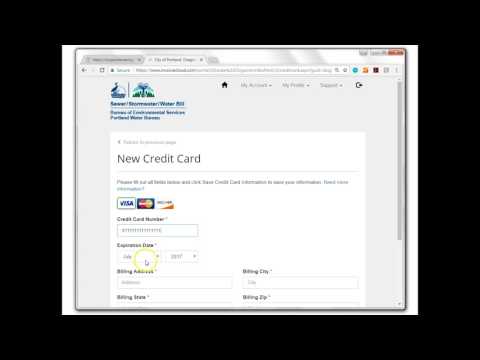
8. [For "Add New Credit Card",] Enter the required information in the fields. Don't forget to click the "Default" box and then click "Save Payment Method".
9. Once the payment method is saved, click the link for AutoPay signup.
10. Select "New AutoPay Setup" in the AutoPay screen.
11. In the New AutoPay Setup screen, select "Yes, put me on AutoPay" and click "Save". AutoPay is pending while confirmation email is sent to the email address registered when first logging in.
12. Go to your email inbox and click on the AutoPay registration email delivered by the City of Portland, Oregon. When you click on the "Complete Registration" link, you have finished the AutoPay signup process. Your next bill will be automatically paid on its due date. Please note that you will also receive a courtesy email for the option to signup for paperless billing.
If you have any questions about your bill or signing up for AutoPay, you can get in touch with us at 503-823-7770. You can also email us at [email protected]. We're here to answer your questions from 8 a.m. to 5 p.m., Monday through Friday.
To learn more about other bill pay options, such as paperless billing or pay-by-text, visit www.portlandoregon.gov/utilitybill.
With AutoPay, you can have your sewer, stormwater, and water bill automatically deducted from your checking account, debit card, or credit card. Signing up just takes 5 minutes.
If you’d rather spend your summer doing literally anything else than remembering to pay your sewer, stormwater, and water bill, then get started with AutoPay today and stop wasting your precious time.
Start saving time by signing up for AutoPay at portlandoregon.gov/utilitybill.
If you already have an online account, skip to step #6 at 1:55 in this video.
====================
Hi, name is Alex and I work in the Customer Service department at the Water Bureau. In this video, I'll show you how to register on our Customer Self-Service site to setup AutoPay on your sewer, stormwater, and water bill.
1. Go to the URL www.portlandoregon.gov/utilitybill to visit the Portland Water Bureau Customer Service page.
2. Click on "Pay Your Bill" button to log in.
3. If you already registered, enter your email address and password in the log in screen.
4. If you have not registered, click the "Account Registration" link. Enter your account number [your account number can be found at the upper right hand of your bill], last name [or business name exactly as it appears on your bill], and service location ZIP code as it appears on your bill then click "Continue". Note: You will need to receive your first bill in the mail to be able to register your account online.
5. Once account verification is complete, enter and confirm your password and email address to complete registration.
6. The Account Details screen displays the payment and billing options available online. To sign up for AutoPay, select the payment options menu and click "Auto Pay".
7. In the Payment Methods screen, choose either "Add New Credit Card" for credit and debit cards or "Add New Bank" for checking and savings accounts.
8. [For "Add New Credit Card",] Enter the required information in the fields. Don't forget to click the "Default" box and then click "Save Payment Method".
9. Once the payment method is saved, click the link for AutoPay signup.
10. Select "New AutoPay Setup" in the AutoPay screen.
11. In the New AutoPay Setup screen, select "Yes, put me on AutoPay" and click "Save". AutoPay is pending while confirmation email is sent to the email address registered when first logging in.
12. Go to your email inbox and click on the AutoPay registration email delivered by the City of Portland, Oregon. When you click on the "Complete Registration" link, you have finished the AutoPay signup process. Your next bill will be automatically paid on its due date. Please note that you will also receive a courtesy email for the option to signup for paperless billing.
If you have any questions about your bill or signing up for AutoPay, you can get in touch with us at 503-823-7770. You can also email us at [email protected]. We're here to answer your questions from 8 a.m. to 5 p.m., Monday through Friday.
To learn more about other bill pay options, such as paperless billing or pay-by-text, visit www.portlandoregon.gov/utilitybill.
About this tutorial
Portland Water Bureau published this 4:46 video tutorial on November 15, 2017. It has been watched 3,118 times on YouTube.
- Channel
- Portland Water Bureau
- Category
- Education
- Duration
- 4:46
- Published
- November 15, 2017
- Views
- 3,118
Share
This tutorial in other languages
- FRComment Inscrivez-vous pour AutoPaiement
- ESCómo inscribirse para el pago automático
- PTComo se inscrever para AutoPay
- ITCome a firmare per AutoPay
- DEWie melde ich mich für AutoPay
- NLHoe maak je je op voor AutoPay
- RUКак зарегистрироваться для Autopay
- PLJak zapisać się do Płatność automatyczna
- JAAutoPayのためにサインアップする方法
- ARكيفية التسجيل للحصول على الدفع التلقائي
- HIकैसे स्वचालित भुगतान के लिए साइन अप करने के लिए
- IDCara Mendaftar untuk autopay