Playback starts YouTube’s embedded player (privacy-enhanced mode).
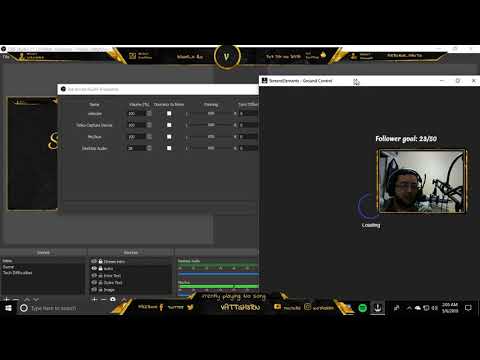
How to Hear Desktop Audio and Game Audio in OBS for Streaming/Recording
ChannelVatt'gh3rnDescription from the creator
1st Connect your headset to your computer.
2nd Set it Up Desktop Audio and Video Capture Device Audio
3rd Once your game audio and desktop audio are recording put them on the same track
4 from there go into properties then have BOTH your game audio and desktop audio set to MONITOR AND OUTPUT this will let you hear the game sounds but also be able to hear your alerts while streaming
About this tutorial
Vatt'gh3rn published this 5:07 video tutorial on October 26, 2018. It has been watched 289,070 times on YouTube.
- Channel
- Vatt'gh3rn
- Category
- Gaming
- Duration
- 5:07
- Published
- October 26, 2018
- Views
- 289,070
- Likes
- 1,850
Tags
Share
Further reading
-
OBS Link – Listening to Game Audio in OBS Studio – Elgato
help.elgato.com
Monitor and Output - This mode will output the sound of the source to the stream and Desktop audio separately. This allows for individual audio control, such as listening to game audio while the sound is muted for the s…
-
How to set up your audio interface in OBS (Open Broadcaster ...
support.focusrite.com
Use the Desktop Audio setting in OBS. Similar to the above, navigate to Audio Mixer > Desktop Audio > Click the Settings button (small gear cog symbol) > Properties. Select your audio interface as the Device. Any audio…
-
Desktop Audio Not Being Captured – Streamlabs
support.streamlabs.com
If you are unable to capture your desktop audio, try the solutions below: Make sure the audio source is not muted in the mixer on Streamlabs OBS. Some audio management software, like Nahimic 2, Sonic studio sound, or mo…
This tutorial in other languages
- FRComment Entendre Bureau audio et audio en jeu OBS pour la diffusion / Enregistrement
- ESCómo Hear escritorio de audio y audio del juego en la OBS de Transmisión / grabación
- PTComo ouvir desktop Áudio e Game Audio in OBS para Transmissão / Gravação
- ITCome Ascoltate audio per desktop e Game Audio in OBS per Streaming / Registrazione
- DEWie Desktop Audio und Game Audio in OBS für Streaming / Aufnahme hören
- NLHoe kan ik Desktop Audio en Game Audio horen in OBS voor Streaming / Recording
- RUКак услышать Desktop Audio и Game Audio в OBS для потоковой передачи / записи
- PLJak usłyszeć pulpitu audio i audio gry w OBS na żywo / nagrywanie
- JAストリーミング/レコーディングのためのOBSでデスクトップオーディオとゲームの音声を聞くためにどのように
- ARكيفية سماع الصوت سطح المكتب ولعبة الصوت في OBS عن الجري / تسجيل
- HIडेस्कटॉप ऑडियो और खेल ऑडियो सुनने के लिए स्ट्रीमिंग / रिकॉर्डिंग के लिए OBS में
- IDCara Mendengar Desktop Audio dan Game Audio di OBS untuk Streaming / Recording