Playback starts YouTube’s embedded player (privacy-enhanced mode).
HOW TO INSTALL PLUGINS ON YOUR CUSTOM FIRMWARE PSP *ALL PSPs ALL CFW*
ChannelUBeeNStryKeDDescription from the creator
Just a quick tutorial outlining how to install plugins on your custom firmware PSP. In the video I install extended OSK, which allows you to copy and paste text in your PSP browser. To download it, click below:
psp.dashhacks.com/file/2128
Here are the text-only steps for installing plugins:
1.) Choose a PRX plugin to install.
2.) Connect your PSP to your computer, and open the SEPLUGINS folder (if you do not have one, create it now)
3.) Copy the PRX file to the SEPLUGINS folder.
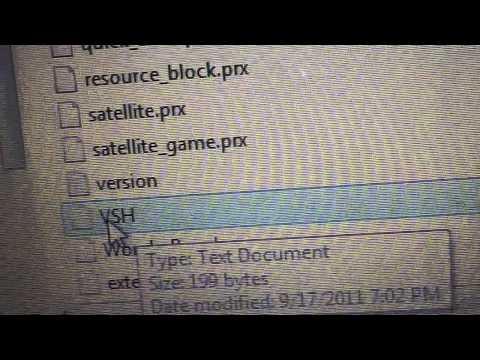
4.) If the Plugin is an XMB plugin, open VSH.txt (if you don't have one, create it now)
4a.) If the Plugin is a GAME plugin, open GAME.txt (if you don't have one, create it now)
4b.) If the Plugin is a POPS plugin, open POPS.txt (if you don't have one, create it now)
5.) Add a line to the text file for the plugin you are installing, similar to this one, replacing PLUGINNAME with the name of the plugin:
ms0:/seplugins/PLUGINNAME.prx 1
6.) Save and close the text file
7.) Disconnect your PSP, and RESET VSH so the plugin takes effect.
8.) Enjoy your installed plugin :)
NOTES FOR PSP GO USERS:
Instead of putting the plugins on your memory stick, install them to the system storage. When installing to system storage, replace the ms0 inside VSH GAME and POPS with ef0. ef0 means internal storage, ms0 means memory stick.
**NOTE: Some plugins, such as Audioboost, can be used in Game, VSH, and POPS, if this is the case, add the same line to each text file you want the PRX to be active in. If you want the PRX active in game and in vsh, add the line to both**
If you have any questions, leave it in the comments, but please don't ask anything covered in the video or the description. Make sure you use the proper plugins for your firmware, as they are different (for example, CXMB will only work on 6.60 if it is the 6.60 version)
PSP Hacks, Homebrew, Firmware Updates, Graphics, and more:
sneaky-codes.tk
Movie Downloads, ISO Downloads, TV Shows, Music and more:
sneaky-media.com
SUBSCRIBE - RATE - COMMENT - REACT
Video By: SwoRNLeaDejZ
Extended OSK by: Total_Noob
psp.dashhacks.com/file/2128
Here are the text-only steps for installing plugins:
1.) Choose a PRX plugin to install.
2.) Connect your PSP to your computer, and open the SEPLUGINS folder (if you do not have one, create it now)
3.) Copy the PRX file to the SEPLUGINS folder.
4.) If the Plugin is an XMB plugin, open VSH.txt (if you don't have one, create it now)
4a.) If the Plugin is a GAME plugin, open GAME.txt (if you don't have one, create it now)
4b.) If the Plugin is a POPS plugin, open POPS.txt (if you don't have one, create it now)
5.) Add a line to the text file for the plugin you are installing, similar to this one, replacing PLUGINNAME with the name of the plugin:
ms0:/seplugins/PLUGINNAME.prx 1
6.) Save and close the text file
7.) Disconnect your PSP, and RESET VSH so the plugin takes effect.
8.) Enjoy your installed plugin :)
NOTES FOR PSP GO USERS:
Instead of putting the plugins on your memory stick, install them to the system storage. When installing to system storage, replace the ms0 inside VSH GAME and POPS with ef0. ef0 means internal storage, ms0 means memory stick.
**NOTE: Some plugins, such as Audioboost, can be used in Game, VSH, and POPS, if this is the case, add the same line to each text file you want the PRX to be active in. If you want the PRX active in game and in vsh, add the line to both**
If you have any questions, leave it in the comments, but please don't ask anything covered in the video or the description. Make sure you use the proper plugins for your firmware, as they are different (for example, CXMB will only work on 6.60 if it is the 6.60 version)
PSP Hacks, Homebrew, Firmware Updates, Graphics, and more:
sneaky-codes.tk
Movie Downloads, ISO Downloads, TV Shows, Music and more:
sneaky-media.com
SUBSCRIBE - RATE - COMMENT - REACT
Video By: SwoRNLeaDejZ
Extended OSK by: Total_Noob
About this tutorial
UBeeNStryKeD published this 7:59 video tutorial on November 11, 2011. It has been watched 53,612 times on YouTube.
- Channel
- UBeeNStryKeD
- Category
- Gaming
- Duration
- 7:59
- Published
- November 11, 2011
- Views
- 53,612
- Likes
- 332
Tags
Share
This tutorial in other languages
- FRCOMMENT INSTALLER EXTENSIONS SUR VOTRE FIRMWARE PSP * SUR MESURE TOUS TOUS CFW * PSP
- ESCOMO INSTALAR SU plugins en Custom Firmware de PSP * ALL ALL PSP CFW *
- PTCOMO instalar plugins EM SEU CUSTOM FIRMWARE PSP * ALL PSPs ALL CFW *
- ITCOME installare plugin SUL TUO Custom Firmware PSP * ALL ALL PSP CFW *
- DESo installieren Sie PLUGINS AUF Custom Firmware PSP * ALL PSPs ALL CFW *
- NLINSTALLEREN PLUGINS OP UW custom firmware PSP * ALLE PSP ALL CFW *
- RUКАК УСТАНОВИТЬ Plugins НА ВАШ ИНДИВИДУАЛЬНЫЙ FIRMWARE PSP * ALL PsPs ALL CFW *
- PLJAK TO INSTALL wtyczek NA TWÓJ custom firmware PSP PSP * ALL * ALL CFW
- JAカスタムファームウェアPSP * ALLのPSP ALL CFW ONプラグインをインストールする方法*
- ARHOW TO INSTALL الإضافات على عهدك FIRMWARE PSP * ALL بسبس ALL CFW *
- HIपर अपने कस्टम firmware PSP * सभी पीएसपी सभी CFW प्लग-इन इंस्टॉल कैसे *
- IDCARA INSTALL PLUGINS ON YOUR CUSTOM FIRMWARE PSP * SEMUA PSP ALL CFW *