Playback starts YouTube’s embedded player (privacy-enhanced mode).
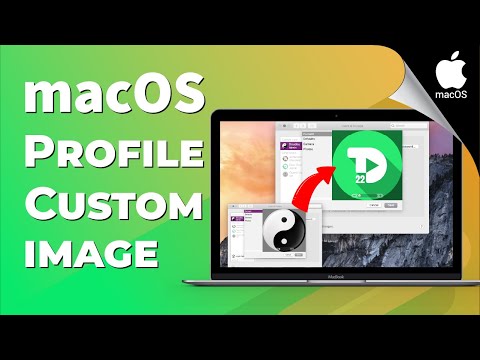
How to Change Your User Profile Picture on a macOS Device simply with dragging and dropping an image
ChannelAskdoudouDescription from the creator
#UserGuide #UserAccount #AskDoudou #macOS
The profile picture on your Mac is also known as your user picture. It displays when you first log in to your Mac account, and when you use applications such as Messages and Address Book. Although your profile picture is typically chosen when you initially set up your Mac computer, you can change your profile picture at any time through your System Preferences menu. In this tutorial, I'll show you a quick and simple steps on how to update and add any image you want to your macOS user's profile. (It should only take a minute or so to do this)
1- Click the Apple icon in the top-left corner of the screen and select "System Preferences.", then select Users & Groups.
2- If asked you can Click the lock icon located in the bottom-left corner of the window. to unlock it by entering an administrator name and password. You can change your own picture without unlocking Users & Groups preferences.
3- Select the user account on the left, then click the picture on the right.
4- Instead of clicking the picture, you can select your image and simply by dragging and dropping it from the Finder onto the picture.
5- Adjust the picture: Zoom in or out: Drag the slider left or right. Move the picture: Drag the picture around within the circle.
#macOS #UserGuide #Catalina #Mojave #HighSierra #Mac #Macbook #MacbookPro #ElCaptain
-------------------------------------------
🎵 MUSIC I USE A LOT:
Check this playlist, it contains most of music I use in my videos: bit.ly/2UA78Gi
Check this channel for Free No copyright music for vLog: bit.ly/3fdsb9I
-------------------------------------------
🎧 Background Sound & Music:
Nightfall by Roa soundcloud.com/roa_music1031 Creative Commons — Attribution 3.0 Unported — CC BY 3.0 Free Download / Stream: bit.ly/al-nightfall Music promoted by Audio Library youtu.be/WAD2veumgYc
-------------------------------------------
📸 Background images on my Mac: unsplash.com/collections/11391397/macbook-pro-b…
-------------------------------------------
🎥 Video editing Program: Ae-Pr-Au-Ps-Ai
The profile picture on your Mac is also known as your user picture. It displays when you first log in to your Mac account, and when you use applications such as Messages and Address Book. Although your profile picture is typically chosen when you initially set up your Mac computer, you can change your profile picture at any time through your System Preferences menu. In this tutorial, I'll show you a quick and simple steps on how to update and add any image you want to your macOS user's profile. (It should only take a minute or so to do this)
1- Click the Apple icon in the top-left corner of the screen and select "System Preferences.", then select Users & Groups.
2- If asked you can Click the lock icon located in the bottom-left corner of the window. to unlock it by entering an administrator name and password. You can change your own picture without unlocking Users & Groups preferences.
3- Select the user account on the left, then click the picture on the right.
4- Instead of clicking the picture, you can select your image and simply by dragging and dropping it from the Finder onto the picture.
5- Adjust the picture: Zoom in or out: Drag the slider left or right. Move the picture: Drag the picture around within the circle.
#macOS #UserGuide #Catalina #Mojave #HighSierra #Mac #Macbook #MacbookPro #ElCaptain
-------------------------------------------
🎵 MUSIC I USE A LOT:
Check this playlist, it contains most of music I use in my videos: bit.ly/2UA78Gi
Check this channel for Free No copyright music for vLog: bit.ly/3fdsb9I
-------------------------------------------
🎧 Background Sound & Music:
Nightfall by Roa soundcloud.com/roa_music1031 Creative Commons — Attribution 3.0 Unported — CC BY 3.0 Free Download / Stream: bit.ly/al-nightfall Music promoted by Audio Library youtu.be/WAD2veumgYc
-------------------------------------------
📸 Background images on my Mac: unsplash.com/collections/11391397/macbook-pro-b…
-------------------------------------------
🎥 Video editing Program: Ae-Pr-Au-Ps-Ai
About this tutorial
Askdoudou published this 2:39 video tutorial on August 10, 2020. It has been watched 1,061 times on YouTube.
- Channel
- Askdoudou
- Category
- Howto & Style
- Duration
- 2:39
- Published
- August 10, 2020
- Views
- 1,061
- Likes
- 12
Tags
Share
This tutorial in other languages
- FRComment faire pour modifier votre profil d'utilisateur sur un appareil photo de macOS simplement avec glisser-déposer une image
- ESCómo cambiar su perfil de usuario en un dispositivo Imagen macOS simplemente con arrastrar y soltar una imagen
- PTComo mudar seu perfil de usuário Imagem em um dispositivo MacOS simplesmente arrastar e soltar uma imagem
- ITCome modificare il proprio profilo utente Picture su un dispositivo MacOS semplicemente con trascinando un'immagine
- DEWie Sie Ihr Benutzerprofil Bild auf einem macOS Gerät einfach mit Drag & Drop ein Bild ändern
- NLHet wijzigen van uw gebruikersprofiel Foto op een MacOS-apparaat simpelweg met slepen en neerzetten van een beeld
- RUКак изменить профиль пользователя Изображение на устройстве MacOS просто с перетаскиванием изображения
- PLJak zmienić swój profil użytkownika Obraz na urządzeniu z MacOS po prostu przeciągając i upuszczając obraz
- JA単純に画像をドラッグ&ドロップするとMacOSのデバイス上のユーザプロファイルの画像を変更する方法
- ARكيفية تغيير صورة الملف الشخصي المستخدم الخاص بك على جهاز ماك ببساطة مع سحب وإسقاط صورة
- HIकैसे बस खींचने और एक छवि छोड़ने के साथ एक MacOS डिवाइस पर अपने उपयोगकर्ता प्रोफ़ाइल चित्र बदलने की
- IDCara Mengubah Anda Gambar Profil Pengguna di Perangkat MacOS hanya dengan menyeret dan menjatuhkan gambar