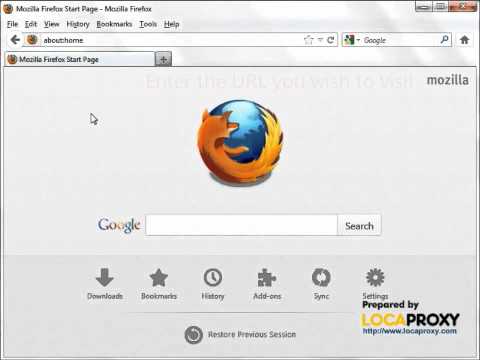
Playback starts YouTube’s embedded player (privacy-enhanced mode).
How to configure Proxy Settings in Mozilla Firefox
ChannelLoca ProxyDescription from the creator
This tutorial shows you how to configure Proxy Settings in Mozilla Firefox.
Prepared by locaproxy.com
1.Open the menu in Mozilla Firefox, and click the Options menu.
2.Click the Advanced menu.
3.Click the Network tab.
4.Under Connection, click the Settings... button.
5.Under Configure Proxies to Access the Internet, select the Manual proxy configuration option.
6.In the HTTP Proxy box, type the IP address or Hostname of the proxy server.
7.In the Port box, type the port number that is used by the proxy server for client connections.
8.Select the Use this proxy server for all protocols check box.
9.You can type in the IP address to bypass the proxy connection in the No Proxy for box.
10.Click OK to close the Connection Settings dialog box.
11.Click OK again to close the Options dialog box.
12.Enter the URL you wish to visit.
13.Enter your username and password when the authentication box prompt out.
14.Make sure the username and password is correct and you are done!
Prepared by locaproxy.com
1.Open the menu in Mozilla Firefox, and click the Options menu.
2.Click the Advanced menu.
3.Click the Network tab.
4.Under Connection, click the Settings... button.
5.Under Configure Proxies to Access the Internet, select the Manual proxy configuration option.
6.In the HTTP Proxy box, type the IP address or Hostname of the proxy server.
7.In the Port box, type the port number that is used by the proxy server for client connections.
8.Select the Use this proxy server for all protocols check box.
9.You can type in the IP address to bypass the proxy connection in the No Proxy for box.
10.Click OK to close the Connection Settings dialog box.
11.Click OK again to close the Options dialog box.
12.Enter the URL you wish to visit.
13.Enter your username and password when the authentication box prompt out.
14.Make sure the username and password is correct and you are done!
About this tutorial
Loca Proxy published this 2:12 video tutorial on November 3, 2012. It has been watched 195,850 times on YouTube.
- Channel
- Loca Proxy
- Category
- Howto & Style
- Duration
- 2:12
- Published
- November 3, 2012
- Views
- 195,850
- Likes
- 209
Tags
Share
This tutorial in other languages
- FRComment configurer les paramètres du proxy dans Mozilla Firefox
- ESCómo configurar el proxy en Mozilla Firefox
- PTComo configurar definições de proxy no Mozilla Firefox
- ITCome configurare le impostazioni proxy in Mozilla Firefox
- DEWie Proxy-Einstellungen in Mozilla Firefox konfigurieren
- NLHoe wordt Proxy-instellingen in Mozilla Firefox configureren
- RUКак настроить параметры прокси-сервера в Mozilla Firefox
- PLJak skonfigurować ustawienia serwera proxy w przeglądarce Mozilla Firefox
- JAMozillaのFirefoxでプロキシ設定を構成する方法
- ARكيفية تكوين إعدادات الوكيل في موزيلا فايرفوكس
- HIमोज़िला फ़ायरफ़ॉक्स में प्रॉक्सी सेटिंग कॉन्फ़िगर कैसे
- IDBagaimana mengkonfigurasi Pengaturan Proxy di Mozilla Firefox