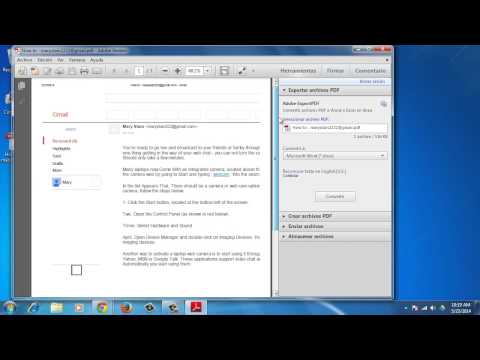
Playback starts YouTube’s embedded player (privacy-enhanced mode).
How to Convert Email to PDF with Google Chrome
ChannelExcel, Word and PowerPoint Tutorials from HowtechDescription from the creator
While there are plenty of PDF writing software and online conversion services around that can help you save web pages as PDF files, the fact is that, as long as you have Google Chrome on your computer, you don't need any of them. Google Chrome has a built-in PDF writer so you can easily convert any email message into a PDF file within the browser itself. However, if you are reading your emails on a mobile phone or a tablet, you would need some sort of a PDF conversion app.
Don't forget to check out our site howtech.tv/ for more free how-to videos!
youtube.com/ithowtovids - our feed
facebook.com/howtechtv - join us on facebook
plus.google.com/103440382717658277879 - our group in Google+
Step # 1 - Use the Print option shortcut in Google Chrome
Open the email that you want to save as a PDF. Then, press Ctrl+P (or Cmd+P if you are on a Mac) to open the Print dialog and change the destination printer to "Save as PDF." Hit the Print button and the current web page will instantly download as a PDF document.
Step # 2 - Use "[email protected] "
Alternatively, you can forward the original email message to "[email protected]" and the service will send a PDF version of the message back to you in just a second.
If there are any Word, Excel or Powerpoint attachments inside the email, you can forward the files to [email protected] and they'll come back to you in PDF format.
Result: Congratulations! You've just learned how to Convert Email to PDF with Google Chrome
Don't forget to check out our site howtech.tv/ for more free how-to videos!
youtube.com/ithowtovids - our feed
facebook.com/howtechtv - join us on facebook
plus.google.com/103440382717658277879 - our group in Google+
Step # 1 - Use the Print option shortcut in Google Chrome
Open the email that you want to save as a PDF. Then, press Ctrl+P (or Cmd+P if you are on a Mac) to open the Print dialog and change the destination printer to "Save as PDF." Hit the Print button and the current web page will instantly download as a PDF document.
Step # 2 - Use "[email protected] "
Alternatively, you can forward the original email message to "[email protected]" and the service will send a PDF version of the message back to you in just a second.
If there are any Word, Excel or Powerpoint attachments inside the email, you can forward the files to [email protected] and they'll come back to you in PDF format.
Result: Congratulations! You've just learned how to Convert Email to PDF with Google Chrome
About this tutorial
Excel, Word and PowerPoint Tutorials from Howtech published this 1:26 video tutorial on October 29, 2014. It has been watched 224,690 times on YouTube.
- Category
- Howto & Style
- Duration
- 1:26
- Published
- October 29, 2014
- Views
- 224,690
- Likes
- 778
Tags
Share
This tutorial in other languages
- FRComment convertir Email au format PDF avec Google Chrome
- ESCómo convertir de correo electrónico a PDF con Google Chrome
- PTComo converter e-mail para PDF com o Google Chrome
- ITCome convertire e-mail in PDF con Google Chrome
- DEWie Konvertieren von E-Mail an PDF mit Google Chrome
- NLHoe kan ik e-mail converteren naar PDF met Google Chrome
- RUКак конвертировать Email в формате PDF с Google Chrome
- PLJak przekonwertować do formatu PDF E-mail z Google Chrome
- JAGoogle ChromeのでPDFへの電子メールを変換する方法
- ARكيفية تحويل البريد الإلكتروني إلى PDF مع جوجل كروم
- HIगूगल क्रोम के साथ पीडीएफ करने के लिए ईमेल में कनवर्ट करने के लिए कैसे
- IDCara Mengkonversi Email ke PDF dengan Google Chrome