Playback starts YouTube’s embedded player (privacy-enhanced mode).
How to copy Desktop Wallpaper (Background Image) | Take a Screenshot
ChannelmmkDescription from the creator
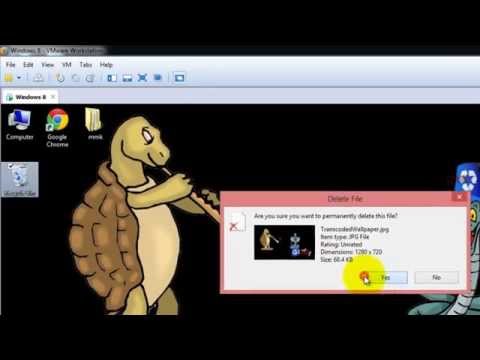
Tutorial shows you, How to copy Desktop Wallpaper – Background Image and How to take a screenshot of your desktop, on windows 7 and windows 8.
Copy Desktop Wallpaper
Let’s say, you had created image for your desktop and then lost your original.
How do I make a copy of my desktop image, where does Windows store its current wallpaper?
To copy desktop image, first, show hidden files and folders by going to Control Panel, Open Folder Options and Click the View tab, Under Advanced settings, click Show hidden files and folders, and then click OK.
Path (location) of desktop background image (wallpaper) on windows 7
C:\Users\YourUserName\AppData\Roaming\Microsoft\Windows\Themes
Path of desktop background image on windows 8
C:\Users\YourUserName\AppData\Roaming\Microsoft\Windows\Themes\CachedFiles
Take a screenshot
If you want screenshot of your desktop, the best option is to use print screen, and then open paint and paste it.
So, press Print screen (PrntScr) on your keyboard
Go to Start and type, Paint.
Open Paint and paste it there, by pressing control + V.
Then name and save it. This is the easiest way to get desktop screenshot.
Copy Desktop Wallpaper
Let’s say, you had created image for your desktop and then lost your original.
How do I make a copy of my desktop image, where does Windows store its current wallpaper?
To copy desktop image, first, show hidden files and folders by going to Control Panel, Open Folder Options and Click the View tab, Under Advanced settings, click Show hidden files and folders, and then click OK.
Path (location) of desktop background image (wallpaper) on windows 7
C:\Users\YourUserName\AppData\Roaming\Microsoft\Windows\Themes
Path of desktop background image on windows 8
C:\Users\YourUserName\AppData\Roaming\Microsoft\Windows\Themes\CachedFiles
Take a screenshot
If you want screenshot of your desktop, the best option is to use print screen, and then open paint and paste it.
So, press Print screen (PrntScr) on your keyboard
Go to Start and type, Paint.
Open Paint and paste it there, by pressing control + V.
Then name and save it. This is the easiest way to get desktop screenshot.
About this tutorial
mmk published this 5:00 video tutorial on November 2, 2015. It has been watched 29,110 times on YouTube.
- Channel
- mmk
- Category
- Howto & Style
- Duration
- 5:00
- Published
- November 2, 2015
- Views
- 29,110
- Likes
- 126
Share
This tutorial in other languages
- FRComment copier Fond d'écran (image de fond) | Prendre une capture d'écran
- ESCómo copiar Fondos de Escritorio (imagen de fondo) | Tomar una captura de pantalla
- PTComo copiar Desktop Wallpaper (imagem de fundo) | Uma captura de tela
- ITCome copiare Wallpaper (immagine di sfondo) | Prendere uno screenshot
- DEWie Hintergrundbilder (Hintergrundbild) kopieren | Mache ein Bildschirmfoto
- NLHoe om te kopiëren Desktop Wallpaper (achtergrondafbeelding) | Maak een screenshot
- RUКак скопировать Обои для рабочего стола (Фоновое изображение) | Снимок экрана
- PLJak skopiować pulpitu tapety (tła obrazu) | Zrób zrzut ekranu
- JAデスクトップの壁紙(背景画像)をコピーする方法|スクリーンショットを撮ります
- ARكيفية نسخ خلفيات سطح المكتب (صورة الخلفية) | خذ لقطة
- HIकैसे की प्रतिलिपि करने के डेस्कटॉप वॉलपेपर (पृष्ठभूमि छवि) | कोई स्क्रीनशॉट लें
- IDCara menyalin Desktop Wallpaper (Background Image) | Ambil Screenshot