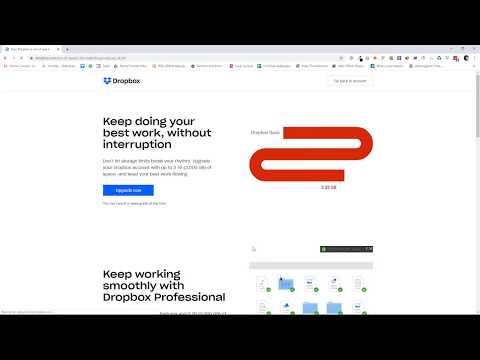
Playback starts YouTube’s embedded player (privacy-enhanced mode).
How to downgrade Dropbox Plan or Subscriptions
ChannelTechWorldTutDescription from the creator
How to downgrade Dropbox Plan or Subscriptions
How to downgrade a Dropbox Business account to a Plus or Professional account
If you’re a Dropbox Business team admin, you can downgrade a Dropbox Business account to a Plus or Professional account.
Convert a team member’s account to an individual account
Sign in to dropbox.com with your admin credentials.
Click Admin Console.
Choose the Members tab.
Click the gear icon next to the name of the person you want to remove.
Select Delete member.
Click Convert to individual Dropbox Basic account instead.
Click Convert account.
Convert a team admin to an individual account
If you want to convert a team admin to an invidual account and maintain the team:
Sign in to dropbox.com with your admin credentials.
Add another team admin and ask them to remove you from the team.
Upgrade your account.
If you want to convert a team admin to an invidual account and cancel or downgrade the team:
Sign in to dropbox.com with your admin account.
Click Admin console from the list on the left.
Click Billing from the list on the left.
Select why you’re canceling and click Continue with cancellation.
Check all boxes to acknowledge the consequences of canceling.
Scroll down and click Complete cancellation. Your account will be downgraded to Dropbox Basic at the end of your billing cycle.
Once your account is downgraded to Dropbox Basic, you can upgrade to a Plus or Professional account.
If you don’t want to wait until the end of your billing cycle to change your account status, you can contact Dropbox support for an immediate downgrade.
Dropbox Business team members
If you’re a Dropbox Business team member and you’d like to switch to a Dropbox Plus or Professional account:
Contact your team admin and ask them to convert your account to an individual account.
You’ll be switched to a Basic account with all of the files and folders you had stored in your Business account, and you’ll no longer have access to the team’s shared files and folders.
Visit the upgrade page.
Click Upgrade your Dropbox and follow the prompts.
Dropbox free team members
If you’re on a free team and you’d like to switch to a Plus or Professional account:
Visit the upgrade page.
Click Upgrade your Dropbox.
Follow the prompts to convert your account.
How to downgrade a Dropbox Business account to a Plus or Professional account
If you’re a Dropbox Business team admin, you can downgrade a Dropbox Business account to a Plus or Professional account.
Convert a team member’s account to an individual account
Sign in to dropbox.com with your admin credentials.
Click Admin Console.
Choose the Members tab.
Click the gear icon next to the name of the person you want to remove.
Select Delete member.
Click Convert to individual Dropbox Basic account instead.
Click Convert account.
Convert a team admin to an individual account
If you want to convert a team admin to an invidual account and maintain the team:
Sign in to dropbox.com with your admin credentials.
Add another team admin and ask them to remove you from the team.
Upgrade your account.
If you want to convert a team admin to an invidual account and cancel or downgrade the team:
Sign in to dropbox.com with your admin account.
Click Admin console from the list on the left.
Click Billing from the list on the left.
Select why you’re canceling and click Continue with cancellation.
Check all boxes to acknowledge the consequences of canceling.
Scroll down and click Complete cancellation. Your account will be downgraded to Dropbox Basic at the end of your billing cycle.
Once your account is downgraded to Dropbox Basic, you can upgrade to a Plus or Professional account.
If you don’t want to wait until the end of your billing cycle to change your account status, you can contact Dropbox support for an immediate downgrade.
Dropbox Business team members
If you’re a Dropbox Business team member and you’d like to switch to a Dropbox Plus or Professional account:
Contact your team admin and ask them to convert your account to an individual account.
You’ll be switched to a Basic account with all of the files and folders you had stored in your Business account, and you’ll no longer have access to the team’s shared files and folders.
Visit the upgrade page.
Click Upgrade your Dropbox and follow the prompts.
Dropbox free team members
If you’re on a free team and you’d like to switch to a Plus or Professional account:
Visit the upgrade page.
Click Upgrade your Dropbox.
Follow the prompts to convert your account.
About this tutorial
TechWorldTut published this 1:00 video tutorial on February 1, 2020. It has been watched 4,438 times on YouTube.
- Channel
- TechWorldTut
- Category
- Howto & Style
- Duration
- 1:00
- Published
- February 1, 2020
- Views
- 4,438
- Likes
- 11
Tags
Share
This tutorial in other languages
- FRComment déclasser plan Dropbox ou Abonnements
- ESCómo rebajar Plan de Dropbox o suscripciones
- PTComo fazer o downgrade Plano Dropbox ou assinaturas
- ITCome effettuare il downgrade piano Dropbox o abbonamenti
- DEWie Dropbox-Plan oder Abonnements degradieren
- NLHoe om te downgraden Dropbox Plan of abonnementen
- RUКак понизить Dropbox план или подписки
- PLJak obniżyć Dropbox plan lub Subskrypcje
- JADropboxのプランまたはサブスクリプションをダウングレードする方法
- ARكيفية تخفيض خطة دروببوإكس أو الاشتراكات
- HIड्रॉपबॉक्स योजना या सदस्यता डाउनग्रेड करने के लिए कैसे
- IDCara downgrade Rencana Dropbox atau Langganan