Playback starts YouTube’s embedded player (privacy-enhanced mode).
How to Increase Font Size on Windows 8.1
ChannelLinglom.comDescription from the creator
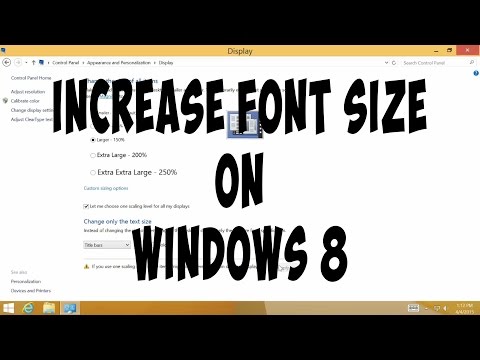
If you think font size on your Desktop screen is too small, you can follow this video to increase the size without changing resolution of your monitor or laptop. You can also choose to adjust text size on specific items, for example, Title bars, Menus, Icons, etc.
To adjust font size on Windows 8
1. Right-click on the desktop screen and select 'Screen resolution'.
2. Click 'Make text and other items larger or smaller'.
3. Check the option 'Let me choose one scaling level for all my displays'.
4.1 Select text size that you want and click 'Apply'. You will need to sign out to apply changes.
-or-
4.2 Change text size only for some specific item (at bottom of the page) by select item from the drop-down and adjust text size. And click 'Apply'.
The guide on this video applies on Windows 7, Windows 8, and Windows 8.1.
To adjust font size on Windows 8
1. Right-click on the desktop screen and select 'Screen resolution'.
2. Click 'Make text and other items larger or smaller'.
3. Check the option 'Let me choose one scaling level for all my displays'.
4.1 Select text size that you want and click 'Apply'. You will need to sign out to apply changes.
-or-
4.2 Change text size only for some specific item (at bottom of the page) by select item from the drop-down and adjust text size. And click 'Apply'.
The guide on this video applies on Windows 7, Windows 8, and Windows 8.1.
About this tutorial
Linglom.com published this 2:58 video tutorial on October 31, 2015. It has been watched 43,633 times on YouTube.
- Channel
- Linglom.com
- Category
- Howto & Style
- Duration
- 2:58
- Published
- October 31, 2015
- Views
- 43,633
- Likes
- 228
Tags
Share
This tutorial in other languages
- FRComment augmenter la taille de la police sur Windows 8.1
- ESCómo aumentar el tamaño de fuente en Windows 8.1
- PTComo aumentar o tamanho da fonte no Windows 8.1
- ITCome aumentare dimensione del carattere in Windows 8.1
- DEWie Schriftgröße unter Windows 8.1 erhöhen
- NLHoe te verhogen lettergrootte op Windows 8.1
- RUКак увеличить размер шрифта в ОС Windows 8.1
- PLJak zwiększyć rozmiar czcionki w systemie Windows 8.1
- JAWindowsの8.1でフォントサイズを増やす方法
- ARكيفية زيادة حجم الخط على نظام التشغيل Windows 8.1
- HIकैसे Windows 8.1 पर फ़ॉन्ट का आकार बढ़ाने के लिए
- IDCara Meningkatkan Ukuran Font di Windows 8.1