Playback starts YouTube’s embedded player (privacy-enhanced mode).
How to right align dates in Word
ChannelGiacomo GiammatteoDescription from the creator
How To Right Align Dates On A Resume
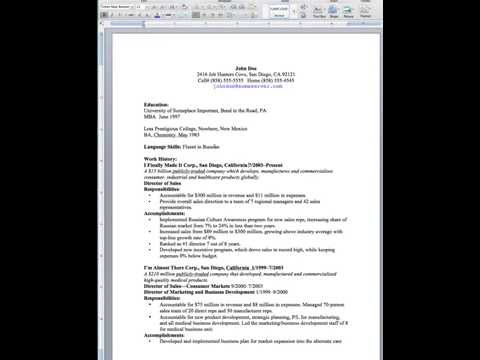
I read a lot of resumes, and one of the more common problems I see is that the dates are not aligned properly. Don't get me wrong; it's not a huge deal, but it does make the resume look cleaner and more organized if you right align the dates. And anytime you can make your resume look better, you should do it.
Right aligning the dates is a simple process, and it only takes a few minutes, but it seems to baffle a lot of people.
I'm doing this in Microsoft Word for a MAC. I'm pretty sure it's similar on a PC, but if you're working with Pages for a MAC the process is different. I'll do another video to show how to do this on Pages.
For the video, I also set the "view" to 150% to make it easier to see.
Okay, Let's Get Started.
If you notice, the dates corresponding to each company are separated with a tab or spaces. I've seen resumes where people have used a string of spaces or just a comma and a single space. The best way to do this is to keep the left side of the text aligned to the left and the dates aligned to the right. Here's how to do that.
In the left corner of the window, just left of the tab bar, you'll see something that looks like this . That's the symbol for a left tab marker. This,  is the symbol for a right tab. If you press and hold on that button it will bring up a menu showing: left, center, right, decimal, bar, and tabs.

Tabs is the one we want. Click tabs and this menu (or something like it) appears. 
Now click the "clear all" button and then "ok."
(If there are any Word experts out there who know an easier way, please tell me.)
Now go back up to the tab button and set it to "right tab," which is this one: 
Go to the first date you want to align, click before the date and then click in the tab bar where you want the alignment to be. (Note: Do not go all the way to the end.)
Once you click and set the tab stop, go back to the line where the date is, click to the left of the date again, and hit the tab key.
Now, do and do it with the other 'company' dates.
Now go through the same process with the other dates, but don't take them as far to the right. If you set the 'company' dates at 6.5 inches, try setting the dates for each position at 5.5 inches.
I also recommend keeping the 'company' dates in bold and the others in regular font.
Now doesn't that look a hell of a lot better than it did before?
Want us to write the perfect resume? Click here and get started.
I read a lot of resumes, and one of the more common problems I see is that the dates are not aligned properly. Don't get me wrong; it's not a huge deal, but it does make the resume look cleaner and more organized if you right align the dates. And anytime you can make your resume look better, you should do it.
Right aligning the dates is a simple process, and it only takes a few minutes, but it seems to baffle a lot of people.
I'm doing this in Microsoft Word for a MAC. I'm pretty sure it's similar on a PC, but if you're working with Pages for a MAC the process is different. I'll do another video to show how to do this on Pages.
For the video, I also set the "view" to 150% to make it easier to see.
Okay, Let's Get Started.
If you notice, the dates corresponding to each company are separated with a tab or spaces. I've seen resumes where people have used a string of spaces or just a comma and a single space. The best way to do this is to keep the left side of the text aligned to the left and the dates aligned to the right. Here's how to do that.
In the left corner of the window, just left of the tab bar, you'll see something that looks like this . That's the symbol for a left tab marker. This,  is the symbol for a right tab. If you press and hold on that button it will bring up a menu showing: left, center, right, decimal, bar, and tabs.

Tabs is the one we want. Click tabs and this menu (or something like it) appears. 
Now click the "clear all" button and then "ok."
(If there are any Word experts out there who know an easier way, please tell me.)
Now go back up to the tab button and set it to "right tab," which is this one: 
Go to the first date you want to align, click before the date and then click in the tab bar where you want the alignment to be. (Note: Do not go all the way to the end.)
Once you click and set the tab stop, go back to the line where the date is, click to the left of the date again, and hit the tab key.
Now, do and do it with the other 'company' dates.
Now go through the same process with the other dates, but don't take them as far to the right. If you set the 'company' dates at 6.5 inches, try setting the dates for each position at 5.5 inches.
I also recommend keeping the 'company' dates in bold and the others in regular font.
Now doesn't that look a hell of a lot better than it did before?
Want us to write the perfect resume? Click here and get started.
About this tutorial
Giacomo Giammatteo published this 2:06 video tutorial on October 28, 2014. It has been watched 135,164 times on YouTube.
- Channel
- Giacomo Giammatteo
- Category
- Howto & Style
- Duration
- 2:06
- Published
- October 28, 2014
- Views
- 135,164
- Likes
- 165
Tags
Share
This tutorial in other languages
- FRComment les dates d'aligner à droite dans Word
- ESCómo fechas Alinear a la derecha en Word
- PTComo datas alinhar à direita no Word
- ITCome date allineare a destra in Word
- DEWie nach rechts align Daten in Word
- NLHoe naar rechts uitlijnen data in Word
- RUКак правильные даты выравнивани в Слове
- PLJak właściwych terminach układać w programie Word
- JAどのようにWordで右揃えの日付へ
- ARكيفية مواعيد محاذاة اليمين في Word
- HIकैसे वर्ड में सही संरेखित तिथियों के लिए
- IDCara tanggal menyelaraskan tepat di Word