Playback starts YouTube’s embedded player (privacy-enhanced mode).
How to Set Up a Wireless HP Printer Using HP Smart in Windows 10 | HP Printers | HP
ChannelHP SupportChapters
Description from the creator
This video has been updated: youtu.be/NIrnwz4Xtss
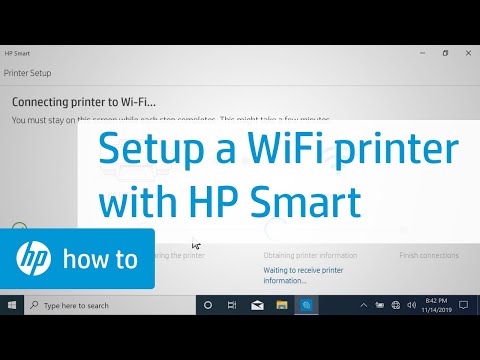
Learn how to set up a wireless HP printer using HP Smart in Windows 10.
Chapters:
00:00 Introduction
00:18 Requirements for setup
00:44 Download HP Smart and set up printer
01:32 Activate setup mode on printer
03:07 Add printer to HP Smart
More support options for your HP device are available at hp.com/support.
Follow these steps to set up a wireless HP printer using HP Smart in Windows 10:
- Open HP Smart on the Windows 10 computer.
- On the Welcome screen, select Continue.
- Select the checkbox to agree to the terms, and then select Continue.
- To detect a printer in HP Smart, the printer must be in Setup mode or connected to your network.
- If Setup mode doesn’t activate on its own after you turn on your printer, reset the printer network settings.
- For printers without a touch display, press and hold the Wireless and Cancel buttons at the same time to wake the printer from Sleep mode.
- For LaserJet Pro printers, press and hold the Wireless button until the Ready and Attention lights blink simultaneously.
- Release the buttons to restore Setup Mode.
- For printers with a touch display, navigate to the Wireless or Network Settings menu, and then select Restore Network Settings or Restore Network Defaults.
- For printers with front-edge lighting, press and hold the Wi-Fi button for five seconds.
- When the printer’s Network Settings are reset, the front-edge lighting rotates.
- Some older printers might not support Setup Mode, so you must connect it to the network manually.
- For printers with a touch display, use the Wireless Setup Wizard to connect your printer to the network.
- For older printers without a touch display, press and hold the Wireless Button on your printer for five seconds or until the wireless light blinks, and then, within two minutes, press and hold the WPS button on your router for five seconds.
- With the printer on the network or in Setup mode, return to HP Smart and select the plus sign.
- The app finds new printers in Setup mode and printers connected to your network.
- If your printer is still not listed, select Set Up a New Printer.
- To automatically access your Wi-Fi password and connect the printer to the network, select Continue.
- If prompted, select Yes to continue.
- With the printer connected to the network, select Continue.
- For the security of newer models, you must physically confirm your proximity to the printer.
- Follow the prompts to finish setting up your printer.
- If necessary, follow the instructions and videos to install cartridges and load paper into your printer.
Continue the Conversation:
hp.care/SupportForums
hp.care/FacebookSupport
hp.care/TwitterSupport
#HP #HPSupport #HPPrinters
SUBSCRIBE: www.youtube.com/HPSupport
SHOP NOW: store.hp.com/us/en/
About HP:
HP Inc. creates technology that makes life better for everyone everywhere – every person, every organization, and every community around the globe. Through our portfolio of printers, PCs, mobile devices, solutions, and services, we engineer experiences that amaze.
Connect with HP:
Visit HP WEBSITE: hp.com
Like HP on FACEBOOK: facebook.com/HP
Follow HP on TWITTER: twitter.com/HP
Follow HP on INSTAGRAM: instagram.com/hp
Follow HP on LINKEDIN: linkedin.com/company/hp
This video was produced by HP.
How to Set Up a Wireless HP Printer Using HP Smart in Windows 10 | HP Printers | HP
Learn how to set up a wireless HP printer using HP Smart in Windows 10.
Chapters:
00:00 Introduction
00:18 Requirements for setup
00:44 Download HP Smart and set up printer
01:32 Activate setup mode on printer
03:07 Add printer to HP Smart
More support options for your HP device are available at hp.com/support.
Follow these steps to set up a wireless HP printer using HP Smart in Windows 10:
- Open HP Smart on the Windows 10 computer.
- On the Welcome screen, select Continue.
- Select the checkbox to agree to the terms, and then select Continue.
- To detect a printer in HP Smart, the printer must be in Setup mode or connected to your network.
- If Setup mode doesn’t activate on its own after you turn on your printer, reset the printer network settings.
- For printers without a touch display, press and hold the Wireless and Cancel buttons at the same time to wake the printer from Sleep mode.
- For LaserJet Pro printers, press and hold the Wireless button until the Ready and Attention lights blink simultaneously.
- Release the buttons to restore Setup Mode.
- For printers with a touch display, navigate to the Wireless or Network Settings menu, and then select Restore Network Settings or Restore Network Defaults.
- For printers with front-edge lighting, press and hold the Wi-Fi button for five seconds.
- When the printer’s Network Settings are reset, the front-edge lighting rotates.
- Some older printers might not support Setup Mode, so you must connect it to the network manually.
- For printers with a touch display, use the Wireless Setup Wizard to connect your printer to the network.
- For older printers without a touch display, press and hold the Wireless Button on your printer for five seconds or until the wireless light blinks, and then, within two minutes, press and hold the WPS button on your router for five seconds.
- With the printer on the network or in Setup mode, return to HP Smart and select the plus sign.
- The app finds new printers in Setup mode and printers connected to your network.
- If your printer is still not listed, select Set Up a New Printer.
- To automatically access your Wi-Fi password and connect the printer to the network, select Continue.
- If prompted, select Yes to continue.
- With the printer connected to the network, select Continue.
- For the security of newer models, you must physically confirm your proximity to the printer.
- Follow the prompts to finish setting up your printer.
- If necessary, follow the instructions and videos to install cartridges and load paper into your printer.
Continue the Conversation:
hp.care/SupportForums
hp.care/FacebookSupport
hp.care/TwitterSupport
#HP #HPSupport #HPPrinters
SUBSCRIBE: www.youtube.com/HPSupport
SHOP NOW: store.hp.com/us/en/
About HP:
HP Inc. creates technology that makes life better for everyone everywhere – every person, every organization, and every community around the globe. Through our portfolio of printers, PCs, mobile devices, solutions, and services, we engineer experiences that amaze.
Connect with HP:
Visit HP WEBSITE: hp.com
Like HP on FACEBOOK: facebook.com/HP
Follow HP on TWITTER: twitter.com/HP
Follow HP on INSTAGRAM: instagram.com/hp
Follow HP on LINKEDIN: linkedin.com/company/hp
This video was produced by HP.
How to Set Up a Wireless HP Printer Using HP Smart in Windows 10 | HP Printers | HP
About this tutorial
HP Support published this 4:47 video tutorial on June 25, 2020. It has been watched 425,789 times on YouTube.
- Channel
- HP Support
- Category
- Howto & Style
- Duration
- 4:47
- Published
- June 25, 2020
- Views
- 425,789
- Likes
- 553
Tags
Share
Further reading
-
Official HP® Drivers and Software Download | HP® Customer Support
support.hp.com
Tips for better search results. Ensure correct spelling and spacing - Examples: "paper jam" Use product model name: - Examples: laserjet pro p1102, DeskJet 2130 For HP products a product number.
-
HP Printer Setup | HP® Support
support.hp.com
We’ve made it easy to download HP printer software to set up your printer. Enter your product name and we’ll get you the right printer setup software and drivers. We support all major desktop and mobile operating system…
-
Official HP® Support
support.hp.com
Find support and customer service options to help with your HP products including the latest drivers and troubleshooting articles.
This tutorial in other languages
- FRComment configurer une imprimante sans fil HP utilisant HP Smart dans Windows 10 | Imprimantes HP | HP
- ESCómo configurar una impresora HP inalámbrica Uso de HP Smart en Windows 10 | Impresoras HP | HP
- PTComo configurar uma impressora sem fio HP Utilizando o HP Smart no Windows 10 | Impressoras HP | HP
- ITCome impostare una stampante wireless HP Utilizzando HP Smart in Windows 10 | Stampanti HP | HP
- DEWie Einrichten eines Wireless-HP-Drucker mit HP Smart in Windows 10 nach oben | HP-Drucker | HP
- NLHoe het opzetten van een draadloze HP-printer maken met HP Smart in Windows 10 | HP printers | PK
- RUКак настроить принтер HP Wireless Использование HP Smart в Windows 10 | HP Принтеры | HP
- PLJak skonfigurować bezprzewodową drukarkę HP z wykorzystaniem HP Smart w systemie Windows 10 | Drukarki HP | HP
- JAどのようにWindowsの10でHP Smartを使用してワイヤレスHPのプリンタを設定し| HPプリンター| HP
- ARكيفية إعداد طابعة لاسلكية HP باستخدام HP الذكية في نظام التشغيل Windows 10 | HP طابعات | HP
- HIकैसे Windows 10 में एक वायरलेस HP प्रिंटर हिमाचल प्रदेश स्मार्ट का उपयोग करते हुए सेट करने के लिए | हिमाचल प्रदेश प्रिंटर | हिमाचल प्रदेश
- IDCara Set Up Printer Wireless HP Menggunakan HP Smart di Windows 10 | Printer HP | HP