Playback starts YouTube’s embedded player (privacy-enhanced mode).
How to type Japanese (Nihongo) in Mac OS X Mountain Lion
ChanneldgajudoDescription from the creator
1. Under the black Apple logo in the top left of the screen, click on the "System Preferences".
2. In the System Preferences, select "Language and Text", located in the Personal group.
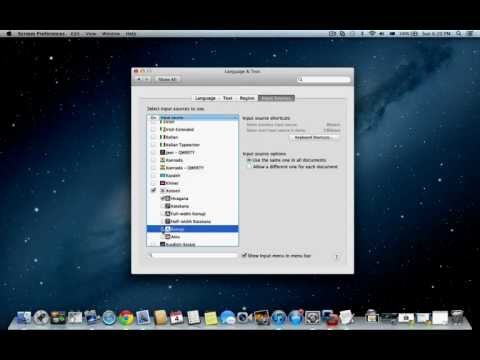
3. Click the "Input Sources" Tab to see all the different languages you can use. Scroll down, and look for the Kotoeri option. Check the box for Kotoeri. Then make sure "Hiragana" option is checked.
4. The Input Menu should now show up in the Menu Bar in the top right of your screen, where you will see a Flag icon. If you click this, you can switch to Japanese input mode by selecting Hiragana.
5. Now you can type Japanese in any application.
2. In the System Preferences, select "Language and Text", located in the Personal group.
3. Click the "Input Sources" Tab to see all the different languages you can use. Scroll down, and look for the Kotoeri option. Check the box for Kotoeri. Then make sure "Hiragana" option is checked.
4. The Input Menu should now show up in the Menu Bar in the top right of your screen, where you will see a Flag icon. If you click this, you can switch to Japanese input mode by selecting Hiragana.
5. Now you can type Japanese in any application.
About this tutorial
dgajudo published this 1:08 video tutorial on October 28, 2013. It has been watched 6,384 times on YouTube.
- Channel
- dgajudo
- Category
- Howto & Style
- Duration
- 1:08
- Published
- October 28, 2013
- Views
- 6,384
- Likes
- 14
Tags
Share
This tutorial in other languages
- FRComment taper japonais (Nihongo) sous Mac OS X Mountain Lion
- ESCómo escribir japonesa (Nihongo) en Mac OS X Mountain Lion
- PTComo digitar japonês (Nihongo) no Mac OS X Mountain Lion
- ITCome tipo giapponese (Nihongo) in Mac OS X Mountain Lion
- DEWie japanische (Nihongo) in Mac OS X Mountain Lion eingeben
- NLHoe maak je Japans (Nihongo) type in Mac OS X Mountain Lion
- RUКак набрать японский (Nihongo) в Mac OS X Mountain Lion
- PLJak wpisać japoński (Nihongo) w systemie Mac OS X Mountain Lion
- JAMac OS Xのマウンテンライオンの日本(日本語)を入力する方法
- ARكيفية كتابة اليابانية (Nihongo) في نظام التشغيل Mac OS X اسد الجبل
- HIमैक ओएस एक्स माउंटेन शेर में जापानी (Nihongo) टाइप करने के लिए कैसे
- IDBagaimana untuk mengetik Jepang (Nihongo) di Mac OS X Mountain Lion