Playback starts YouTube’s embedded player (privacy-enhanced mode).
How to Uninstall Internet Explorer 11 for Windows 7
ChannelTechcow.comDescription from the creator
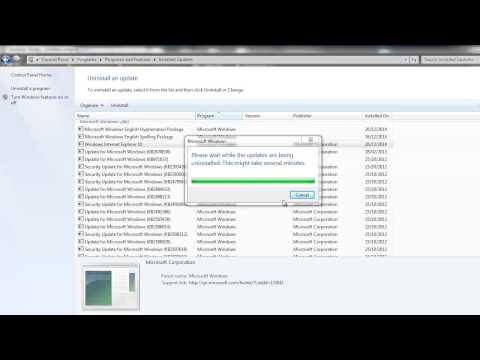
How to Uninstall Internet Explorer 11 for Windows 7
1. Start - Control Panel
2. Programs - Uninstall a program
3. View Installed updates
4. Click on the program column
5. Find Internet Explorer 11 or 10
(Under Microsoft Windows group)
6. Select Internet Explorer 11 and click the Uninstall button
1. Start - Control Panel
2. Programs - Uninstall a program
3. View Installed updates
4. Click on the program column
5. Find Internet Explorer 11 or 10
(Under Microsoft Windows group)
6. Select Internet Explorer 11 and click the Uninstall button
About this tutorial
Techcow.com published this 1:10 video tutorial on November 8, 2015. It has been watched 436 times on YouTube.
- Channel
- Techcow.com
- Category
- Howto & Style
- Duration
- 1:10
- Published
- November 8, 2015
- Views
- 436
- Likes
- 1
Tags
Share
This tutorial in other languages
- FRComment désinstaller Internet Explorer 11 pour Windows 7
- ESCómo desinstalar Internet Explorer 11 para Windows 7
- PTComo desinstalar o Internet Explorer 11 para Windows 7
- ITCome disinstallare Internet Explorer 11 per Windows 7
- DEWie Deinstallieren von Internet Explorer 11 für Windows 7
- NLHoe te verwijderen Internet Explorer 11 voor Windows 7
- RUКак удалить Internet Explorer 11 для Windows 7
- PLJak odinstalować program Internet Explorer 11 dla Windows 7
- JAどのようにWindowsのアンインストールのInternet Explorer 11から7
- ARكيفية إلغاء تثبيت Internet Explorer 11 لنظام التشغيل Windows 7
- HIकैसे स्थापना रद्द करें इंटरनेट एक्सप्लोरर 11 विंडोज 7 के लिए
- IDCara Uninstall Internet Explorer 11 untuk Windows 7