Playback starts YouTube’s embedded player (privacy-enhanced mode).
How to Use Excel 2010 absolute reference
ChannelExcel, Word and PowerPoint Tutorials from HowtechDescription from the creator
In this tutorial you will learn how to use absolute references for Excel formulas
Don't forget to check out our site howtech.tv/ for more free how-to videos!
youtube.com/ithowtovids - our feed
facebook.com/howtechtv - join us on facebook
plus.google.com/103440382717658277879 - our group in Google+
The default setting in Excel is to have relative formulas, but sometimes making them have absolute references is useful -- this tutorial is going to show you how to use excel absolute reference for formulas.
Step # 1 -- Identifying the Formula for being made Absolute
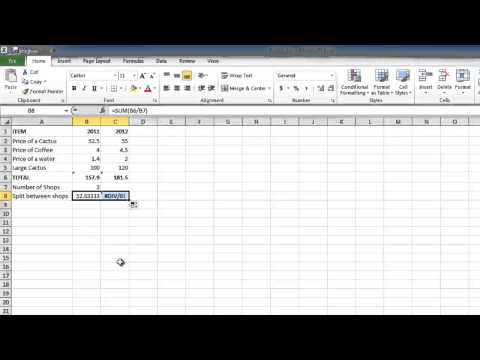
Start Excel with the sheet where you need to create an absolute reference. In this example you can see that we are dividing the "TOTAL" by the "Number of Shops" to give the "Split between shops". This is done with a simple SUM formula, which you can see in cell "C8". This is currently a relative formula and if we move it to cell "C8" to calculate the split for 2012 it will not work.
Step # 2 -- Making Part of the Formula Absolute
This formula needs to be made absolute so it will always reference the value in cell "B7". Click on the cell, "B8" in this case, to edit the formula. To make the "B7" value absolute, delete "B7" and type "$B$7" -- dollar signs in these locations make the value absolute.
Step # 3 -- Completing the Calculation with the Absolute Reference
Press return to complete the change to the formula. Now when you try and copy the formula to the adjacent cell there will not be an error and the "TOTAL" will be divided by 3. This is how to use excel absolute reference and you can see it successfully gives us a result of "60.5"
Don't forget to check out our site howtech.tv/ for more free how-to videos!
youtube.com/ithowtovids - our feed
facebook.com/howtechtv - join us on facebook
plus.google.com/103440382717658277879 - our group in Google+
The default setting in Excel is to have relative formulas, but sometimes making them have absolute references is useful -- this tutorial is going to show you how to use excel absolute reference for formulas.
Step # 1 -- Identifying the Formula for being made Absolute
Start Excel with the sheet where you need to create an absolute reference. In this example you can see that we are dividing the "TOTAL" by the "Number of Shops" to give the "Split between shops". This is done with a simple SUM formula, which you can see in cell "C8". This is currently a relative formula and if we move it to cell "C8" to calculate the split for 2012 it will not work.
Step # 2 -- Making Part of the Formula Absolute
This formula needs to be made absolute so it will always reference the value in cell "B7". Click on the cell, "B8" in this case, to edit the formula. To make the "B7" value absolute, delete "B7" and type "$B$7" -- dollar signs in these locations make the value absolute.
Step # 3 -- Completing the Calculation with the Absolute Reference
Press return to complete the change to the formula. Now when you try and copy the formula to the adjacent cell there will not be an error and the "TOTAL" will be divided by 3. This is how to use excel absolute reference and you can see it successfully gives us a result of "60.5"
About this tutorial
Excel, Word and PowerPoint Tutorials from Howtech published this 1:27 video tutorial on October 25, 2013. It has been watched 190,114 times on YouTube.
- Category
- Howto & Style
- Duration
- 1:27
- Published
- October 25, 2013
- Views
- 190,114
- Likes
- 326
Tags
Share
This tutorial in other languages
- FRComment utiliser Excel 2010 référence absolue
- ESCómo utilizar Excel 2010 referencia absoluta
- PTComo usar o Excel 2010 referência absoluta
- ITCome utilizzare Excel 2010 di riferimento assoluto
- DEWie zu verwenden Excel 2010 absolute Referenz
- NLHoe te gebruiken Excel 2010 absolute referentie
- RUКак использовать Excel 2010 абсолютную ссылку
- PLJak korzystać z programu Excel 2010 absolutnego odniesienia
- JAどのようにExcelを使用2010絶対参照に
- ARكيفية استخدام Excel 2010 المرجع المطلق
- HIकैसे उपयोग Excel 2010 निरपेक्ष संदर्भ के लिए
- IDCara Gunakan Excel 2010 referensi absolut