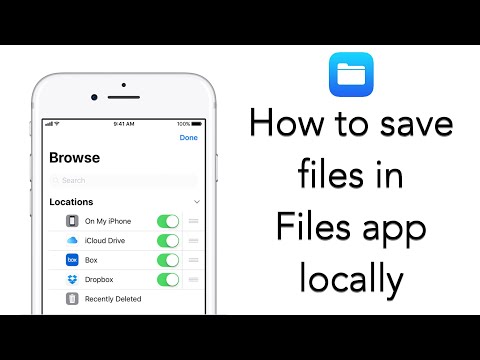
Playback starts YouTube’s embedded player (privacy-enhanced mode).
How to use Files app to save files locally in your iPhone/ iPad
Channelcmd zDescription from the creator
It connects all your cloud services like iCloud, Onedrive, Dropbox etc into one place, but it goes far beyond that by offering the ability to save files locally too, and enable access from other apps.
At iOS 11 GM it is not a straightforward as it was supposed to. Trying to save a file locally is not enable out of the box, since option “On my iPhone” cannot be in chosen…
Visiting Files app and trying to access local storage is not an option
Even though it is not clear whether this is intentional or not, Apple offers a workaround. All we have to do is download an app from their office suit, let’s say Pages .
Now a folder is created locally handling Pages’ files. We can access it from sharing menu, but not from Files app unless we save our first file locally.
The ability to create folder in root folder is not able yet, but we can do so inside Pages folder.
From now on we have save files locally in our custom folder!
for more tech news and guides visit www.cmd-z.gr
facebook: facebook.com/cmdz.gr
twitter: twitter.com/cmdzgr
instagram: instagram.com/cmdz.gr/
Enjoy!
ps: credits to toxotis70 at iphonehellas.gr
iphonehellas.gr/forum/topic/164279-wwdc-2017-πρ…
About this tutorial
cmd z published this 3:17 video tutorial on October 26, 2017. It has been watched 495,692 times on YouTube.
- Channel
- cmd z
- Category
- Howto & Style
- Duration
- 3:17
- Published
- October 26, 2017
- Views
- 495,692
- Likes
- 1,735
Tags
Share
Further reading
-
Use the Files app on your iPhone, iPad, or iPod touch - Apple ...
support.apple.com
You can find locally stored files in On My [device], under Locations. On your iPad, simply drag files into the On My iPad folder to store them directly on your device. If you want to save a file locally on your iPhone o…
-
Everything You Can Do With the Files App on Your iPhone or iPad
howtogeek.com
Apple initially announced the Files app as an iPad feature designed to make the tablet more powerful as a laptop replacement. However, the Files app is included on both the iPhone and iPad and works largely the same on…
-
How to Use the Files App in iOS 14 on iPhone and iPad ...
igeeksblog.com
2. Check Files Stored Locally on iPhone or iPad. Step #1. Open the Files app → Tap Browse → Tap on On My iPhone. Here you will see all files that are stored locally on your iPhone or iPad. If you do not see the option f…
This tutorial in other languages
- FRComment utiliser l'application de fichiers pour enregistrer les fichiers localement dans votre iPhone / iPad
- ESCómo utilizar la aplicación Archivos para guardar archivos localmente en tu iPhone / iPad
- PTComo usar o aplicativo Arquivos para salvar arquivos localmente em sua / iPad iPhone
- ITCome utilizzare l'app File per salvare i file in locale nel vostro iPhone / iPad
- DEWie Verwenden von Dateien App Dateien lokal auf Ihrem iPhone / iPad speichern
- NLHoe te app Bestanden gebruiken om bestanden lokaal opslaan in je iPhone / iPad
- RUКак использовать файлы приложения, чтобы сохранить файлы локально на вашем iPhone / IPad
- PLJak korzystać z aplikacji Pliki do zapisywania plików lokalnie w telefonie iPhone / iPad
- JAあなたのiPhone / iPadの中でローカルにファイルを保存するファイルアプリケーションを使用する方法
- ARكيفية استخدام تطبيق الملفات لحفظ الملفات محليا في جهاز اي فون / آي باد
- HIअपने iPhone / iPad में स्थानीय रूप से फ़ाइलों को सहेजने के लिए फ़ाइलें एप्लिकेशन का उपयोग कैसे करें
- IDCara menggunakan aplikasi File untuk menyimpan file secara lokal di iPhone / iPad