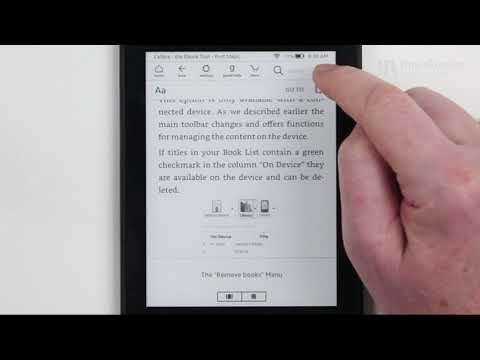
Playback starts YouTube’s embedded player (privacy-enhanced mode).
How to use Kindle Highlights & Notes - Create your own Book Excerpt | The Ultimate Kindle Tutorial
Channelthreebooks PublishingDescription from the creator
Find the complete Tutorial on our Website: threebooks.com or
Udemy: trbx.me/udemy or
Skillshare: skl.sh/2XMORHw
This might be my absolute favorite Power-Feature of the Kindle Paperwhite (and any other Kindle).
The Highlights & Notes Feature. Why this one? At first, it doesn’t sound all too spectacular, does it? Well, the real power is not in the single application of the feature - but when applied for content that is really and stands out to you personally it produces a miracle while finishing a document.
When you are finished reading and highlighting you will have your own personal Excerpt of what you have read. With everything that matters to you… and not somebody else. The popularity of services like Blinkist, GetAbstract and other book summarizing subscription services is constantly rising. And I actually like those a lot. But your personal summary is much more valuable to you and maybe also others you want to share it with.
Enough rapture on the feature. Here is how it actually works:
When you are in the book, long press on the sentence you want to highlight or make a note to. When the underlining appears, move your finger along the page until the end of the passage. Then let go. You can also use the two “handles” that show up after long pressing and extend your selection forward or backward within the text.
If you want to adjust the selection, just tap next to the text and the handles will appear again.
To delete the selection tap “delete” in the popup.
To get access to your notes open the context menu on the right side of the top menu, tap notes. At the bottom of the document you find the “Export Notes” button. The Kindle will now send an email to the mail-address that is connected with your Amazon Account. Open the Email and you will find your Highlights and Note as Word and PDF documents.
This is super easy. Until a few years ago it took a workaround with the kindle.amazon.com Website and web clipping tools to do this. For a long time publishers and authors were concerned about copyright infringements. But it proves to be very valuable to everyone. The amount of text you can export is limited, though.
It has been reported that some books don't offer the export-function at all. No problem, there is a workaround for that case to. You find the notes in the documents-folder on your Kindle. So connect it via USB to your computer. Find the folder and copy or open the “My-Clippings.txt” document.
As I have been loving this function for many years I am now proud owner of my own little short reads library that I copied into Evernote. The Notebook is called “My Books” and it contains all the excerpts I made over the years. From time to time I go back and look at certain topics I studied to get the summary of the respective document.
A really great feature for study, research or work. This can really increase your productivity!
Udemy: trbx.me/udemy or
Skillshare: skl.sh/2XMORHw
This might be my absolute favorite Power-Feature of the Kindle Paperwhite (and any other Kindle).
The Highlights & Notes Feature. Why this one? At first, it doesn’t sound all too spectacular, does it? Well, the real power is not in the single application of the feature - but when applied for content that is really and stands out to you personally it produces a miracle while finishing a document.
When you are finished reading and highlighting you will have your own personal Excerpt of what you have read. With everything that matters to you… and not somebody else. The popularity of services like Blinkist, GetAbstract and other book summarizing subscription services is constantly rising. And I actually like those a lot. But your personal summary is much more valuable to you and maybe also others you want to share it with.
Enough rapture on the feature. Here is how it actually works:
When you are in the book, long press on the sentence you want to highlight or make a note to. When the underlining appears, move your finger along the page until the end of the passage. Then let go. You can also use the two “handles” that show up after long pressing and extend your selection forward or backward within the text.
If you want to adjust the selection, just tap next to the text and the handles will appear again.
To delete the selection tap “delete” in the popup.
To get access to your notes open the context menu on the right side of the top menu, tap notes. At the bottom of the document you find the “Export Notes” button. The Kindle will now send an email to the mail-address that is connected with your Amazon Account. Open the Email and you will find your Highlights and Note as Word and PDF documents.
This is super easy. Until a few years ago it took a workaround with the kindle.amazon.com Website and web clipping tools to do this. For a long time publishers and authors were concerned about copyright infringements. But it proves to be very valuable to everyone. The amount of text you can export is limited, though.
It has been reported that some books don't offer the export-function at all. No problem, there is a workaround for that case to. You find the notes in the documents-folder on your Kindle. So connect it via USB to your computer. Find the folder and copy or open the “My-Clippings.txt” document.
As I have been loving this function for many years I am now proud owner of my own little short reads library that I copied into Evernote. The Notebook is called “My Books” and it contains all the excerpts I made over the years. From time to time I go back and look at certain topics I studied to get the summary of the respective document.
A really great feature for study, research or work. This can really increase your productivity!
About this tutorial
threebooks Publishing published this 4:05 video tutorial on September 6, 2020. It has been watched 101,797 times on YouTube.
- Channel
- threebooks Publishing
- Category
- Howto & Style
- Duration
- 4:05
- Published
- September 6, 2020
- Views
- 101,797
- Likes
- 823
Tags
Share
This tutorial in other languages
- FRComment utiliser Kindle Faits saillants et notes - Créer votre propre Extrait du livre | The Ultimate Kindle Tutorial
- ESCómo utilizar destacados y notas Kindle - Crear su propio extracto del libro | El Kindle Tutorial último
- PTComo usar o Kindle Highlights & Notas - Crie a sua própria Trecho do livro | O Kindle Tutorial final
- ITCome usare Kindle Sintesi e Note - Crea il tuo Brano del libro | Il tutorial Kindle ultimo
- DEWie Kindle Highlights & Notes verwenden - Erstellen Sie Ihr eigenes Buch Auszug | The Ultimate Kindle Tutorial
- NLHoe gebruik je Kindle Highlights & Notes - Maak uw eigen Boek Uittreksel | The Ultimate Kindle Tutorial
- RUКак использовать Kindle Основные моменты & Notes - Создайте свой собственный Отрывок из книги | Окончательный Kindle Учебник
- PLJak korzystać z Kindle Highlights i Notes - Stwórz własną fragment książki | The Ultimate Kindle Tutorial
- JAKindleのハイライト&ノートの使い方 - あなた自身の書籍の抜粋を作成|究極のKindleのチュートリアル
- ARكيفية استخدام أوقد يبرز وملاحظات - إنشاء الخاصة بك كتاب مقتطفات | في نهاية المطاف أوقد دروس
- HIकैसे Kindle हाइलाइट्स और नोट्स का उपयोग करने के लिए - अपनी खुद की पुस्तक अंश बनाएँ | अंतिम Kindle ट्यूटोरियल
- IDCara menggunakan Kindle Highlights & Catatan - Buat Anda Buku Kutipan sendiri | The Ultimate Kindle Tutorial