Playback starts YouTube’s embedded player (privacy-enhanced mode).
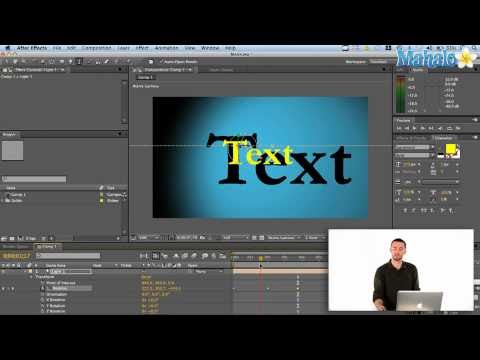
How to Use Lights In Adobe After Effects
ChannelmahalodotcomDescription from the creator
Check out Bas Rutten's Liver Shot on MMA Surge: bit.ly/MMASurgeEp1
Lights in Adobe After Effects work very similarly to lights in real life. You can change their intensity by making them either brighter or darker. You can open and close their cone angle to make them shine a small spotlight or a wide flood light.
Start by creating a new Composition. Navigate to the top menu bar and click Composition -- New Composition or press Command+N on your keyboard. This will reveal the Composition Settings dialog box. Choose your settings and click OK.
Navigate back to the top menu bar and click Layer -- New -- Solid. Choose your Solid Settings in the dialog box that shows and click OK. This will create a two-dimensional colored solid in your Composition window.
Click the 3D Layer icon in the bottom panel to the left of the Timeline. This will allow you to push the solid back in three-dimensional space so you can shine light from the foreground on to the solid behind it.
Select the Type Tool and create some text in the middle of your Composition window. Click the 3D Layer icon associated with this text path to make it three-dimensional as well.
Now you're ready to create a Light. Navigate to the top menu bar and click Layer -- New -- Light. This will reveal the Light Settings dialog box, in which you can choose a Light Type, Intensity, Cone Angle, Cone Feather, Color, amount of Shadow Darkness and amount of Shadow Diffusion. Adjust your light's settings and make sure the Casts Shadows box is checked before clicking OK.
Right away you'll be able to see a difference in your Composition window. Next, reveal the Material Options for the Text parameters in the bottom panel. Switch Casts Shadows to turn On. You'll notice that a shadow now appears in the background of your Composition window.
Feel free to experiment with the placement of your keyframes on your Timeline to create movement with your light.
Read more by visiting our page at:
mahalo.com/courses/adobe-after-effects/animatio…
Lights in Adobe After Effects work very similarly to lights in real life. You can change their intensity by making them either brighter or darker. You can open and close their cone angle to make them shine a small spotlight or a wide flood light.
Start by creating a new Composition. Navigate to the top menu bar and click Composition -- New Composition or press Command+N on your keyboard. This will reveal the Composition Settings dialog box. Choose your settings and click OK.
Navigate back to the top menu bar and click Layer -- New -- Solid. Choose your Solid Settings in the dialog box that shows and click OK. This will create a two-dimensional colored solid in your Composition window.
Click the 3D Layer icon in the bottom panel to the left of the Timeline. This will allow you to push the solid back in three-dimensional space so you can shine light from the foreground on to the solid behind it.
Select the Type Tool and create some text in the middle of your Composition window. Click the 3D Layer icon associated with this text path to make it three-dimensional as well.
Now you're ready to create a Light. Navigate to the top menu bar and click Layer -- New -- Light. This will reveal the Light Settings dialog box, in which you can choose a Light Type, Intensity, Cone Angle, Cone Feather, Color, amount of Shadow Darkness and amount of Shadow Diffusion. Adjust your light's settings and make sure the Casts Shadows box is checked before clicking OK.
Right away you'll be able to see a difference in your Composition window. Next, reveal the Material Options for the Text parameters in the bottom panel. Switch Casts Shadows to turn On. You'll notice that a shadow now appears in the background of your Composition window.
Feel free to experiment with the placement of your keyframes on your Timeline to create movement with your light.
Read more by visiting our page at:
mahalo.com/courses/adobe-after-effects/animatio…
About this tutorial
mahalodotcom published this 6:46 video tutorial on November 1, 2011. It has been watched 208,002 times on YouTube.
- Channel
- mahalodotcom
- Category
- Howto & Style
- Duration
- 6:46
- Published
- November 1, 2011
- Views
- 208,002
- Likes
- 980
Tags
Share
This tutorial in other languages
- FRComment utiliser les lumières dans Adobe After Effects
- ESCómo utilizar las luces en Adobe After Effects
- PTComo usar luzes Em Adobe After Effects
- ITCome usare le luci in Adobe After Effects
- DEWie zu verwenden Lichter in Adobe After Effects
- NLHoe te gebruiken Lights In Adobe After Effects
- RUКак использовать Свет в Adobe After Effects
- PLJak używać świateł w Adobe After Effects
- JA使い方ライトにアドビでのAfter Effects
- ARكيفية استخدام الأنوار في Adobe After Effects
- HIकैसे उपयोग रोशनी करने के लिए एडोब प्रभाव के बाद
- IDCara Gunakan Lights Dalam Adobe After Effects