Playback starts YouTube’s embedded player (privacy-enhanced mode).
How To Change Compatibility Mode Settings in Windows 10
ChannelHow To Windows 10Description from the creator
## How To Change Compatibility Mode Settings In Windows 10
Method 1:
### Manully changing compatibility settings
-- Right click on Program Shortcut or Exe file , after that click on properties. This will open properties Window which can be used to change Compatibility Settings for apps in Windows 10
#### Click on Compatibility tab to open compatibility settings
-- You can use compatibility tab for changing compatibility settings for current user, if you want to change compatibility for all users then use "Change settings for all users button"
-- This will allow you to run program in compatibility mode for older operating systems
-- This option can be used to reduce color mode
-- When you change DPI level of you text , it changes size of text, apps and other items to appear smaller or bigger depending on DPI level..
-- Programs with administrative rights can modify system files
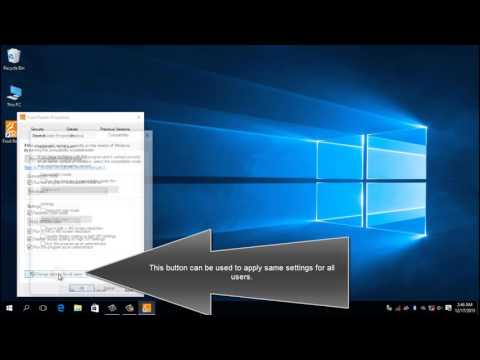
-- This button can be used to apply same settings for all users.
-- You can use trial and error method for determining best settings for running your apps and programs.
Method 2:
#### Using compatibility troubleshooter
-- Right click on program shortcut or exe file, after that click on "Troubleshoot Compatibility", this will open compatibility troubleshooter which will guide you through different steps to fix compatiblity issues.
-- Compatibility troubleshooter will try to detect compatibility problems and will suggest you recommended settings
-- You can either use recommended settings to fix problems if it doesn't work then you can manually troubleshoot program using second option
-- Fill this form by clicking appropriate check boxes for fixing compatibility issues, after that click on Next button
-- Click on test your program to see if program works properly
-- After testing your program , click on Next button. If program worked properly, you can save these compatibility settings, or you can try different settings
-- Close troubleshooter after fixing compatibility issues, or you can explore additional options by browing the web
Method 1:
### Manully changing compatibility settings
-- Right click on Program Shortcut or Exe file , after that click on properties. This will open properties Window which can be used to change Compatibility Settings for apps in Windows 10
#### Click on Compatibility tab to open compatibility settings
-- You can use compatibility tab for changing compatibility settings for current user, if you want to change compatibility for all users then use "Change settings for all users button"
-- This will allow you to run program in compatibility mode for older operating systems
-- This option can be used to reduce color mode
-- When you change DPI level of you text , it changes size of text, apps and other items to appear smaller or bigger depending on DPI level..
-- Programs with administrative rights can modify system files
-- This button can be used to apply same settings for all users.
-- You can use trial and error method for determining best settings for running your apps and programs.
Method 2:
#### Using compatibility troubleshooter
-- Right click on program shortcut or exe file, after that click on "Troubleshoot Compatibility", this will open compatibility troubleshooter which will guide you through different steps to fix compatiblity issues.
-- Compatibility troubleshooter will try to detect compatibility problems and will suggest you recommended settings
-- You can either use recommended settings to fix problems if it doesn't work then you can manually troubleshoot program using second option
-- Fill this form by clicking appropriate check boxes for fixing compatibility issues, after that click on Next button
-- Click on test your program to see if program works properly
-- After testing your program , click on Next button. If program worked properly, you can save these compatibility settings, or you can try different settings
-- Close troubleshooter after fixing compatibility issues, or you can explore additional options by browing the web
About this tutorial
How To Windows 10 published this 2:01 video tutorial on November 10, 2016. It has been watched 166,180 times on YouTube.
- Channel
- How To Windows 10
- Category
- People & Blogs
- Duration
- 2:01
- Published
- November 10, 2016
- Views
- 166,180
- Likes
- 222
Tags
Share
This tutorial in other languages
- FRComment modifier le mode de compatibilité dans Windows 10
- ES¿Cómo los ajustes del modo de compatibilidad Cambiar para en Windows 10
- PTComo alterar as configurações modo de compatibilidade no Windows 10
- ITCome Modifica impostazioni modalità di compatibilità in Windows 10
- DEWie Ändern der Kompatibilitätsmodus-Einstellungen in Windows 10
- NLHow To Change compatibiliteitsmodus instellingen in Windows 10
- RUКак изменить настройки режима совместимости в Windows 10
- PLJak zmienić ustawienia trybu zgodności w systemie Windows 10
- JAどのように変更互換モード設定のWindows 10で
- ARكيف تغيير إعدادات وضع التوافق لفي نظام التشغيل Windows 10
- HIकैसे बदलें संगतता मोड सेटिंग Windows 10 में
- IDCara Mengubah Compatibility Mode Settings di Windows 10