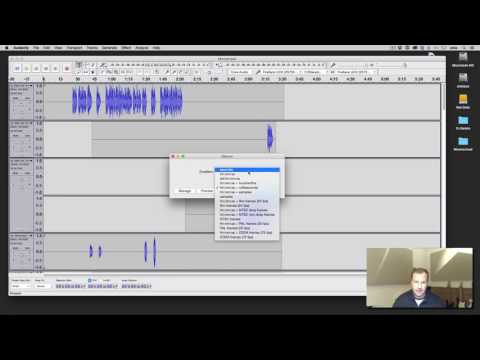
Playback starts YouTube’s embedded player (privacy-enhanced mode).
How to export stems from Zero in Audacity
ChannelStudio HacksDescription from the creator
Here is how to export audio stems from Audacity.
Export Stems from Audacity with This Simple Hack
I had a great new client in the studio today who hired me to produce 3 tracks she had been working on.
She provided me some audio stems but they were all out of time since they were not bounced from the start of the song correctly (from zero).
Fortunately the client had her laptop with all of the original Audacity session files, only problem is there seems to be no easy way to bounce stems from zero in Audacity. After some mucking around I came up with a simple little hack that worked well and it goes like this…
1. Hit “Command + A” for mac (or control + A on pc) to select all the tracks
2. Track back to the start by pressing the “home” key on your keyboard or clicking the back to zero button on the top left hand side of the Audacity interface.
3. From the top menu select “Generate” and then “Silence” and create 1 second of silence. This will create a small block of audio at the start of the song so you can consolidate the audio and it will start at zero.
4. Highlight any track that does not start at zero and hit “Command + J” (Control + J on pc) or go to the menu “Edit – clip boundaries–join”
5. Select the menu “File–Export Multiple” and then follow the prompts to choose the file locations ect..
This worked great for me so next time I have a client that brings in audacity sessions I will know how to export and get them in to a real piece of software like Ableton Live or Pro Tools!
Export Stems from Audacity with This Simple Hack
I had a great new client in the studio today who hired me to produce 3 tracks she had been working on.
She provided me some audio stems but they were all out of time since they were not bounced from the start of the song correctly (from zero).
Fortunately the client had her laptop with all of the original Audacity session files, only problem is there seems to be no easy way to bounce stems from zero in Audacity. After some mucking around I came up with a simple little hack that worked well and it goes like this…
1. Hit “Command + A” for mac (or control + A on pc) to select all the tracks
2. Track back to the start by pressing the “home” key on your keyboard or clicking the back to zero button on the top left hand side of the Audacity interface.
3. From the top menu select “Generate” and then “Silence” and create 1 second of silence. This will create a small block of audio at the start of the song so you can consolidate the audio and it will start at zero.
4. Highlight any track that does not start at zero and hit “Command + J” (Control + J on pc) or go to the menu “Edit – clip boundaries–join”
5. Select the menu “File–Export Multiple” and then follow the prompts to choose the file locations ect..
This worked great for me so next time I have a client that brings in audacity sessions I will know how to export and get them in to a real piece of software like Ableton Live or Pro Tools!
About this tutorial
Studio Hacks published this 4:56 video tutorial on November 12, 2017. It has been watched 23,486 times on YouTube.
- Channel
- Studio Hacks
- Category
- People & Blogs
- Duration
- 4:56
- Published
- November 12, 2017
- Views
- 23,486
- Likes
- 411
Tags
Share
This tutorial in other languages
- FRComment exporter provient de zéro dans Audacity
- ESCómo exportar deriva de cero en Audacity
- PTComo exportação decorre de Zero no Audacity
- ITCome esportare deriva da Zero in Audacity
- DEWie für den Export stammt von Null in Audacity
- NLHoe te export komt voort uit Zero in Audacity
- RUКак экспорта происходит от нуля в Audacity
- PLJak wynika z eksportu Zero w Audacity
- JAどのように輸出へのAudacityでゼロから茎
- ARكيفية تصدير ينبع من الصفر في جرأة
- HIकैसे निर्यात करने के लिए ऑडेसिटी में शून्य से उपजा
- IDCara ekspor berasal dari Nol di Audacity