Playback starts YouTube’s embedded player (privacy-enhanced mode).
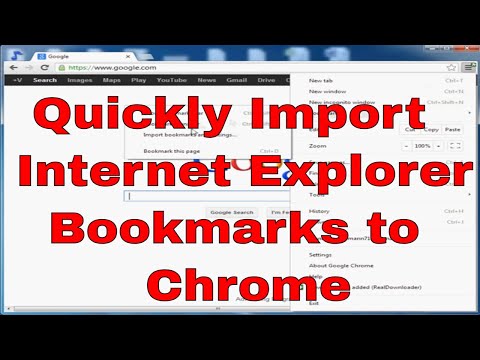
How to import favorites from IE to Chrome
ChannelVic MannDescription from the creator
How to import favorites from IE to Chrome. Import or export bookmarks. If you've got bookmarks or favorites stashed away in another browser, you can easily import them into Google Chrome. Similarly, you can always get your bookmarks out of Chrome by exporting them as a HTML file.
Import bookmarks from Firefox, Internet Explorer, or Google Toolbar
#importbookmarks #importfavorites #chromebookmarks #importexplorerfavorites
1.Click the Chrome menu Chrome menu.
2.Select Bookmarks.
3.Select Import bookmarks and settings.
4.Select the program that contains the bookmarks you'd like to import.
5.Click Import.
If you haven't yet created any bookmarks in Chrome, the bookmarks you import will show up directly on the bookmarks bar, normally docked underneath the address bar. If you already have bookmarks within Chrome, the bookmarks you import will appear in a new folder called "Imported from Firefox" or "Imported from IE," located at the end of the bar. You can also find your bookmarks by clicking the Chrome menu and selecting Bookmarks.
#importfavorites #importbookmarks #bookmarks #chromeimportexplorer
youtu.be/wFHR3cp6O-8
See the original article here: support.google.com/chrome/answer/96816?hl=en
Import bookmarks from Firefox, Internet Explorer, or Google Toolbar
#importbookmarks #importfavorites #chromebookmarks #importexplorerfavorites
1.Click the Chrome menu Chrome menu.
2.Select Bookmarks.
3.Select Import bookmarks and settings.
4.Select the program that contains the bookmarks you'd like to import.
5.Click Import.
If you haven't yet created any bookmarks in Chrome, the bookmarks you import will show up directly on the bookmarks bar, normally docked underneath the address bar. If you already have bookmarks within Chrome, the bookmarks you import will appear in a new folder called "Imported from Firefox" or "Imported from IE," located at the end of the bar. You can also find your bookmarks by clicking the Chrome menu and selecting Bookmarks.
#importfavorites #importbookmarks #bookmarks #chromeimportexplorer
youtu.be/wFHR3cp6O-8
See the original article here: support.google.com/chrome/answer/96816?hl=en
About this tutorial
Vic Mann published this 1:55 video tutorial on November 2, 2013. It has been watched 66,835 times on YouTube.
- Channel
- Vic Mann
- Category
- People & Blogs
- Duration
- 1:55
- Published
- November 2, 2013
- Views
- 66,835
- Likes
- 65
Tags
Share
This tutorial in other languages
- FRComment importer les favoris de IE à Chrome
- ESCómo importar los favoritos de IE a Chrome
- PTComo importar favoritos do IE para o Chrome
- ITCome importare preferiti da IE a Chrome
- DEWie Favoriten von IE auf Chrome importieren
- NLHoe aan favorieten van IE naar Chrome importeren
- RUКак импортировать избранное из IE в Chrome
- PLJak importować ulubione z IE do Chrome
- JAChromeにIEからお気に入りをインポートする方法
- ARكيفية استيراد المفضلة من IE إلى كروم
- HIआईई से Chrome में पसंदीदा को आयात करने के लिए कैसे
- IDBagaimana mengimpor favorit dari IE ke Chrome