Playback starts YouTube’s embedded player (privacy-enhanced mode).
how to launch any graphical application on linux or X11 forwarding or Xming launch
ChannelO-G-HDescription from the creator
#X11Forwarding #GraphicalApplicationLinux #LinuxGUI #OpenGyanHouse
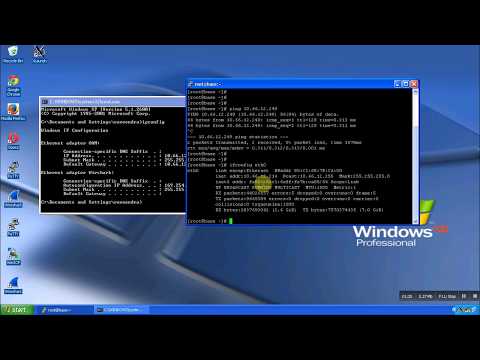
This video is about how to use Graphical application in Linux server environment.
And this video will cover the basic concept of X11 forwarding, Xming server, DISPLAY variable in Linux and Graphical application on Linux.
So to get the Graphical access to any GUI based application we need to follow below listed steps:
1. While logging into the server, Enable the X11 forwarding in Putty Setting.
2. After Login into the Linux machine you need run X11 forwarding server which is "xming" on window machine, which you are using to get access to the Linux server.
3. The xming can be downloaded from google and very easy to install. To launch Xming just click on "Xming Launch" icon and provide the port number where you want to run the xming server and finish the setup.
4. Once Xming is successfully launched on window machine. Just go to the Linux server and set the DISPLAY environment variable using the command "export DISPLAY=Window machine IP : Port of Xming server" i.e. "export DISPLAY=10.66.12.249:7.0" (Refer video for more clarity).
5. You can launch any Graphical application now. Test using "xclock" command.
Also check the IPTABLES & SELINUX status at your Linux machine, both should be turned off.
We are focusing on the basic problems, which we are facing during the installation or implementation of any application and due to unavailability of related content, it took large amount of time.
Hope this kind of video will help you and you will not lose your continuity during the activity.
Will come with more videos soon.
This video is about how to use Graphical application in Linux server environment.
And this video will cover the basic concept of X11 forwarding, Xming server, DISPLAY variable in Linux and Graphical application on Linux.
So to get the Graphical access to any GUI based application we need to follow below listed steps:
1. While logging into the server, Enable the X11 forwarding in Putty Setting.
2. After Login into the Linux machine you need run X11 forwarding server which is "xming" on window machine, which you are using to get access to the Linux server.
3. The xming can be downloaded from google and very easy to install. To launch Xming just click on "Xming Launch" icon and provide the port number where you want to run the xming server and finish the setup.
4. Once Xming is successfully launched on window machine. Just go to the Linux server and set the DISPLAY environment variable using the command "export DISPLAY=Window machine IP : Port of Xming server" i.e. "export DISPLAY=10.66.12.249:7.0" (Refer video for more clarity).
5. You can launch any Graphical application now. Test using "xclock" command.
Also check the IPTABLES & SELINUX status at your Linux machine, both should be turned off.
We are focusing on the basic problems, which we are facing during the installation or implementation of any application and due to unavailability of related content, it took large amount of time.
Hope this kind of video will help you and you will not lose your continuity during the activity.
Will come with more videos soon.
About this tutorial
O-G-H published this 2:21 video tutorial on November 2, 2016. It has been watched 82,996 times on YouTube.
- Channel
- O-G-H
- Category
- People & Blogs
- Duration
- 2:21
- Published
- November 2, 2016
- Views
- 82,996
- Likes
- 303
Tags
Share
This tutorial in other languages
- FRla façon de lancer une application graphique sur Linux ou transfert X11 ou Xming lancement
- EScómo lanzar cualquier aplicación gráfica en Linux o el reenvío por X11 o el lanzamiento Xming
- PTcomo iniciar qualquer aplicação gráfica no linux ou o encaminhamento X11 ou lançamento Xming
- ITcome per lanciare qualsiasi applicazione grafica su Linux o l'inoltro X11 o lancio Xming
- DEwie jede grafische Anwendung auf Linux oder X11-Forwarding oder Xming Start starten
- NLhoe een grafische applicatie op Linux of X11-forwarding of Xming lanceren
- RUкак запускать любое графическое приложение на Linux или перенаправление X11 или запуска Xming
- PLjak uruchomić żadnej aplikacji graficznej w systemie Linux lub spedycji X11 lub Xming premiery
- JALinuxまたはX11フォワーディングやXmingの起動上の任意のグラフィックアプリケーションを起動する方法
- ARكيفية تشغيل أي تطبيق رسومية على لينكس أو X11 الشحن أو إطلاق Xming
- HIकैसे लिनक्स या X11 अग्रेषण या Xming लांच पर किसी भी चित्रमय आवेदन शुरू करने के
- IDbagaimana menjalankan aplikasi grafis pada linux atau X11 forwarding atau peluncuran Xming