Playback starts YouTube’s embedded player (privacy-enhanced mode).
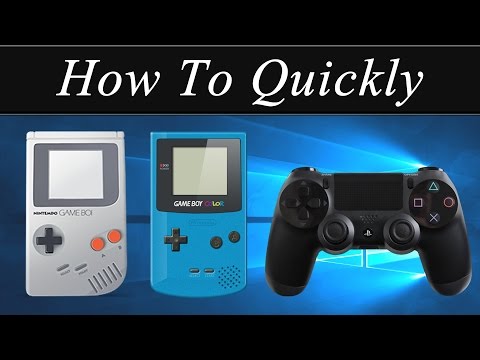
How To Quickly: Play Gameboy/Colour/Advance Games on PC (Keyboard or Controller)
ChannelHow To QuicklyDescription from the creator
To play a Gameboy, Gameboy Colour or Gameboy Advance game on PC with a keyboard or controller, watch this video or do the following:
------ Links ------
Download Visual Boy Advance: filehippo.com/download_visualboyadvance/
Download Gameboy Roms: emuparadise.me/Nintendo_Game_Boy_ROMs/List-All-…
Download Gameboy Colour Roms: emuparadise.me/Nintendo_Game_Boy_Color_ROMs/Lis…
Download Gameboy Advance Roms: emuparadise.me/Nintendo_Gameboy_Advance_ROMs/Li…
1. Scroll down to the description below this video and click "Show More".
2. Right click the first link and open it in a new tab.
3. Click the green "Download Latest version" button and save the file to the location of your choice.
4. Unzip the folder then delete the original zipped folder.
5. Open the Emulators folder and within it, make a new folder called "Roms"
6. Go back to the description of this video then click on a link to either Gameboy, gameboy colour or gameboy advance games.
7. Scroll down the list of games and choose the one you want, ensure it has a U or E in brackets in it's title if you want to play it in english.
8. Once you click the game you want, click "download links" followed by the large orange link.
9. Enter the Captcha then click "Verify and Download"
10. Finally, click the orange download link to your game under the words "Direct Download" to start your download.
11. Once the download is complete, extract the rom file into your roms folder you created earlier and ensure it ends with .gb, .gbc or .gba
12. Next go back to the main folder and double click "VisualBoyAdvance.exe"
13. When the emulator opens click "Options" then move your mouse to Joypad, followed by "Configure" and then click "1".
14. These are the keyboard buttons that will simulate pressing the corresponding buttons on a gameboy.
15. You can highlight the text and press another button on your keyboard to change the control.
16. If you want to use something like a ps4 controller instead, close the program now and plug in your controller.
17. Let a minute pass by so any drivers can be installed then open Visualboyadvance again.
18. Go back to configure the controls and this time press a button on the controller rather than your keyboard.
19. If the emulator doesn't pick up your input you may need further software such as DS4Windows or the corresponding software for your controller.
20. After clicking "OK", drag the rom onto the emulator window to begin playing, remember you can stretch the window out for a bigger screen if you want or click on the maximize button.
If you enjoy quick tutorials without too much waiting, depth and side information, feel free to subscribe to this channel. Because two minutes is too long.
------ Links ------
Download Visual Boy Advance: filehippo.com/download_visualboyadvance/
Download Gameboy Roms: emuparadise.me/Nintendo_Game_Boy_ROMs/List-All-…
Download Gameboy Colour Roms: emuparadise.me/Nintendo_Game_Boy_Color_ROMs/Lis…
Download Gameboy Advance Roms: emuparadise.me/Nintendo_Gameboy_Advance_ROMs/Li…
1. Scroll down to the description below this video and click "Show More".
2. Right click the first link and open it in a new tab.
3. Click the green "Download Latest version" button and save the file to the location of your choice.
4. Unzip the folder then delete the original zipped folder.
5. Open the Emulators folder and within it, make a new folder called "Roms"
6. Go back to the description of this video then click on a link to either Gameboy, gameboy colour or gameboy advance games.
7. Scroll down the list of games and choose the one you want, ensure it has a U or E in brackets in it's title if you want to play it in english.
8. Once you click the game you want, click "download links" followed by the large orange link.
9. Enter the Captcha then click "Verify and Download"
10. Finally, click the orange download link to your game under the words "Direct Download" to start your download.
11. Once the download is complete, extract the rom file into your roms folder you created earlier and ensure it ends with .gb, .gbc or .gba
12. Next go back to the main folder and double click "VisualBoyAdvance.exe"
13. When the emulator opens click "Options" then move your mouse to Joypad, followed by "Configure" and then click "1".
14. These are the keyboard buttons that will simulate pressing the corresponding buttons on a gameboy.
15. You can highlight the text and press another button on your keyboard to change the control.
16. If you want to use something like a ps4 controller instead, close the program now and plug in your controller.
17. Let a minute pass by so any drivers can be installed then open Visualboyadvance again.
18. Go back to configure the controls and this time press a button on the controller rather than your keyboard.
19. If the emulator doesn't pick up your input you may need further software such as DS4Windows or the corresponding software for your controller.
20. After clicking "OK", drag the rom onto the emulator window to begin playing, remember you can stretch the window out for a bigger screen if you want or click on the maximize button.
If you enjoy quick tutorials without too much waiting, depth and side information, feel free to subscribe to this channel. Because two minutes is too long.
About this tutorial
How To Quickly published this 1:52 video tutorial on November 6, 2017. It has been watched 41,150 times on YouTube.
- Channel
- How To Quickly
- Category
- People & Blogs
- Duration
- 1:52
- Published
- November 6, 2017
- Views
- 41,150
- Likes
- 341
Share
This tutorial in other languages
- FRComment rapidement: Lecture Gameboy / Couleur / Jeux Advance sur PC (__gVirt_NP_NN_NNPS<__ clavier ou contrôleur)
- ESCómo rápidamente: Juego de Game Boy Advance Juegos / color / en el PC (teclado o el controlador)
- PTRapidamente Como: Tocar Gameboy / Cor jogos antecipados / no PC (teclado ou Controller)
- ITCome rapidamente: Giocare / Giochi Gameboy Color / Advance sul PC (tastiera o controller)
- DEWie schnell: Play Game Boy / Farbe / Advance Spiele auf PC (Tastatur oder Controller)
- NLHoe te snel: Play Gameboy / Color / Advance games op de PC (toetsenbord of Controller)
- RUКак быстро: Играть Gameboy / цвет / Advance Игры на ПК (клавиатура или контроллер)
- PLJak szybko: Gra Gameboy Advance / kolor / Gry na PC (klawiatura lub kontroler)
- JAどのように迅速に:PC(キーボードやコントローラー)上のプレイゲームボーイ/カラー/アドバンスゲーム
- ARكيف بسرعة: تشغيل لعبة فتى / اللون / ألعاب المسبق على جهاز الكمبيوتر (لوحة المفاتيح أو وحدة تحكم)
- HIकैसे करने के लिए जल्दी से: प्ले पीसी पर गेम ब्वॉय / रंग / अग्रिम खेल (कीबोर्ड या नियंत्रक)
- IDCara Cepat: Bermain Game Boy / Warna / Muka Games di PC (Keyboard atau Controller)