Playback starts YouTube’s embedded player (privacy-enhanced mode).
ArtCAM Pro 8.1 Tutorials: Program Character Engraving Toolpath
ChannelEagleTec MachineryDescription from the creator
From eaglecnctec.com/news/52.html
Jinan EagleTec CNC Machinery Co.,Ltd.
Find “Vector Editing” icon in the left side, please select the number five icon “T”; and it appears TEXT TOOL dialog box on the screen.
(1) Font Setup: please select the right font for your characters. We select “Arial” as example here.
(2) Size: please set the right size for your characters. We select “18” as example here.
(3) Type the characters in the blank.
(4) Create: please click button “Done”.
(5) Position the vector: find column “Position Size Align Vectors”, please click the second icon in second line “middle the vector”, the character becomes centered.
(6) Change character size: find vector editing column, please click the third icon in first line, “Transform Vector” dialog box appears; Input the “New Width” or “New Height”, please noted because the width and height are scaled, we just need set one of both. Here, we set “New Width” 80. Click “Apply” and “Close”.
Step Three. Program Character Engraving Toolpath
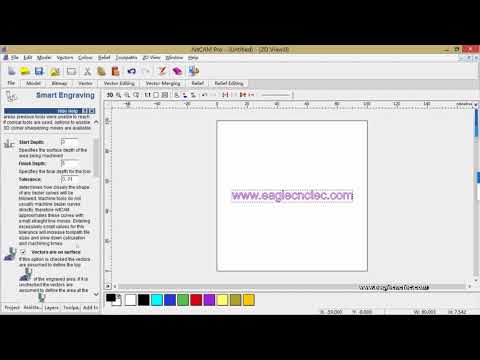
Click the “Tool Path” tag in the lower left corner of the page, and the toolbar concerning tool path will appear on the left side of the page. Click the icon "Engraving" in 2D Toolpaths tag, and "Smart Engraving" dialog box appears, set the parameters as follows:
(1) Start Depth: from where the material being machined. Normally, we set 0.
(2) Finish Depth: the depth of engraved characters. If you want the engraving depth to be 2mm, then write 2 here; if want 3, then set 3. Here, we set 5 as example.
(3) Tolerance: keep 0.01.
Read more, please visit the url in the first line.
Other tutorials about ArtCAM:
youtube.com/watch?v=SNgggpO5rM4&feature=you… - Cutting Demo
youtube.com/watch?v=Y2AXeqsW6QM&feature=you… - Letter Engrave Demo
youtube.com/watch?v=zUgQ6Yrty7M&feature=you… - Intaglio Letter
youtube.com/watch?v=yDwjPbjgk4s&feature=you… - Rilievi Letter
youtu.be/jQkbMqpxJ8A - Relief Sculpture
Jinan EagleTec CNC Machinery Co.,Ltd.
Find “Vector Editing” icon in the left side, please select the number five icon “T”; and it appears TEXT TOOL dialog box on the screen.
(1) Font Setup: please select the right font for your characters. We select “Arial” as example here.
(2) Size: please set the right size for your characters. We select “18” as example here.
(3) Type the characters in the blank.
(4) Create: please click button “Done”.
(5) Position the vector: find column “Position Size Align Vectors”, please click the second icon in second line “middle the vector”, the character becomes centered.
(6) Change character size: find vector editing column, please click the third icon in first line, “Transform Vector” dialog box appears; Input the “New Width” or “New Height”, please noted because the width and height are scaled, we just need set one of both. Here, we set “New Width” 80. Click “Apply” and “Close”.
Step Three. Program Character Engraving Toolpath
Click the “Tool Path” tag in the lower left corner of the page, and the toolbar concerning tool path will appear on the left side of the page. Click the icon "Engraving" in 2D Toolpaths tag, and "Smart Engraving" dialog box appears, set the parameters as follows:
(1) Start Depth: from where the material being machined. Normally, we set 0.
(2) Finish Depth: the depth of engraved characters. If you want the engraving depth to be 2mm, then write 2 here; if want 3, then set 3. Here, we set 5 as example.
(3) Tolerance: keep 0.01.
Read more, please visit the url in the first line.
Other tutorials about ArtCAM:
youtube.com/watch?v=SNgggpO5rM4&feature=you… - Cutting Demo
youtube.com/watch?v=Y2AXeqsW6QM&feature=you… - Letter Engrave Demo
youtube.com/watch?v=zUgQ6Yrty7M&feature=you… - Intaglio Letter
youtube.com/watch?v=yDwjPbjgk4s&feature=you… - Rilievi Letter
youtu.be/jQkbMqpxJ8A - Relief Sculpture
About this tutorial
EagleTec Machinery published this 12:03 video tutorial on November 12, 2017. It has been watched 24,488 times on YouTube.
- Channel
- EagleTec Machinery
- Category
- Science & Technology
- Duration
- 12:03
- Published
- November 12, 2017
- Views
- 24,488
- Likes
- 164
Tags
Share
This tutorial in other languages
- FRArtCAM Pro 8.1 Tutoriels: Caractère Programme Gravure Toolpath
- ESArtCAM Pro 8.1 Tutoriales: Programa de caracteres de grabado de trayectorias
- PTArtCAM Pro 8.1 Tutoriais: Caráter Programa Gravura Toolpath
- ITArtCAM Pro 8.1 Tutorial: Programma Carattere incisione percorso utensile
- DEArtCAM Pro 8.1 Tutorials: Programm Charakter Engraving Werkzeugweg
- NLArtCAM Pro 8.1 Tutorials: Programma karakter graveren Toolpath
- RUArtCAM Pro 8.1 Учебники: Программа Character Гравировка Toolpath
- PLArtCAM Pro 8.1 Poradniki: Program Charakter grawerowanie Toolpath
- JAARTCAMプロ8.1チュートリアル:プログラムの文字彫刻ツールパス
- ARرتكم برو 8.1 دروس: حرف برنامج الحفر Toolpath
- HIArtcam प्रो 8.1 ट्यूटोरियल: कार्यक्रम चरित्र उत्कीर्णन toolpath
- IDArtCAM Pro 8.1 Tutorial: Program Karakter Engraving Toolpath