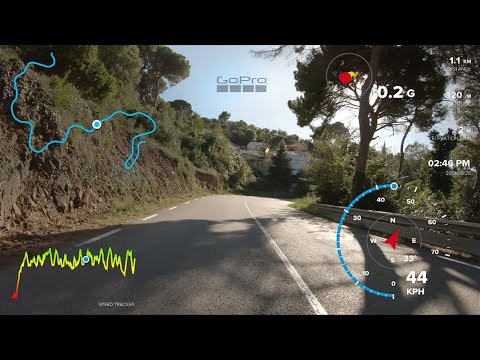
Playback starts YouTube’s embedded player (privacy-enhanced mode).
GoPro Hero 9 & 8 GPS not working? Quick Fix tutorial
ChannelApp Prototyping BarcelonaDescription from the creator
Warning! This tutorial is outdated. Use Telemetry Overlay instead: goprotelemetryextractor.com/telemetry-overlay-g…
Or learn to record good GPS data with GoPro camera here: youtu.be/4R4X_Vs3LFA
GoPro GPS not working? Enable the gauges overlay with the GPS Quick Fix tool: goprotelemetryextractor.com/gopro-gps-not-worki…
Telemetry Lite (free version of Extractor): goprotelemetryextractor.com/free
Frequently Asked Questions: community.gopro.com/t5/GoPro-Metadata-Visualiza…
Other tools for GoPro, DJI, Insta360, and more cameras and devices: goprotelemetryextractor.com
This tool will modify your GoPro videos to enable, when possible, the performance stickers feature in GoPro Quik.
Compatible with Hero 11 Black, Hero 10 Black, Hero 9, Hero 5, Hero 6, Hero 7, Hero 8, GoPro Fusion, GoPro Max.
If you want a discount coupon code, like the video, subscribe to my channel and comment down here.
Make sure you have plenty of free hard drive space in your system. Each video will be duplicated, so 20GB of video files can quickly become 40GB.
By default, the "Tolerance for bad GPS precision" will be set to very high. This will make all the GPS data visible, even very wrong one. You can tweak this setting to try to achieve a better result. The option "none" will not modify GPS precision, but will still enable the gauges for cameras that are not yet supported in Quik (GoPro Hero 8, Hero 9, GoPro Max).
To start the process, drag and drop one or more of your original video files into the app. It will process and make a copy of each video file.
Once the files have processed, import the new copies into GoPro Quik and check out the result by enabling the "performance stickers" or "adjust gauges" option.
Some times, especially if you export multiple modified versions with different tolerance settings, Quik seems to not recognize that the video has changed. Delete the modified video or move it to a different folder,, refresh Quik source folder from the Quik settings tab, close Quik, convert the file again or place it back in Quik's media folder, open Quik and refresh the source folder again.
The preferred support channel is the Metadata Visualization Group in the GoPro Forums. Using this channel allows other users to learn from your questions and the proposed solutions: community.gopro.com/t5/GoPro-Metadata-Visualiza…
Or learn to record good GPS data with GoPro camera here: youtu.be/4R4X_Vs3LFA
GoPro GPS not working? Enable the gauges overlay with the GPS Quick Fix tool: goprotelemetryextractor.com/gopro-gps-not-worki…
Telemetry Lite (free version of Extractor): goprotelemetryextractor.com/free
Frequently Asked Questions: community.gopro.com/t5/GoPro-Metadata-Visualiza…
Other tools for GoPro, DJI, Insta360, and more cameras and devices: goprotelemetryextractor.com
This tool will modify your GoPro videos to enable, when possible, the performance stickers feature in GoPro Quik.
Compatible with Hero 11 Black, Hero 10 Black, Hero 9, Hero 5, Hero 6, Hero 7, Hero 8, GoPro Fusion, GoPro Max.
If you want a discount coupon code, like the video, subscribe to my channel and comment down here.
Make sure you have plenty of free hard drive space in your system. Each video will be duplicated, so 20GB of video files can quickly become 40GB.
By default, the "Tolerance for bad GPS precision" will be set to very high. This will make all the GPS data visible, even very wrong one. You can tweak this setting to try to achieve a better result. The option "none" will not modify GPS precision, but will still enable the gauges for cameras that are not yet supported in Quik (GoPro Hero 8, Hero 9, GoPro Max).
To start the process, drag and drop one or more of your original video files into the app. It will process and make a copy of each video file.
Once the files have processed, import the new copies into GoPro Quik and check out the result by enabling the "performance stickers" or "adjust gauges" option.
Some times, especially if you export multiple modified versions with different tolerance settings, Quik seems to not recognize that the video has changed. Delete the modified video or move it to a different folder,, refresh Quik source folder from the Quik settings tab, close Quik, convert the file again or place it back in Quik's media folder, open Quik and refresh the source folder again.
The preferred support channel is the Metadata Visualization Group in the GoPro Forums. Using this channel allows other users to learn from your questions and the proposed solutions: community.gopro.com/t5/GoPro-Metadata-Visualiza…
About this tutorial
App Prototyping Barcelona published this 3:24 video tutorial on December 1, 2019. It has been watched 142,492 times on YouTube.
- Channel
- App Prototyping Barcelona
- Category
- Science & Technology
- Duration
- 3:24
- Published
- December 1, 2019
- Views
- 142,492
- Likes
- 1,065
Tags
Share
This tutorial in other languages
- FRGoPro 9 et 8 GPS ne fonctionne pas? tutoriel Quick Fix
- ESGoPro héroe 9 y 8 GPS no funciona? tutorial Quick Fix
- PTGoPro herói 9 e 8 GPS não está funcionando? tutorial Quick Fix
- ITGoPro Eroe 9 e 8 GPS non funziona? Tutorial Quick Fix
- DEGoPro Held 9 & 8 GPS funktioniert nicht? Quick Fix-Tutorial
- NLGoPro Hero 9 & 8 GPS werkt niet? Quick Fix zelfstudie
- RUGoPro Hero 9 и 8 GPS не работает? Quick Fix учебник
- PLGoPro Hero 9 i 8 GPS nie działa? Krótki poradnik Fix
- JAGoProヒーロー9&8個のGPSが動作しませんか?クイックフィックスチュートリアル
- ARمن GoPro البطل 9 و 8 GPS لا يعمل؟ حل سريع تعليمي
- HIGoPro हीरो 9 और 8 जीपीएस काम नहीं कर रहा? त्वरित फिक्स ट्यूटोरियल
- IDGoPro Pahlawan 9 & 8 GPS tidak bekerja? Cepat tutorial Fix