Playback starts YouTube’s embedded player (privacy-enhanced mode).
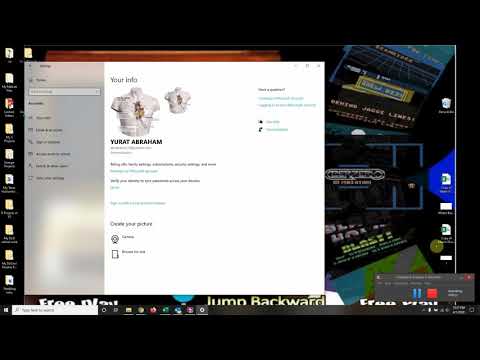
How to Change Your Administrator Email in Windows 10
ChannelYurat AbrahamDescription from the creator
How to change the administrator email in a Windows 10
1. you need to already have an email that you want to update.
2. go to your online Microsoft account using your favorite browser.
3. go to "your information,"
4. got to "Manage how you sign in to Microsoft.
5. "Add new email" add your new email.
6. click remove the old one and keep the new email. The new email will become the primary one.
7. On your computer, go to settings then accounts. Click sign in to a local account. When asked for your pin is the pin you use to log in to your computer.
8. It will ask for a new computer username and password. for the username, I kept the default. for the password, I kept it the same as my Microsoft password to avoid confusion.
9. restart the computer.
10. go back to "settings" then "accounts."
11. Click "sign in with your Microsoft account."
12. Type your new updated email and Microsoft password.
PLEASE COMMENT, THANK YOU
***
Professional mathematics tutor with 6+ years of experience, currently pursuing a Bachelor's degree in Electrical Engineering.
This channel is dedicated to educating future engineers on the principles of coding and statistics. If there are any other topics/suggestions you'd like me to cover please list them in the comment section.
For tutoring help on Patreon ▶ patreon.com/yurat_abraham
PayPal ▶ paypal.me/YuratAbraham?locale.x=en_US
Follow me on Instagram ▶ instagram.com/engineeringandbeyond
Like the Facebook page! ▶ facebook.com/EngineerandBeyond
Follow my Twitter ▶ twitter.com/yurat_abraham
1. you need to already have an email that you want to update.
2. go to your online Microsoft account using your favorite browser.
3. go to "your information,"
4. got to "Manage how you sign in to Microsoft.
5. "Add new email" add your new email.
6. click remove the old one and keep the new email. The new email will become the primary one.
7. On your computer, go to settings then accounts. Click sign in to a local account. When asked for your pin is the pin you use to log in to your computer.
8. It will ask for a new computer username and password. for the username, I kept the default. for the password, I kept it the same as my Microsoft password to avoid confusion.
9. restart the computer.
10. go back to "settings" then "accounts."
11. Click "sign in with your Microsoft account."
12. Type your new updated email and Microsoft password.
PLEASE COMMENT, THANK YOU
***
Professional mathematics tutor with 6+ years of experience, currently pursuing a Bachelor's degree in Electrical Engineering.
This channel is dedicated to educating future engineers on the principles of coding and statistics. If there are any other topics/suggestions you'd like me to cover please list them in the comment section.
For tutoring help on Patreon ▶ patreon.com/yurat_abraham
PayPal ▶ paypal.me/YuratAbraham?locale.x=en_US
Follow me on Instagram ▶ instagram.com/engineeringandbeyond
Like the Facebook page! ▶ facebook.com/EngineerandBeyond
Follow my Twitter ▶ twitter.com/yurat_abraham
About this tutorial
Yurat Abraham published this 5:30 video tutorial on April 26, 2020. It has been watched 112,218 times on YouTube.
- Channel
- Yurat Abraham
- Category
- Science & Technology
- Duration
- 5:30
- Published
- April 26, 2020
- Views
- 112,218
- Likes
- 576
Tags
Share
This tutorial in other languages
- FRComment changer votre e-mail de l'administrateur dans Windows 10
- ESCómo cambiar su administrador de correo electrónico en Windows 10
- PTComo mudar seu administrador-mail no Windows 10
- ITCome modificare l'amministratore del server in Windows 10
- DEWie Sie Ihre Administrator E-Mail in Windows 10 ändern
- NLHet wijzigen van uw Administrator E-mail in Windows 10
- RUКак изменить администратор электронной почты в Windows 10
- PLJak zmienić e-mail administratora w systemie Windows 10
- JAWindowsの10で管理者のメールアドレスを変更する方法
- ARكيفية تغيير مدير البريد الإلكتروني في نظام التشغيل Windows 10
- HIकैसे Windows 10 में बदलने के लिए अपने व्यवस्थापक ईमेल
- IDCara Mengubah Administrator Anda Email di Windows 10