Playback starts YouTube’s embedded player (privacy-enhanced mode).
How to insert a check box in Word 2010 and change the symbol to a check mark
ChannelWinOfficeDescription from the creator
How to insert a check box in Word 2010 and change the checked symbol to a check mark
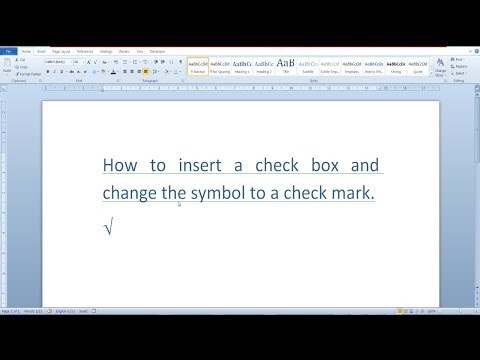
In this video i go over how you can insert a check box in Word 2010 and change the checked symbol to the familiar check mark.
First of all you need to make sure the Developer tab is visible, so from the File menu, go to Options and then Customize Ribbon and ensure that the Developer tab is checked.
Now, the Developer tab should be visible and after writing our text we can insert a check box in our document. From the Developer tab, the Controls section click on Check Box Content Control to insert a check box in the Word document.
In order to change the checked symbol to a check mark, select the check box and from the Developer tab, the Controls section click on Properties. Now browse to the Check box properties section of the dialog menu and click on Change... next to the Checked symbol.
Scroll down a bit an you will find the check mark symbol. It is 8th from the left. Now click on and the checked symbol of the check box will now be the check mark. You will have to repeat the same process for every check box in your Word document in order to change the checked symbol to a check mark.
As you have noticed, inserting a check box and changing the checked symbol to a check mark is quite simple and easy.
If you have any questions, let me know in the comments. Thanks for watching, like and subscribe!
In this video i go over how you can insert a check box in Word 2010 and change the checked symbol to the familiar check mark.
First of all you need to make sure the Developer tab is visible, so from the File menu, go to Options and then Customize Ribbon and ensure that the Developer tab is checked.
Now, the Developer tab should be visible and after writing our text we can insert a check box in our document. From the Developer tab, the Controls section click on Check Box Content Control to insert a check box in the Word document.
In order to change the checked symbol to a check mark, select the check box and from the Developer tab, the Controls section click on Properties. Now browse to the Check box properties section of the dialog menu and click on Change... next to the Checked symbol.
Scroll down a bit an you will find the check mark symbol. It is 8th from the left. Now click on and the checked symbol of the check box will now be the check mark. You will have to repeat the same process for every check box in your Word document in order to change the checked symbol to a check mark.
As you have noticed, inserting a check box and changing the checked symbol to a check mark is quite simple and easy.
If you have any questions, let me know in the comments. Thanks for watching, like and subscribe!
About this tutorial
WinOffice published this 3:43 video tutorial on November 9, 2018. It has been watched 64,343 times on YouTube.
- Channel
- WinOffice
- Category
- Science & Technology
- Duration
- 3:43
- Published
- November 9, 2018
- Views
- 64,343
- Likes
- 79
Tags
Share
This tutorial in other languages
- FRComment insérer une case à cocher dans Word 2010 et changer le symbole d'une coche
- ES¿Cómo insertar una casilla de verificación en Word 2010 y cambiar el símbolo de una marca de verificación
- PTComo inserir uma caixa de verificação no Word 2010 e mudar o símbolo de uma marca de verificação
- ITCome inserire una casella di controllo in Word 2010 e cambiare il simbolo di un segno di spunta
- DEWie ein Kontrollkästchen in Word 2010 einzufügen und das Symbol zu einem Häkchen ändern
- NLHet aanbrengen van een vakje in Word 2010 en verander het symbool om een vinkje
- RUКак вставить флажок в Word 2010 и изменить символ галочки
- PLJak wstawić pole wyboru w programie Word 2010 i zmienić symbol z haczykiem
- JAどのようにWordの2010年には、チェックボックスを挿入し、チェックマークに記号を変更するには
- ARكيفية إدراج خانة الاختيار في Word 2010 وتغيير رمز لعلامة الاختيار
- HIकैसे Word 2010 में एक चेक बॉक्स डाल सकते हैं और एक जाँच चिह्न को बदलने के लिए प्रतीक
- IDCara menyisipkan kotak centang di Word 2010 dan mengubah simbol untuk tanda centang