Playback starts YouTube’s embedded player (privacy-enhanced mode).
How to install Phpmyadmin for Windows
ChannelTaonoi NarakmakDescription from the creator
How to install Phpmyadmin for Windows
วิธีติดตั้ง Phpmyadmin สำหรับ Windows
You Must Have
- Apache for Win
- Php
- Mysql
1. Download phpMyAdmin-4.4.8-all-languages.zip from phpmyadmin.net/home_page/downloads.php
ถ้าต้องการใช้เมนูภาษาไทยให้เลือกใช้ 4.0.10.10 Thai - phpMyAdmin-4.0.10.10-all-languages.zip
2. unzip to c:\_Mysites_\phpmyadmin
3. edit c:\windows\system32\drivers\etc\hosts
127.0.0.1 phpmyadmin
& Save
4. edit c:\apache\conf\extra\httpd-vhosts.conf
...
& Save
+ Restart Apache
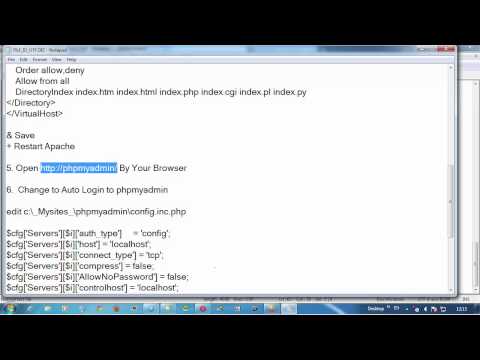
5. Open phpmyadmin/ By Your Browser
6. Change to Auto Login to phpmyadmin
edit c:\_Mysites_\phpmyadmin\config.inc.php
$cfg['Servers'][$i]['auth_type'] = 'config';
$cfg['Servers'][$i]['host'] = 'localhost';
$cfg['Servers'][$i]['connect_type'] = 'tcp';
$cfg['Servers'][$i]['compress'] = false;
$cfg['Servers'][$i]['AllowNoPassword'] = false;
$cfg['Servers'][$i]['controlhost'] = 'localhost';
$cfg['Servers'][$i]['port'] = '3306';
$cfg['Servers'][$i]['user'] = 'root';
$cfg['Servers'][$i]['password'] = 'password';
$cfg['Servers'][$i]['verbose'] = 'localhost';
$cfg['Servers'][$i]['extension'] = 'mysqli';
& Save
7. Open phpmyadmin/
Finish
By Taonoi Narak [email protected]
วิธีติดตั้ง Phpmyadmin สำหรับ Windows
You Must Have
- Apache for Win
- Php
- Mysql
1. Download phpMyAdmin-4.4.8-all-languages.zip from phpmyadmin.net/home_page/downloads.php
ถ้าต้องการใช้เมนูภาษาไทยให้เลือกใช้ 4.0.10.10 Thai - phpMyAdmin-4.0.10.10-all-languages.zip
2. unzip to c:\_Mysites_\phpmyadmin
3. edit c:\windows\system32\drivers\etc\hosts
127.0.0.1 phpmyadmin
& Save
4. edit c:\apache\conf\extra\httpd-vhosts.conf
...
& Save
+ Restart Apache
5. Open phpmyadmin/ By Your Browser
6. Change to Auto Login to phpmyadmin
edit c:\_Mysites_\phpmyadmin\config.inc.php
$cfg['Servers'][$i]['auth_type'] = 'config';
$cfg['Servers'][$i]['host'] = 'localhost';
$cfg['Servers'][$i]['connect_type'] = 'tcp';
$cfg['Servers'][$i]['compress'] = false;
$cfg['Servers'][$i]['AllowNoPassword'] = false;
$cfg['Servers'][$i]['controlhost'] = 'localhost';
$cfg['Servers'][$i]['port'] = '3306';
$cfg['Servers'][$i]['user'] = 'root';
$cfg['Servers'][$i]['password'] = 'password';
$cfg['Servers'][$i]['verbose'] = 'localhost';
$cfg['Servers'][$i]['extension'] = 'mysqli';
& Save
7. Open phpmyadmin/
Finish
By Taonoi Narak [email protected]
About this tutorial
Taonoi Narakmak published this 8:15 video tutorial on November 13, 2015. It has been watched 2,590 times on YouTube.
- Channel
- Taonoi Narakmak
- Category
- Science & Technology
- Duration
- 8:15
- Published
- November 13, 2015
- Views
- 2,590
- Likes
- 5
Tags
Share
This tutorial in other languages
- FRComment installer Phpmyadmin pour Windows
- ESComo instalar Phpmyadmin para Windows
- PTComo instalar Phpmyadmin para Windows
- ITCome installare Phpmyadmin per Windows
- DEWie installiert man Phpmyadmin für Windows
- NLHoe te Phpmyadmin te installeren voor Windows
- RUКак установить PhpMyAdmin для Windows,
- PLJak zainstalować phpMyAdmin dla Windows
- JAWindows用phpMyAdminのインストール方法
- ARكيفية تثبيت بريس ويندوز
- HIविंडोज के लिए phpMyAdmin स्थापित करने के लिए
- IDBagaimana menginstal phpmyadmin untuk Windows