Playback starts YouTube’s embedded player (privacy-enhanced mode).
How to Install WebWatcher for Android
ChannelWebWatcherDescription from the creator
How to Install WebWatcher For Android
Step 1. Go to the Google Play Store with the child device and disable Play Protect
Step 2. Go to 'Settings' and navigate to 'Lock Screen and Security'. Scroll until you see an option labeled 'Install unknown apps'. Tap on this and open 'My Files'. Turn on the option that reads 'Allow from this source'
Step 3. Go to 'getati.com'. Slide the button to the right to download the child app. Tap 'OK' when asked if you want to keep the file. Open the file.
Step 4. Click the 'Install' button an tap 'Open'
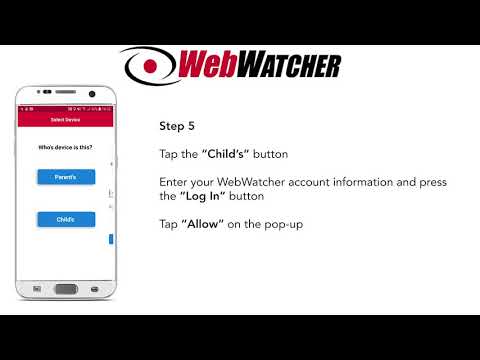
Step 5. Tap the 'Child's' button. Enter your WebWatcher account information and press the 'Log In' button. Tap 'Allow' on the pop-ups.
Step 6. Tap on the "Activate Now' button. Scroll down to the WWChildApp and tap on it. Turn on the option that reads 'Allow usage tracking'.
Step 7. Tap on the 'Activate Now' button. Scroll down to WWChildApp and tap on it. Turn on the option and tap 'OK' on the pop-up that follows.
Step 8. Tap on the 'Activate Now' buttons and tap 'Allow' as needed
Step 9. Tap on the 'Activate Now' buttons and tap 'Activate' on the next screen
Step 10. Tap on the 'Activate Now' button. On the pop-up that follows, select 'Don't show again' and tap 'Start now'.
Step 11. Tap on the "Activate Now" button. On the next screen tap 'Allow permissions'. Tap 'Allow' on the follow pop-up. Then, tap 'Hide App' to finish the installation.
Step 12. Go to your apps and select ‘My Files’. Tap on the ‘Downloads’ button. Tap and hold the WWChildApp.apk and select delete. At the pop-up, tap ‘Delete’.
Congratulations, you are now ready to start using WebWatcher! To view data, go to login.webwatcher.com
For more support, please refer to our knowledge base articles or contact [email protected].
Thank you!
Step 1. Go to the Google Play Store with the child device and disable Play Protect
Step 2. Go to 'Settings' and navigate to 'Lock Screen and Security'. Scroll until you see an option labeled 'Install unknown apps'. Tap on this and open 'My Files'. Turn on the option that reads 'Allow from this source'
Step 3. Go to 'getati.com'. Slide the button to the right to download the child app. Tap 'OK' when asked if you want to keep the file. Open the file.
Step 4. Click the 'Install' button an tap 'Open'
Step 5. Tap the 'Child's' button. Enter your WebWatcher account information and press the 'Log In' button. Tap 'Allow' on the pop-ups.
Step 6. Tap on the "Activate Now' button. Scroll down to the WWChildApp and tap on it. Turn on the option that reads 'Allow usage tracking'.
Step 7. Tap on the 'Activate Now' button. Scroll down to WWChildApp and tap on it. Turn on the option and tap 'OK' on the pop-up that follows.
Step 8. Tap on the 'Activate Now' buttons and tap 'Allow' as needed
Step 9. Tap on the 'Activate Now' buttons and tap 'Activate' on the next screen
Step 10. Tap on the 'Activate Now' button. On the pop-up that follows, select 'Don't show again' and tap 'Start now'.
Step 11. Tap on the "Activate Now" button. On the next screen tap 'Allow permissions'. Tap 'Allow' on the follow pop-up. Then, tap 'Hide App' to finish the installation.
Step 12. Go to your apps and select ‘My Files’. Tap on the ‘Downloads’ button. Tap and hold the WWChildApp.apk and select delete. At the pop-up, tap ‘Delete’.
Congratulations, you are now ready to start using WebWatcher! To view data, go to login.webwatcher.com
For more support, please refer to our knowledge base articles or contact [email protected].
Thank you!
About this tutorial
WebWatcher published this 2:41 video tutorial on November 2, 2019. It has been watched 32,509 times on YouTube.
- Channel
- WebWatcher
- Category
- Science & Technology
- Duration
- 2:41
- Published
- November 2, 2019
- Views
- 32,509
Tags
Share
This tutorial in other languages
- FRComment faire pour installer WebWatcher pour Android
- ESCómo instalar WebWatcher para Android
- PTComo instalar WebWatcher para Android
- ITCome installare WebWatcher per Android
- DESo installieren Sie WebWatcher für Android
- NLHoe te installeren WebWatcher voor Android
- RUКак установить WebWatcher для Android
- PLJak zainstalować Webwatcher dla Androida
- JAアンドロイド用WebWatcherをインストールする方法
- ARكيفية تثبيت WebWatcher لالروبوت
- HIAndroid के लिए WebWatcher स्थापित करने के लिए कैसे
- IDCara Instal WebWatcher untuk Android