Playback starts YouTube’s embedded player (privacy-enhanced mode).
How to Recover Lost Word Document in Simple Steps..!!!!
ChannelMathias HoffordDescription from the creator
restorelostfiles.net/recover-word.html - Hello there, this is Mathias Hofford & in this video, I will show you a simple way of getting back Word document when you don't find it on its location & it might gone missing due to virus infection, any interruption during file transfer, incomplete cut-paste operation, etc.
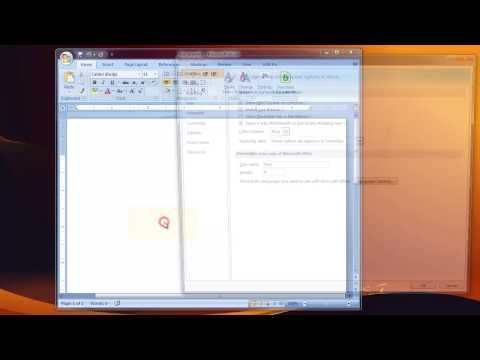
To start with, open Word application & click on this logo at the top. Then, click on "Word Options", here go to "Save" tab & copy this location.
Now, go to that location, here you may find missing or unsaved or lost documents, if there are any. You can then open the required file in Word & save it on desired location.
But, sometimes you may not find the lost files at this location. In such cases, only thing which can get back your document is any good recovery software. At this point, you should be cautious while choosing the software.
Now, I will suggest you one such effective recovery tool that may help you out in recovering back your Word document. It's called Remo File Recovery software.
Straight away, lets start the recovery process.
On its main screen, select Recover Files module among the three available.
Next, choose Recover Lost Files option.
Now, choose the drive from which Word document has been lost & hit Next.
At this point, provide the extension of your document i.e. docx & click Find. You will see docx extension will be marked in the list. Now , proceed to next step.
Software will then start the recovery process & scan your drive for docx files. Upon the completion of this process, it will display a list of recovered data.
You can then go the desired folder & check whether the software has recovered lost documents. If so, choose the required files & move to next step.
This will be the last screen, here provide the location where files need to be saved, & this will complete the recovery process.
Software starts saving the lost document & opens the output folder with lost data.
Finally, don't forget to check the recovered files, whether they are in a healthy condition or not.
To get this software, go to the site "restorelostfiles.net" & visit this page about Word File Recovery. Here, download its trial version. If you get what you want, only then purchase it.
So, this was all about Lost Word file Recovery. If you like this video, please hit Like & subscribe my channel as it will surely help you in many ways.
For more info, visit the link I have provided in the description below this video.
Thank you, Good Bye.
To start with, open Word application & click on this logo at the top. Then, click on "Word Options", here go to "Save" tab & copy this location.
Now, go to that location, here you may find missing or unsaved or lost documents, if there are any. You can then open the required file in Word & save it on desired location.
But, sometimes you may not find the lost files at this location. In such cases, only thing which can get back your document is any good recovery software. At this point, you should be cautious while choosing the software.
Now, I will suggest you one such effective recovery tool that may help you out in recovering back your Word document. It's called Remo File Recovery software.
Straight away, lets start the recovery process.
On its main screen, select Recover Files module among the three available.
Next, choose Recover Lost Files option.
Now, choose the drive from which Word document has been lost & hit Next.
At this point, provide the extension of your document i.e. docx & click Find. You will see docx extension will be marked in the list. Now , proceed to next step.
Software will then start the recovery process & scan your drive for docx files. Upon the completion of this process, it will display a list of recovered data.
You can then go the desired folder & check whether the software has recovered lost documents. If so, choose the required files & move to next step.
This will be the last screen, here provide the location where files need to be saved, & this will complete the recovery process.
Software starts saving the lost document & opens the output folder with lost data.
Finally, don't forget to check the recovered files, whether they are in a healthy condition or not.
To get this software, go to the site "restorelostfiles.net" & visit this page about Word File Recovery. Here, download its trial version. If you get what you want, only then purchase it.
So, this was all about Lost Word file Recovery. If you like this video, please hit Like & subscribe my channel as it will surely help you in many ways.
For more info, visit the link I have provided in the description below this video.
Thank you, Good Bye.
About this tutorial
Mathias Hofford published this 3:09 video tutorial on November 15, 2013. It has been watched 45,370 times on YouTube.
- Channel
- Mathias Hofford
- Category
- Science & Technology
- Duration
- 3:09
- Published
- November 15, 2013
- Views
- 45,370
- Likes
- 143
Share
This tutorial in other languages
- FRComment faire pour récupérer mot perdu document en quelques étapes simples .. !!!!
- ESCómo recuperar archivos perdidos documento de Word en pasos simples .. !!!!
- PTComo recuperar perdido documento do Word em passos simples .. !!!!
- ITCome per recuperare perso documento di Word in semplici passi .. !!!!
- DEWie zur Wiederherstellung verlorener Word-Dokument in einfachen Schritten .. !!!!
- NLHoe naar Lost Word-document te herstellen in eenvoudige stappen .. !!!!
- RUКак Восстановление утерянного документа Word в простых шагах .. !!!!
- PLJak odzyskać utracone Dokument programu Word w kilku prostych krokach .. !!!!
- JA簡単なステップで失われたWord文書を回復する方法.. !!!!
- ARكيفية استرداد مستند Word المفقودة في خطوات بسيطة .. !!!!
- HIकैसे सरल कदम में खोया वर्ड दस्तावेज़ पुनर्प्राप्त करने के लिए .. !!!!
- IDCara Recover Word Document Hilang di Langkah Sederhana .. !!!!