Playback starts YouTube’s embedded player (privacy-enhanced mode).
How to Remove Unwanted and Left Over Registry Keys on Windows
ChannelRemoSoftwareOfficialDescription from the creator
How to Clean Invalid Registry Keys on Windows
remosoftware.com/remove-unwanted-registry-entri…
Hey folks,
In this video, I will be discussing about the registry keys which gets stored on your system along with the execution of each of the applications, both third-party & built-in.
When you uninstall any software from your PC, its registry entries may still reside on it & over the time get fragmented. This makes your PC slow while accessing some of the applications.
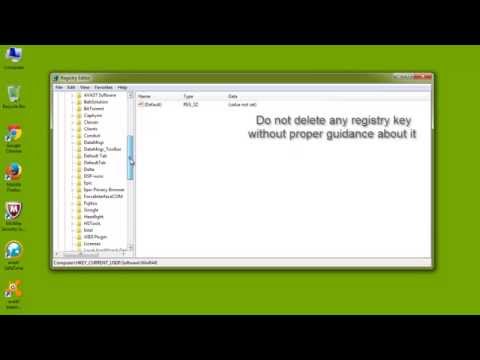
Now, I will show you about Registry Editor, where you can see these registry keys on your PC.
But, be cautious before making any modifications in Registry Editor, as deleting system required registry keys may hurt your PC quite badly.
First, go to Start menu & then Run dialog box.
Type regedit command here, to open the Editor.
At the left hand side of the screen, you can see some categories under which registry keys are stored. From this, choose the folder for Registry Keys of Current User.
Under this, select the folder Software, here you can see a list of registry keys of all the software on your PC.
Choose the one which you have uninstalled or are not using it or which is giving some trouble while accessing other programs.
Right-click on it & delete its entries completely from your system.
So, this is all about registry keys & how to get rid of them to make your PC perform faster & better.
But, make sure you are not deleting any registry key which is required for the smooth functioning of your PC.
If you are confused while managing these registry keys but still want to optimize your PC, hand over your problems to Remo MORE -- A free-to-use Registry Cleaner which will clean only unwanted keys, that too without much of your efforts.
Go for Remo MORE & forget everything about Registry Keys.
Remo Software YouTube channel brings to you videos on all its software products. Watch videos to know how to recover data, how to repair corrupt files, erase files, and also know how to manage and optimize them.
Website www/remosoftware.com/domore
Google+ plus.google.com/113141510086102063749
YouTube youtube.com/remosoftwareofficial
Facebook facebook.com/remosoftware
Twitter twitter.com/remosoftware
remosoftware.com/remove-unwanted-registry-entri…
Hey folks,
In this video, I will be discussing about the registry keys which gets stored on your system along with the execution of each of the applications, both third-party & built-in.
When you uninstall any software from your PC, its registry entries may still reside on it & over the time get fragmented. This makes your PC slow while accessing some of the applications.
Now, I will show you about Registry Editor, where you can see these registry keys on your PC.
But, be cautious before making any modifications in Registry Editor, as deleting system required registry keys may hurt your PC quite badly.
First, go to Start menu & then Run dialog box.
Type regedit command here, to open the Editor.
At the left hand side of the screen, you can see some categories under which registry keys are stored. From this, choose the folder for Registry Keys of Current User.
Under this, select the folder Software, here you can see a list of registry keys of all the software on your PC.
Choose the one which you have uninstalled or are not using it or which is giving some trouble while accessing other programs.
Right-click on it & delete its entries completely from your system.
So, this is all about registry keys & how to get rid of them to make your PC perform faster & better.
But, make sure you are not deleting any registry key which is required for the smooth functioning of your PC.
If you are confused while managing these registry keys but still want to optimize your PC, hand over your problems to Remo MORE -- A free-to-use Registry Cleaner which will clean only unwanted keys, that too without much of your efforts.
Go for Remo MORE & forget everything about Registry Keys.
Remo Software YouTube channel brings to you videos on all its software products. Watch videos to know how to recover data, how to repair corrupt files, erase files, and also know how to manage and optimize them.
Website www/remosoftware.com/domore
Google+ plus.google.com/113141510086102063749
YouTube youtube.com/remosoftwareofficial
Facebook facebook.com/remosoftware
Twitter twitter.com/remosoftware
About this tutorial
RemoSoftwareOfficial published this 2:24 video tutorial on November 6, 2014. It has been watched 233,861 times on YouTube.
- Channel
- RemoSoftwareOfficial
- Category
- Science & Technology
- Duration
- 2:24
- Published
- November 6, 2014
- Views
- 233,861
- Likes
- 727
Tags
Share
This tutorial in other languages
- FRComment faire pour supprimer non sollicitées et gauche des clés du Registre sous Windows
- ESCómo quitar claves de registro no deseado y dejar más en Ventanas
- PTComo remover chaves do Registro indesejados e deixou mais no Windows
- ITCome rimuovere indesiderati e Oltre Sinistra chiavi di registro in Windows
- DESo entfernen Sie unerwünschte und Left Over Keys Registry unter Windows
- NLHoe te verwijderen ongewenste en overgebleven registersleutels op Windows
- RUКак удалить нежелательные и перенесенные ключи реестра на Windows,
- PLJak usunąć niechciane i pozostały kluczy rejestru w systemie Windows
- JAWindows上で不要なとレフトオーバーレジストリキーを削除する方法
- ARكيفية إزالة مفاتيح التسجيل غير المرغوب فيها وخلفها على ويندوز
- HIकैसे विंडोज पर अवांछित और वाम से अधिक रजिस्ट्री कुंजी निकालें
- IDCara Hapus Diinginkan dan Kiri Atas Registry Keys pada Windows