Playback starts YouTube’s embedded player (privacy-enhanced mode).
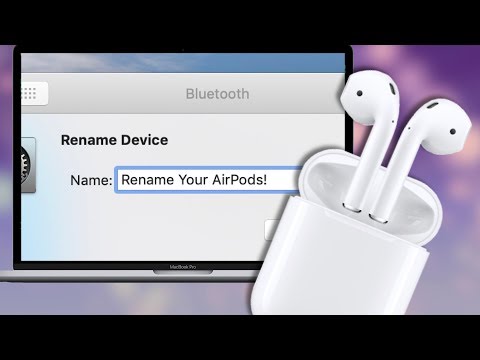
How to Rename AirPods on Your Mac!
ChannelTech IRLDescription from the creator
How to Rename AirPods on Your Mac!
Subscribe For Tech Videos including Tech How To’s with New Videos Every Week!
Follow us on Twitter: @TechInRL
Welcome to my short video showing you how to rename your AirPods using your mac. This is a followup to my video How to Rename Your AirPods, in that video I show you how to do it on your iPhone. I’ll leave a link in the description below in case you’d like to check that out as well. I’ve been getting more people asking me about how to do it on their Mac recently, so I thought I’d just make this short video showing you how to do it.
First make sure your AirPods are connected to your Mac, best way to make sure they’re connected is to start playing some music from your computer to your AirPods. While rocking out to your favourite song open system preferences. There’s many ways to get there, but a simple one is to click the apple icon in the upper left and choose system preferences. Once that’s open locate the bluetooth icon, usually on the third row, and double click to open. Now locate your AirPods on the list of bluetooth devices. Once located right click or control click on your AirPods and choose “rename”. This will bring up the rename device window, now you can change the name! Once you’ve made the desired changes click the rename button at the bottom right of the window. Now your AirPods have been renamed and you can close the system preferences window by clicking the red x in the upper left corner of the window.
Renaming your AirPods is pretty simple whether on your iPhone or Mac.
If you enjoyed this video or found it helpful feel free to give it a thumbs up, and while you’re down there don’t forget to ring that bell and subscribe to the channel for more tech videos, including tech how to’s every week.
As always, thanks for watching and we’ll see you in the next one!
Song: Ikson - Remember (Vlog No Copyright Music)
Music promoted by Vlog No Copyright Music.
Video Link: youtu.be/-8TnChUNMlw
Subscribe For Tech Videos including Tech How To’s with New Videos Every Week!
Follow us on Twitter: @TechInRL
Welcome to my short video showing you how to rename your AirPods using your mac. This is a followup to my video How to Rename Your AirPods, in that video I show you how to do it on your iPhone. I’ll leave a link in the description below in case you’d like to check that out as well. I’ve been getting more people asking me about how to do it on their Mac recently, so I thought I’d just make this short video showing you how to do it.
First make sure your AirPods are connected to your Mac, best way to make sure they’re connected is to start playing some music from your computer to your AirPods. While rocking out to your favourite song open system preferences. There’s many ways to get there, but a simple one is to click the apple icon in the upper left and choose system preferences. Once that’s open locate the bluetooth icon, usually on the third row, and double click to open. Now locate your AirPods on the list of bluetooth devices. Once located right click or control click on your AirPods and choose “rename”. This will bring up the rename device window, now you can change the name! Once you’ve made the desired changes click the rename button at the bottom right of the window. Now your AirPods have been renamed and you can close the system preferences window by clicking the red x in the upper left corner of the window.
Renaming your AirPods is pretty simple whether on your iPhone or Mac.
If you enjoyed this video or found it helpful feel free to give it a thumbs up, and while you’re down there don’t forget to ring that bell and subscribe to the channel for more tech videos, including tech how to’s every week.
As always, thanks for watching and we’ll see you in the next one!
Song: Ikson - Remember (Vlog No Copyright Music)
Music promoted by Vlog No Copyright Music.
Video Link: youtu.be/-8TnChUNMlw
About this tutorial
Tech IRL published this 1:39 video tutorial on February 3, 2020. It has been watched 19,888 times on YouTube.
- Channel
- Tech IRL
- Category
- Science & Technology
- Duration
- 1:39
- Published
- February 3, 2020
- Views
- 19,888
- Likes
- 208
Tags
Share
This tutorial in other languages
- FRComment renommer AirPod sur votre Mac!
- ESCómo cambiar el nombre AirPods en su Mac!
- PTComo renomear AirPods em seu Mac!
- ITCome rinominare AirPods sul vostro Mac!
- DEWie umbenennen AirPods auf dem Mac!
- NLHoe te AirPods wijzigt op de Mac!
- RUКак переименовать AirPods на вашем Mac!
- PLJak zmienić nazwę AirPods na komputerze Mac!
- JAお使いのMac上AirPodsの名前を変更する方法!
- ARكيفية إعادة تسمية AirPods على ماك الخاص بك!
- HIकैसे आपका मैक पर AirPods का नाम बदलें करने के लिए!
- IDCara Ganti Nama AirPods pada Mac Anda!