Playback starts YouTube’s embedded player (privacy-enhanced mode).
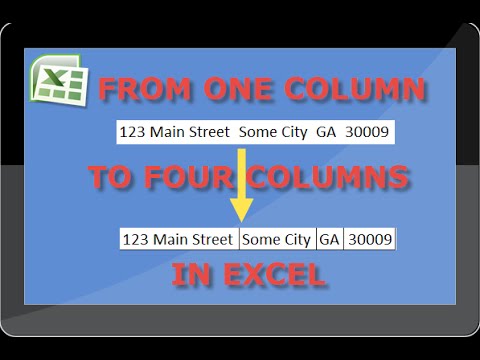
How To Separate Addresses In Excel From One Column To Four
ChannelLarissa FontenotDescription from the creator
How To Separate Addresses In Excel From One Column To Four
For my video course with tips on Excel productivity go here bit.ly/MyExcelProductivityCourse
Here's what I've done step by step:
1. I inserted a formula =RIGHTM2,9 into the first column to the right of your addresses assuming they are in column M, starting with row 2. That read state and zip code. I copied column N were now the formula resides and pasted it special-values into that same column to wipe out formulas so I have only values.
2. I selected all rows with data on the sheet and sorted it by column N where we now have state and zip, so I can easily see where zip is 9 digits rather than 5 and just typed TN where it was missing - about 5-10 instances on each sheet. Then I selected column N with state and zip again, did H+Ctrl to open 'Find and Replace' option, typed " TN" without quotation marks in the Find box, typed "TN" and clicked 'Replace all' - this removed space before TN in all records on the spreadsheet. Then I selected that column and did Data-Text to columns to separate zip from state.
3. I selected column M containing your addresses, did H+Ctrl to open 'Find and Replace' option, typed "TN*" without quotation marks in the Find box and clicked 'Replace all' - this removed state and zip from your addresses.
4. Next I selected all rows in your database again and sorted by column M to ensure that the list starts with data in column M, and not a blank cell. Then I inserted a column before column N, and started typing names of cities in it. I work in Excel 2013, it 'understands' what I am doing and offers me auto fill for the column to follow the pattern - in our case it is the last word in the record. Some cities have two word names, so they did not get transferred correctly- for instance Mt Juliet. To correct that I selected the column with city names, did H+Ctrl to open 'Find and Replace' option, typed "Juliet" without quotation marks in the Find box, typed "Mt Juliet" in Replace with box, and clicked 'Replace all' - this corrected the mistake for those cases but there were some records with Mount Juliet as city name, I did those separately after I've Sierra database again by column with cities - to make all records needed that correction to be displayed together makes the work easier too.
5. Next I selected column M containing your addresses, did H+Ctrl to open 'Find and Replace' option, typed "Mt Juliet" without quotation marks in the Find box and emptied Replace with box, and clicked 'Replace all' - this removed Mt Juliet from column M. I repeated that for all cities - easy to do as their manes are all together in the next column.
6. Some street addresses had city names in them, so I eye-balled all records in column M from top to bottom to find those - there were about 5-10 on each sheet.
Now the work was finished. If you think you can do this yourself next time, you can certainly do so, otherwise I will gladly do it for you again before your next mailing.
All the best!
Larissa
Here are more useful videos in my channel
http:youtu.be9u09QVbVRuc
http:youtu.beZlPRFsQbNig
http:youtu.beKYOmtd_Jvis
http:youtu.besnvPbFo1snU
http:youtu.beyWXoOFp8RJY
http:youtu.beEN6FojfJ20c
http:youtu.be8Hxpb9Um7ro
http:youtu.bexUDUByA1pxw
http:youtu.be9qVRxDXVLy8
http:youtu.beUYVksaUvgA4
http:youtu.beXurlWclYStM
http:youtu.beZVGP9_uqsns
http:youtu.beqU7uASqclvg
http:youtu.beUYwjcb9McJs
http:youtu.be0zbLREyuM8c
https:youtu.beo4OvpV2eu8Q
For my video course with tips on Excel productivity go here bit.ly/MyExcelProductivityCourse
Here's what I've done step by step:
1. I inserted a formula =RIGHTM2,9 into the first column to the right of your addresses assuming they are in column M, starting with row 2. That read state and zip code. I copied column N were now the formula resides and pasted it special-values into that same column to wipe out formulas so I have only values.
2. I selected all rows with data on the sheet and sorted it by column N where we now have state and zip, so I can easily see where zip is 9 digits rather than 5 and just typed TN where it was missing - about 5-10 instances on each sheet. Then I selected column N with state and zip again, did H+Ctrl to open 'Find and Replace' option, typed " TN" without quotation marks in the Find box, typed "TN" and clicked 'Replace all' - this removed space before TN in all records on the spreadsheet. Then I selected that column and did Data-Text to columns to separate zip from state.
3. I selected column M containing your addresses, did H+Ctrl to open 'Find and Replace' option, typed "TN*" without quotation marks in the Find box and clicked 'Replace all' - this removed state and zip from your addresses.
4. Next I selected all rows in your database again and sorted by column M to ensure that the list starts with data in column M, and not a blank cell. Then I inserted a column before column N, and started typing names of cities in it. I work in Excel 2013, it 'understands' what I am doing and offers me auto fill for the column to follow the pattern - in our case it is the last word in the record. Some cities have two word names, so they did not get transferred correctly- for instance Mt Juliet. To correct that I selected the column with city names, did H+Ctrl to open 'Find and Replace' option, typed "Juliet" without quotation marks in the Find box, typed "Mt Juliet" in Replace with box, and clicked 'Replace all' - this corrected the mistake for those cases but there were some records with Mount Juliet as city name, I did those separately after I've Sierra database again by column with cities - to make all records needed that correction to be displayed together makes the work easier too.
5. Next I selected column M containing your addresses, did H+Ctrl to open 'Find and Replace' option, typed "Mt Juliet" without quotation marks in the Find box and emptied Replace with box, and clicked 'Replace all' - this removed Mt Juliet from column M. I repeated that for all cities - easy to do as their manes are all together in the next column.
6. Some street addresses had city names in them, so I eye-balled all records in column M from top to bottom to find those - there were about 5-10 on each sheet.
Now the work was finished. If you think you can do this yourself next time, you can certainly do so, otherwise I will gladly do it for you again before your next mailing.
All the best!
Larissa
Here are more useful videos in my channel
http:youtu.be9u09QVbVRuc
http:youtu.beZlPRFsQbNig
http:youtu.beKYOmtd_Jvis
http:youtu.besnvPbFo1snU
http:youtu.beyWXoOFp8RJY
http:youtu.beEN6FojfJ20c
http:youtu.be8Hxpb9Um7ro
http:youtu.bexUDUByA1pxw
http:youtu.be9qVRxDXVLy8
http:youtu.beUYVksaUvgA4
http:youtu.beXurlWclYStM
http:youtu.beZVGP9_uqsns
http:youtu.beqU7uASqclvg
http:youtu.beUYwjcb9McJs
http:youtu.be0zbLREyuM8c
https:youtu.beo4OvpV2eu8Q
About this tutorial
Larissa Fontenot published this 13:47 video tutorial on October 31, 2016. It has been watched 56,302 times on YouTube.
- Channel
- Larissa Fontenot
- Category
- Science & Technology
- Duration
- 13:47
- Published
- October 31, 2016
- Views
- 56,302
- Likes
- 191
Tags
Share
This tutorial in other languages
- FRComment séparer les adresses dans Excel d'une colonne à quatre
- ES¿Cómo separar las direcciones en Excel de una columna a Cuatro
- PTComo separar endereços no Excel de uma coluna para quatro
- ITCome per separare gli indirizzi In Excel da una colonna a quattro
- DEWie an Adressen in Excel von einer Spalte zu vier separaten
- NLHow To adressen te scheiden In Excel Van de ene kolom naar Four
- RUКак разделить адреса в Excel из одной колонки в четыре
- PLJak oddzielnych lokalizacjach W programie Excel z jednej kolumny do czterech
- JA1〜4個の列から、Excelでアドレスを分離するためにどのように
- ARكيفية فصل عناوين في Excel من عمود واحد إلى أربعة
- HIExcel में पतों को अलग करने के लिए कैसे एक स्तंभ चार से
- IDCara Pisahkan Alamat Dalam Excel Dari Satu Kolom Untuk Empat