Playback starts YouTube’s embedded player (privacy-enhanced mode).
HOW TO SET NVIDIA GRAPHICS CARD SETTINGS TO GET MAXIMUM PERFORMANCE AND FPS DURING GAMEPLAY!!2017!!
ChannelPratap TiruaDescription from the creator
In this video you will see how we can set Nvidia Graphics card Control Panel settings to get maximum performance and FPS during game play.
This tutorial is applicable for all windows OS i.e. windows xp, vista,7, 8,8.1 and latest windows 10.
Video Summary :- 1) Go to control panel and select power options and choose power plan to High Performance.
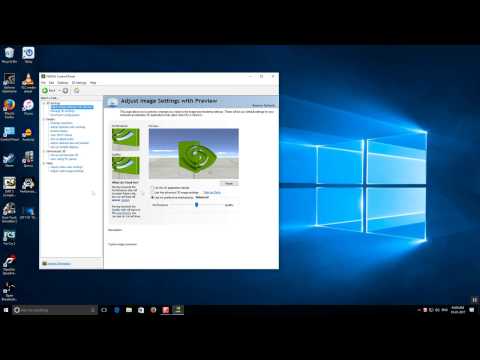
2) Open Nvidia Control Panel and Under 3D settings select option "Adjust Image settings with preview" and on the right side select the option " Use the advanced 3D image settings" and click on "Apply"
3) Click on Manage 3D settings and "Under global settings" press restore button once. Now change settings of "Multi display /mixed GPU acceleration" to Single display performance mode," Power management mode" will go with " Prefer maximum performance" and last " Texture filtering-Quality" settings will change to High performance. Click on Apply to save the current settings.
4) Click on "Set PhyX configuration" and in the drop down list select your Nvidia graphics chip. Now exit out of the window.
5) Now open Geforce Experience. geforce.com/geforce-experience/download
and optimize the games as shown in the video
Don't forget to support me by leaving a like in this video and by subscribing the channel for more computer videos.
Follow me on Twitter : twitter.com/prataptirua
Instagram : instagram.com/pratap.tirua/
Google Plus : plus.google.com/u/0/+PratapTirua
This tutorial is applicable for all windows OS i.e. windows xp, vista,7, 8,8.1 and latest windows 10.
Video Summary :- 1) Go to control panel and select power options and choose power plan to High Performance.
2) Open Nvidia Control Panel and Under 3D settings select option "Adjust Image settings with preview" and on the right side select the option " Use the advanced 3D image settings" and click on "Apply"
3) Click on Manage 3D settings and "Under global settings" press restore button once. Now change settings of "Multi display /mixed GPU acceleration" to Single display performance mode," Power management mode" will go with " Prefer maximum performance" and last " Texture filtering-Quality" settings will change to High performance. Click on Apply to save the current settings.
4) Click on "Set PhyX configuration" and in the drop down list select your Nvidia graphics chip. Now exit out of the window.
5) Now open Geforce Experience. geforce.com/geforce-experience/download
and optimize the games as shown in the video
Don't forget to support me by leaving a like in this video and by subscribing the channel for more computer videos.
Follow me on Twitter : twitter.com/prataptirua
Instagram : instagram.com/pratap.tirua/
Google Plus : plus.google.com/u/0/+PratapTirua
About this tutorial
Pratap Tirua published this 3:55 video tutorial on November 13, 2017. It has been watched 1,429,019 times on YouTube.
- Channel
- Pratap Tirua
- Category
- Science & Technology
- Duration
- 3:55
- Published
- November 13, 2017
- Views
- 1,429,019
- Likes
- 13,211
Tags
Share
This tutorial in other languages
- FRCOMMENT SET GRAPHIQUES NVIDIA REGLAGES DE LA CARTE POUR OBTENIR MAXIMUM PERFORMANCE ET FPS !! 2017 AU COURS DE GAMEPLAY !!
- ESCómo configurar los gráficos NVIDIA configuración de la tarjeta para obtener un rendimiento MÁXIMO Y FPS durante el juego !! 2017 !!
- PTComo definir NVIDIA configurações gráficas cartão para obter o máximo desempenho e FPS durante o jogo !! 2017 !!
- ITCome impostare le impostazioni grafiche di NVIDIA carta per ottenere le massime prestazioni e FPS durante il gioco !! 2017 !!
- DEHOW TO SET NVIDIA-Grafikkarte EINSTELLUNGEN maximale Leistung und FPS während des Spiels ERHALTEN !! 2017 !!
- NLHoe stel ik NVIDIA Instellingen grafische kaart KRIJGEN maximale prestaties en FPS tijdens de gameplay !! 2017 !!
- RUКак установить NVIDIA ВИДЕОАДАПТЕРЫ настройки, чтобы получить максимальную производительность и FPS во время игры !! 2017 !!
- PLJak skonfigurować ustawienia karty nVidia, aby uzyskać maksymalną wydajność i FPS podczas gry !! 2017 !!
- JATO SET NVIDIAグラフィックスカードの設定はゲームプレイ!! 2017年の間の最大のパフォーマンスとFPSを取得する方法!
- ARHOW TO SET NVIDIA GRAPHICS إعدادات بطاقة للحصول على أقصى قدر من الأداء وFPS أثناء اللعب !! 2017 !!
- HIकैसे करने के लिए सेट NVIDIA ग्राफिक्स कार्ड सेटिंग गेमप्ले !! 2017 के दौरान अधिकतम प्रदर्शन और एफपीएस पाने के लिए !!
- IDCARA SET NVIDIA GRAPHICS CARD PENGATURAN untuk mendapatkan performa maksimal DAN FPS SELAMA Gameplay !! 2017 !!