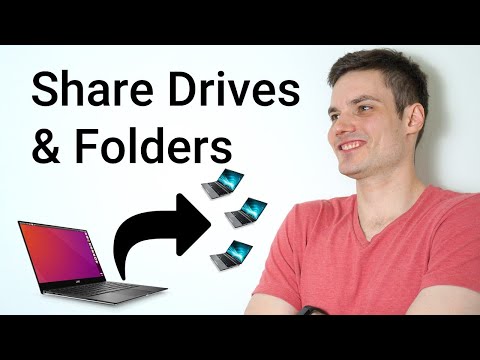
Playback starts YouTube’s embedded player (privacy-enhanced mode).
How to Share Folders & Drives from one Computer to another Computer - Windows 10
ChannelKevin StratvertDescription from the creator
In this step-by-step video, learn how to share a Folder or Hard Drive on one computer with all the other computers on your home network. Share photos, videos, apps, and other content between computers.
To share a folder or drive, open File Explorer. Right click on the folder or drive and click on properties. In properties, click on the Sharing pivot. Next, click on Advanced Sharing. In Advanced Sharing, make sure "Share this folder" is checked. Next, click on Permissions, and pick whether you want to grant Full Control, Change, or Read. Control gives users the ability to add, delete, or change files. Read allows users to view only, but make no changes to the source computer. Once you're satisfied with the settings, apply the changes. On another computer on the network, open File Explorer and navigate to Network. In Network, select the computer you would like to connect with. You may be prompted to enter the machine's username and password. Make sure to enter the username and password of the computer you are connecting to. Next, you should see the folder or share that you shared.
As full-disclosure, I work at Microsoft as a full-time employee.
To share a folder or drive, open File Explorer. Right click on the folder or drive and click on properties. In properties, click on the Sharing pivot. Next, click on Advanced Sharing. In Advanced Sharing, make sure "Share this folder" is checked. Next, click on Permissions, and pick whether you want to grant Full Control, Change, or Read. Control gives users the ability to add, delete, or change files. Read allows users to view only, but make no changes to the source computer. Once you're satisfied with the settings, apply the changes. On another computer on the network, open File Explorer and navigate to Network. In Network, select the computer you would like to connect with. You may be prompted to enter the machine's username and password. Make sure to enter the username and password of the computer you are connecting to. Next, you should see the folder or share that you shared.
As full-disclosure, I work at Microsoft as a full-time employee.
About this tutorial
Kevin Stratvert published this 4:41 video tutorial on January 30, 2020. It has been watched 887,855 times on YouTube.
- Channel
- Kevin Stratvert
- Category
- Science & Technology
- Duration
- 4:41
- Published
- January 30, 2020
- Views
- 887,855
- Likes
- 8,264
Share
This tutorial in other languages
- FRComment partager des dossiers et lecteurs d'un ordinateur à un autre ordinateur - Windows 10
- ESCómo compartir carpetas y unidades de un ordenador a otro ordenador - Windows 10
- PTComo compartilhar pastas e acionadores de um computador para outro computador - Windows 10
- ITCome condividere le cartelle e dischi da un computer a un altro computer - Windows 10
- DESo teilen Sie Ordner und Laufwerke von einem Computer auf einen anderen Computer - Microsoft Windows 10
- NLHoe kan delen mappen & Drives van de ene naar de andere computer - Windows 10
- RUКак общий доступ к папкам и дисков с одного компьютера на другой - Windows 10
- PLJak udostępnić foldery i dyski z jednego komputera na drugi - Windows 10
- JAどのようにあるコンピュータから別のコンピュータに共有フォルダ&ドライブに - Windowsの10
- ARكيفية مشاركة المجلدات ومحركات الأقراص من واحد كمبيوتر إلى آخر - ويندوز 10
- HIकैसे शेयर फ़ोल्डर और एक कंप्यूटर से दूसरे कंप्यूटर के लिए ड्राइव करने के लिए - विंडोज 10
- IDCara Share Folder & Drives dari satu komputer ke komputer lain - Windows 10