Playback starts YouTube’s embedded player (privacy-enhanced mode).
How to Use Airdrop on iPhone
ChannelKevin StratvertDescription from the creator
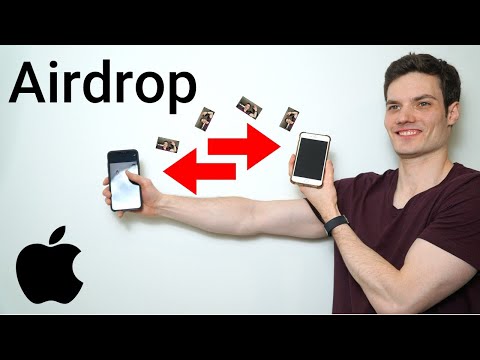
Learn how to use AirDrop to share and receive photos, documents, videos, and more with other Apple devices that are nearby.
Before you begin
- Make sure that the person you're sending to is nearby and within Bluetooth and Wi-Fi range.
- Check that you and the person you're sending to have Wi-Fi and Bluetooth turned on. If either of you have Personal Hotspot on, turn it off.
- Check if the person you're sending to has their AirDrop set to receive from - - Contacts Only. If they do, and you’re in their Contacts, they need to have your email address or mobile number in your contact card for AirDrop to work.
- If you're not in their Contacts, have them set their AirDrop receiving setting to Everyone in order to receive the file.
- You can put your AirDrop receiving setting to Contacts Only or Receiving Off at any time to control who can see your device and send you content in AirDrop.
How to use AirDrop
- Open an app, tap Share or the Share button . If you share a photo from the Photos app, you can swipe left or right and select multiple photos.
- Tap the AirDrop user* that you want to share with. Or you can use AirDrop between your own Apple devices. Don’t see the AirDrop user or your other device? Learn what to do.
- If the person you're sharing content with is in your Contacts, you'll see an image with their name. If they're not in your Contacts, you'll see just their name without an image.
How to accept AirDrop
- When someone shares something with you using AirDrop, you see an alert with a preview. You can tap Accept or Decline.
- If you tap Accept, the AirDrop will come through within the same app it was sent from. For example, photos appear in the Photos app and websites open in Safari. App links open in the App Store so you can download or purchase the app.
- If you AirDrop something to yourself, like a photo from your iPhone to your Mac, you won't see an option to Accept or Decline — it'll automatically get sent to your device. Just make sure that both devices are signed in with the same Apple ID.
support.apple.com/en-us/HT204144
Before you begin
- Make sure that the person you're sending to is nearby and within Bluetooth and Wi-Fi range.
- Check that you and the person you're sending to have Wi-Fi and Bluetooth turned on. If either of you have Personal Hotspot on, turn it off.
- Check if the person you're sending to has their AirDrop set to receive from - - Contacts Only. If they do, and you’re in their Contacts, they need to have your email address or mobile number in your contact card for AirDrop to work.
- If you're not in their Contacts, have them set their AirDrop receiving setting to Everyone in order to receive the file.
- You can put your AirDrop receiving setting to Contacts Only or Receiving Off at any time to control who can see your device and send you content in AirDrop.
How to use AirDrop
- Open an app, tap Share or the Share button . If you share a photo from the Photos app, you can swipe left or right and select multiple photos.
- Tap the AirDrop user* that you want to share with. Or you can use AirDrop between your own Apple devices. Don’t see the AirDrop user or your other device? Learn what to do.
- If the person you're sharing content with is in your Contacts, you'll see an image with their name. If they're not in your Contacts, you'll see just their name without an image.
How to accept AirDrop
- When someone shares something with you using AirDrop, you see an alert with a preview. You can tap Accept or Decline.
- If you tap Accept, the AirDrop will come through within the same app it was sent from. For example, photos appear in the Photos app and websites open in Safari. App links open in the App Store so you can download or purchase the app.
- If you AirDrop something to yourself, like a photo from your iPhone to your Mac, you won't see an option to Accept or Decline — it'll automatically get sent to your device. Just make sure that both devices are signed in with the same Apple ID.
support.apple.com/en-us/HT204144
About this tutorial
Kevin Stratvert published this 3:23 video tutorial on January 27, 2020. It has been watched 123,165 times on YouTube.
- Channel
- Kevin Stratvert
- Category
- Science & Technology
- Duration
- 3:23
- Published
- January 27, 2020
- Views
- 123,165
- Likes
- 867
Tags
Share
This tutorial in other languages
- FRComment utiliser Parachutage sur iPhone
- ESCómo utilizar lanzamiento desde el aire en el iPhone
- PTComo usar Airdrop no iPhone
- ITCome utilizzare Airdrop su iPhone
- DEWie zu verwenden Airdrop auf dem iPhone
- NLHoe te gebruiken Airdrop op de iPhone
- RUКак использовать десантирование на iPhone
- PLJak korzystać zrzut na iPhone
- JAどのようにiPhoneの使用Airdropへ
- ARكيفية استخدام أسقط جويا على اي فون
- HIकैसे iPhone पर उपयोग करने के लिए Airdrop
- IDCara Gunakan Airdrop pada iPhone