Playback starts YouTube’s embedded player (privacy-enhanced mode).
How to Pimp Your MySpace Page
ChannelHowcastDescription from the creator
Full Playlist: youtube.com/playlist?list=PLLALQuK1NDrgIoIXO0HQ…
-
-
Watch more How to Use Social Media videos: howcast.com/videos/2247-How-to-Pimp-Your-MySpac…
A bland MySpace page is EM-BAR-RAS-SING—here's how to make a totally sweet profile.
Step 1: Click "Edit Profile"
Open up your MySpace page and click on the "Edit Profile" link next to your profile image.
Step 2: Go to site w/ free layouts
In a separate browser window or tab, go to a website that provides free layouts and graphics that you can use to beef up your profile.
Step 3: Select layout
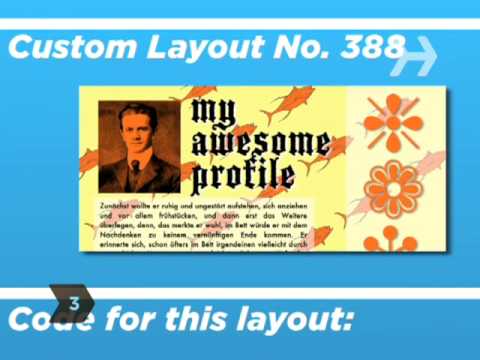
Select a layout you'd like to use and choose its associated HTML code—the text web programmers use to build webpages.
Tip
To copy the code, select all of it then use Control C on a PC or Command C on a Mac.
Step 4: Paste HTML into "About Me"
Switch back to your MySpace profile and paste the HTML code into the "About Me" section above your "About Me" text.
Tip
To paste the code, use Control V on a PC or Command V on a Mac.
Step 5: Add more with same method
Use the same copy and paste method to add Flash games, animations, backgrounds, sounds, and graphics.
Tip
If you're browsing around MySpace and fall in love with someone else's layout, just visit your favorite MySpace extras website and use a "layout snatcher" to get the exact same look.
Step 6: Add visual elements
Add visual elements to different sections, like putting a picture in "Who I'd like to meet."
Tip
Pictures can be added by creating a link to an existing image on the web. You can find samples at any MySpace support site.
Step 7: Find site w/ profile editor
If you still can't create the profile you want, find a website that offers a MySpace profile editor in which you can manually design your own completely original layout.
Step 8: Preview profile
As you make changes, preview your new layout by clicking "Preview Profile."
Step 9: Save changes
When you're satisfied, click "Save all Changes" in the settings. The next time someone views your profile, they'll see your stylish new layout.
Did You Know?
MySpace has over 100 million members—or roughly the population of the entire United States in 1915.
-
-
Watch more How to Use Social Media videos: howcast.com/videos/2247-How-to-Pimp-Your-MySpac…
A bland MySpace page is EM-BAR-RAS-SING—here's how to make a totally sweet profile.
Step 1: Click "Edit Profile"
Open up your MySpace page and click on the "Edit Profile" link next to your profile image.
Step 2: Go to site w/ free layouts
In a separate browser window or tab, go to a website that provides free layouts and graphics that you can use to beef up your profile.
Step 3: Select layout
Select a layout you'd like to use and choose its associated HTML code—the text web programmers use to build webpages.
Tip
To copy the code, select all of it then use Control C on a PC or Command C on a Mac.
Step 4: Paste HTML into "About Me"
Switch back to your MySpace profile and paste the HTML code into the "About Me" section above your "About Me" text.
Tip
To paste the code, use Control V on a PC or Command V on a Mac.
Step 5: Add more with same method
Use the same copy and paste method to add Flash games, animations, backgrounds, sounds, and graphics.
Tip
If you're browsing around MySpace and fall in love with someone else's layout, just visit your favorite MySpace extras website and use a "layout snatcher" to get the exact same look.
Step 6: Add visual elements
Add visual elements to different sections, like putting a picture in "Who I'd like to meet."
Tip
Pictures can be added by creating a link to an existing image on the web. You can find samples at any MySpace support site.
Step 7: Find site w/ profile editor
If you still can't create the profile you want, find a website that offers a MySpace profile editor in which you can manually design your own completely original layout.
Step 8: Preview profile
As you make changes, preview your new layout by clicking "Preview Profile."
Step 9: Save changes
When you're satisfied, click "Save all Changes" in the settings. The next time someone views your profile, they'll see your stylish new layout.
Did You Know?
MySpace has over 100 million members—or roughly the population of the entire United States in 1915.
About this tutorial
Howcast published this 2:09 video tutorial on October 31, 2008. It has been watched 32,318 times on YouTube.
Tags
Share
This tutorial in other languages
- FRComment Pimp votre page MySpace
- ESCómo Pimp su página de MySpace
- PTComo Pimp Seu MySpace Páginas
- ITCome Pimp Your MySpace Pagina
- DEWie Sie Ihre MySpace Seite Pimp
- NLHoe te pimp je MySpace pagina
- RUКак Сутенер MySpace страницу
- PLJak pimp MySpace stronę
- JAあなたのMySpaceのページをポン引きする方法
- ARكيفية القواد ديك ماي سبيس صفحة
- HIआपका माइस्पेस पृष्ठ पिंप कैसे
- IDCara calo MySpace Page Anda