Playback starts YouTube’s embedded player (privacy-enhanced mode).
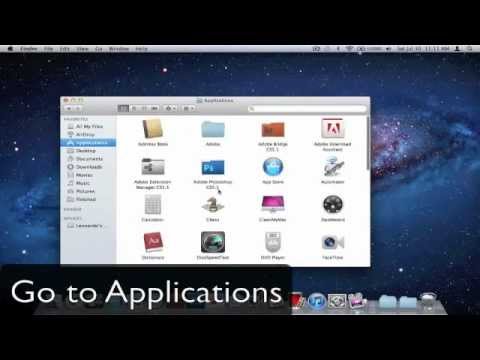
How to burn OS X LION on a DVD ~Super Easy~
ChannelLAExit007Description from the creator
MUSIC: youtu.be/md1QECWVRHs (Full_Version)
Super Easy... just make a copy Os Lion on a dvd... then restart while holding down "option" key.
and go through disk utilities to format the computer... simply go through the steps and you should be running os lion very soon - ENJOY -
STEP 1 Purchase and download Lion from the Mac App Store on any Lion compatible Mac running Snow Leopard.
STEP 2 Right click on "Mac OS X Lion" installer and choose the option to "Show Package Contents."
Inside the Contents folder that appears you will find a SharedSupport folder and inside the SharedSupport folder you will find the "InstallESD.dmg." This is the Lion boot disc image we have all been waiting for.
STEP 3 Copy "InstallESD.dmg" to another folder like the Desktop.
STEP 4 Launch Disk Utility and click the burn button.
STEP 5 Select the copied "InstallESD.dmg" as the image to burn, insert a standard sized 4.7 GB DVD, and wait for your new Lion Boot Disc to come out toasty hot.
STEP 6 restart any Lion compatible Mac while holding the option key, and choose Mac OS Install ESD as the startup volume.
STEP 7 From the Erase tab select your Mac's primary hard drive and choose "Mac OS Extended (Journaled)" as the format. Before you erase the drive confirm you have a known good backup then click Erase...
STEP 8 With your Mac's primary hard drive wiped clean it is now time to begin installing Lion. Quit Disk Utility to go back to the Lion installer
When the installation process is complete your Mac will have a clean copy of Lion installed on its primary hard drive
Super Easy... just make a copy Os Lion on a dvd... then restart while holding down "option" key.
and go through disk utilities to format the computer... simply go through the steps and you should be running os lion very soon - ENJOY -
STEP 1 Purchase and download Lion from the Mac App Store on any Lion compatible Mac running Snow Leopard.
STEP 2 Right click on "Mac OS X Lion" installer and choose the option to "Show Package Contents."
Inside the Contents folder that appears you will find a SharedSupport folder and inside the SharedSupport folder you will find the "InstallESD.dmg." This is the Lion boot disc image we have all been waiting for.
STEP 3 Copy "InstallESD.dmg" to another folder like the Desktop.
STEP 4 Launch Disk Utility and click the burn button.
STEP 5 Select the copied "InstallESD.dmg" as the image to burn, insert a standard sized 4.7 GB DVD, and wait for your new Lion Boot Disc to come out toasty hot.
STEP 6 restart any Lion compatible Mac while holding the option key, and choose Mac OS Install ESD as the startup volume.
STEP 7 From the Erase tab select your Mac's primary hard drive and choose "Mac OS Extended (Journaled)" as the format. Before you erase the drive confirm you have a known good backup then click Erase...
STEP 8 With your Mac's primary hard drive wiped clean it is now time to begin installing Lion. Quit Disk Utility to go back to the Lion installer
When the installation process is complete your Mac will have a clean copy of Lion installed on its primary hard drive
About this tutorial
LAExit007 published this 2:46 video tutorial on November 12, 2011. It has been watched 14,162 times on YouTube.
Tags
Share
This tutorial in other languages
- FRComment graver OS X LION sur Easy DVD ~ super ~
- ESCómo grabar OS X Lion en un DVD ~ ~ super fácil
- PTComo gravar OS X Lion em um DVD ~ Super Fácil ~
- ITCome masterizzare OS X Lion su un DVD ~ Super Facile ~
- DEWie brennt man OS X LION auf einer DVD ~ Super Easy ~
- NLHoe maak je OS X Lion te branden op een DVD ~ Super Gemakkelijk ~
- RUКак записать OS X LION на DVD ~ Супер легкий ~
- PLJak nagrać OS X Lion na DVD ~ Super łatwy ~
- JA〜DVD〜超簡単にOS X LIONを焼く方法
- ARكيفية حرق OS X LION على DVD ~ سوبر سهلة ~
- HIकैसे पर एक डीवीडी ~ सुपर आसान OS X Lion को जलाने के लिए ~
- IDBagaimana untuk membakar OS X LION pada DVD ~ Super Mudah ~