Playback starts YouTube’s embedded player (privacy-enhanced mode).
How to Change default boot order, and waiting time on Linux (Multi-boot)
ChannelVargha HokmranDescription from the creator
Editing GRUB using nano and Linux therminal to change boot menu settings:
This video is describing how to change the boot order and booting wait timeout.
If you don't like to use sudo at the begining of each command, you can type su and press Enter. It will ask for your password, and it would keep it. Ok, let's get started.
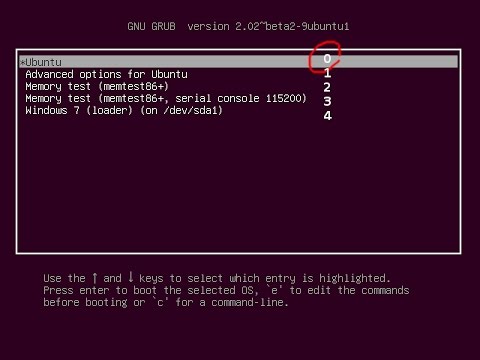
Note: First, write or remember the order of your boot menu items, and keep in mind that line numbers start from 0, and Not 1.
Open your terminal window by pressing Ctrl+Alt+T
1- Type: sudo nano /etc/default/grub
(This will open grub, which is the place for all these boot configs)
2- Find GRUB_DEFAULT= X
3- Change the Value of X to the line number that you like to be your default boot.
4- To change the default waiting time, Find and change the value of Y in GRUB_TIMEOUT= Y
5- Press Ctrl+O to Save
6- Press Ctrl+X to Exit
7- Type: sudo update-grub to update your settings
That's it. If you have any question, please feel free to ask it in YouTube comments
vargha.us/index.php?id=learning-lounge&post…
My website: treeoftools.com
This video is describing how to change the boot order and booting wait timeout.
If you don't like to use sudo at the begining of each command, you can type su and press Enter. It will ask for your password, and it would keep it. Ok, let's get started.
Note: First, write or remember the order of your boot menu items, and keep in mind that line numbers start from 0, and Not 1.
Open your terminal window by pressing Ctrl+Alt+T
1- Type: sudo nano /etc/default/grub
(This will open grub, which is the place for all these boot configs)
2- Find GRUB_DEFAULT= X
3- Change the Value of X to the line number that you like to be your default boot.
4- To change the default waiting time, Find and change the value of Y in GRUB_TIMEOUT= Y
5- Press Ctrl+O to Save
6- Press Ctrl+X to Exit
7- Type: sudo update-grub to update your settings
That's it. If you have any question, please feel free to ask it in YouTube comments
vargha.us/index.php?id=learning-lounge&post…
My website: treeoftools.com
About this tutorial
Vargha Hokmran published this 2:33 video tutorial on November 15, 2017. It has been watched 161,421 times on YouTube.
- Channel
- Vargha Hokmran
- Category
- Education
- Duration
- 2:33
- Published
- November 15, 2017
- Views
- 161,421
- Likes
- 993
Tags
Share
This tutorial in other languages
- FRComment faire pour changer l'ordre de démarrage par défaut, et le temps d'attente sur Linux (Multi-boot)
- ESCómo cambiar el orden de arranque por defecto, y el tiempo de espera en Linux (Multi-arranque)
- PTComo mudar a ordem de inicialização padrão e o tempo de espera no Linux (multi-boot)
- ITCome cambiare ordine di avvio predefinito, e il tempo di attesa su Linux (Multi-boot)
- DESo ändern Standard-Boot-Reihenfolge, und die Wartezeit auf Linux (Multi-Boot)
- NLHoe te wijzigen standaardopstartvolgorde, en wachttijd op Linux (Multi-boot)
- RUКак изменить по умолчанию загрузки заказа, и время ожидания на Linux (Multi-загрузка)
- PLJak zmienić domyślny rozruchu, a czas oczekiwania na Linuksie (Multi-boot)
- JA方法を変更するデフォルトの起動順序、およびLinux(マルチブート)に時間を待っています
- ARكيفية تغيير النص الافتراضي ترتيب التمهيد، ووقت الانتظار على لينكس (متعدد التمهيد)
- HIकैसे बदलें डिफ़ॉल्ट बूट आदेश और लिनक्स (मल्टी बूट) पर इंतजार करने के लिए समय
- IDCara Mengubah standar urutan boot, dan waktu tunggu di Linux (Multi-boot)