Playback starts YouTube’s embedded player (privacy-enhanced mode).
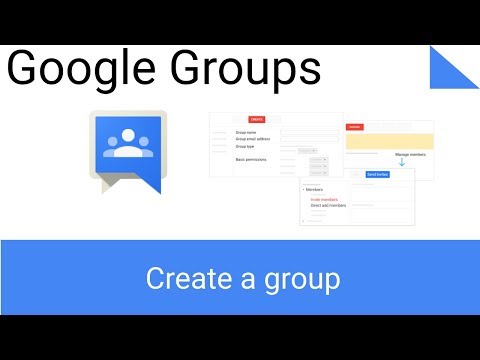
How to Create a Google Group
ChannelLee SaparaDescription from the creator
3.1 Choose your group type
3.2 Create your group and set basic permissions
3.3 Invite members
In my previous video we had learned how to Post Topics to Groups you can see that video here youtu.be/N22cUga_Q1o
3.1 Choose your group type
You can create any of several different types of groups, depending on the group’s purpose. The most common types of groups are email lists, web and Q&A forums, and collaborative inboxes.
Email list
Email list groups are mailing lists. Create a new email address so anyone in your organization can send messages to everyone in your group at once.
Send messages, share files, including Google documents, sites, videos, and calendars, or invite group members to meetings.
Web forum
Create a Group on a particular subject that anyone in your organization can join.
Online communities for people in your organization with similar interests, expertise, or work functions.
Q&A forum
Product experts and savvy customers can help answer common questions about your product and mark the best answers to the web. Responses are archived as a knowledge base for other customers.
Online forum for customers to ask and answer questions about your products or services.
Collaborative inbox
Members of a group can receive and respond to email requests using a common address, such as support@your_company.com. Assign incoming messages to group members, track status, categorize posts so they’re easy to find later, and more.
For teams that use email to process support tickets, sales inquiries, or other requests from colleagues or customers.
3.2 Create your group and set basic permissions
Note: (For G Suite accounts) To find or create web forums within your organization that are not public, go to Groups and click My Groups and then Switch organization view to "yourdomain.com" before doing the following tasks.
After you know the type of group you want to create, you’re ready to create it.
On the Groups home window, click Create Group.
Fill out the information on the page, such as your group name, the group’s email address, and your group type.
Under Basic permissions, specify who can view topics, post messages, and join the group by assigning roles:
Member—Can post to the group.
Manager—Can post to the group. Can approve, add, or remove members.
Owner—Can create the group and add members. By default, the group’s creator is an owner, but you can add other owners, too.
Click Create.
Set up a group
3.3 Invite members
After creating your group, add people to it either by inviting them to join or adding them yourself.
On the Topics page, click Manage members.
Under Members, click Invite members to invite people to join, or click Direct add members to add them yourself.
Enter the email addresses.
Note: If you can't add people outside your company, see your G Suite administrator.
Write an invitation message.
Click Send invites to invite new members, or Add to directly add members.
Select "manage members" to open a window to add or send invites to members
Check out my next video on How to Collaborate with your team with Google Groups
youtu.be/gscH0I7hssU
About this tutorial
Lee Sapara published this 5:54 video tutorial on October 26, 2019. It has been watched 61,234 times on YouTube.
- Channel
- Lee Sapara
- Category
- Education
- Duration
- 5:54
- Published
- October 26, 2019
- Views
- 61,234
- Likes
- 364
Share
Further reading
-
Ways to create groups - Google Workspace Admin Help
support.google.com
As a Groups administrator, you can create Google groups for your organization in the Google Admin console, the Groups API, or Google Cloud Directory Sync (GCDS).If you turn on Groups for Business you can also create gro…
-
Create a group & choose group settings - Google Groups Help
support.google.com
Make your group a Collaborative Inbox. Note: If you’re signed in from a work or school account, this feature requires Google Groups for Business. Sign in to Google Groups. Click the name of a group. On the left, click G…
-
How to Create a Google Group (with Pictures) - wikiHow
wikihow.com
Once you set up the Google Group's name and description, you can add people to the Google Group by entering their email addresses. Keep in mind that you cannot create a Google Group on mobile. You'll first need to make…
This tutorial in other languages
- FRComment faire pour créer un groupe Google
- ESCómo crear un grupo de Google
- PTComo criar um Grupo Google
- ITCome creare un gruppo Google
- DESo erstellen Sie eine Google-Gruppe
- NLHoe maak je een Google-discussiegroep
- RUКак создать группу Google
- PLJak utworzyć grupę Google
- JAGoogleグループを作成する方法
- ARكيفية إنشاء مجموعة Google
- HIकैसे एक Google समूह बनाएं करने के लिए
- IDCara Membuat Grup Google