Playback starts YouTube’s embedded player (privacy-enhanced mode).
HOW TO DISABLE (or enable) ASIO INTERFACE FOR WINDOWS/PC SOUNDS
ChannelBenoniStudioDescription from the creator
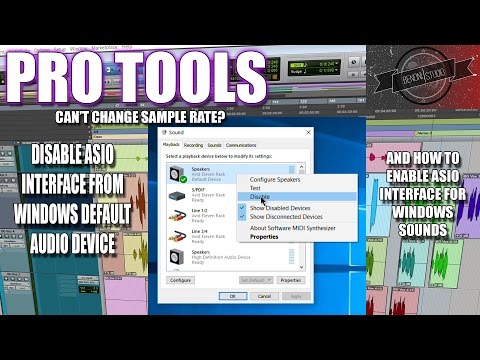
This video will show you how to disable your ASIO interface from being the Default Audio Device for Windows, and conversely, how to enable your ASIO interface to be the Default Audio Device for Windows.
I usually suggest that you keep your ASIO interface from being the default sound device for your computer. Meaning, you should only use the ASIO interface to hear sounds coming from your DAW, like Pro Tools, and use the integrated sound system for your PC sounds, like YouTube, SoundCloud, Windows Media Player, ect....
The reason for this is Windows can hold the ASIO driver hostage and prevent you from changing sample rates when creating a new Pro Tools session. This is because Windows needs a defined sample rate to playback audio, and if you are using the same interface/driver for your DAW, then it too will need a defined sample rate for your session, but since Windows has already defined it, you are stuck on the current sample rate.
This video will give you some ideas to try if your interface is not working properly for your DAW. I'm not saying you can't use your ASIO interface for Windows, but in my 9+ years of experience, it's usually best to avoid using your ASIO interface as the default audio device for Windows. There are other ways to use your ASIO device as your Windows sound device that cause less possible problems, such as routing a cable from your PC to an input of your interface.
Of course all ASIO interfaces are different and some ASIO drivers work better than others, but these are steps you will need to know if you are operating an ASIO interface on a Windows PC.
➡️Our Links
Website
benonistudio.com
EPIC Plugin Deals
benonistudio.com/deals
Link Tree
linktr.ee/benonistudio
➡️Buy your audio plugins and hardware with our affiliate links
Amazon - amazon.com/shop/benonistudio
Sweetwater - benoni.click/SWEETWATER-DEALS
Best Service - bestservice.com/index.html?aid=TXRh9Rx8P0Awz8Ke
Plugin Boutique - pluginboutique.com/?a_aid=5dc896537a45c
Waves - waves.alzt.net/b3jrVM
Native Instruments - benoni.click/NativeInstruments
SUBSCRIBE ::: LIKE ::: COMMENT
I usually suggest that you keep your ASIO interface from being the default sound device for your computer. Meaning, you should only use the ASIO interface to hear sounds coming from your DAW, like Pro Tools, and use the integrated sound system for your PC sounds, like YouTube, SoundCloud, Windows Media Player, ect....
The reason for this is Windows can hold the ASIO driver hostage and prevent you from changing sample rates when creating a new Pro Tools session. This is because Windows needs a defined sample rate to playback audio, and if you are using the same interface/driver for your DAW, then it too will need a defined sample rate for your session, but since Windows has already defined it, you are stuck on the current sample rate.
This video will give you some ideas to try if your interface is not working properly for your DAW. I'm not saying you can't use your ASIO interface for Windows, but in my 9+ years of experience, it's usually best to avoid using your ASIO interface as the default audio device for Windows. There are other ways to use your ASIO device as your Windows sound device that cause less possible problems, such as routing a cable from your PC to an input of your interface.
Of course all ASIO interfaces are different and some ASIO drivers work better than others, but these are steps you will need to know if you are operating an ASIO interface on a Windows PC.
➡️Our Links
Website
benonistudio.com
EPIC Plugin Deals
benonistudio.com/deals
Link Tree
linktr.ee/benonistudio
➡️Buy your audio plugins and hardware with our affiliate links
Amazon - amazon.com/shop/benonistudio
Sweetwater - benoni.click/SWEETWATER-DEALS
Best Service - bestservice.com/index.html?aid=TXRh9Rx8P0Awz8Ke
Plugin Boutique - pluginboutique.com/?a_aid=5dc896537a45c
Waves - waves.alzt.net/b3jrVM
Native Instruments - benoni.click/NativeInstruments
SUBSCRIBE ::: LIKE ::: COMMENT
About this tutorial
BenoniStudio published this 15:48 video tutorial on October 27, 2017. It has been watched 97,862 times on YouTube.
- Channel
- BenoniStudio
- Category
- Education
- Duration
- 15:48
- Published
- October 27, 2017
- Views
- 97,862
- Likes
- 372
Tags
Share
This tutorial in other languages
- FRCOMMENT DISABLE (ou activer) ASIO INTERFACE POUR WINDOWS / SONS PC
- ESCómo deshabilitar (o activar) ASIO interfaz para Windows / PC SONIDOS
- PTComo desativar (ou ativar) ASIO Interface para Windows / PC SOUNDS
- ITCome disattivare (o attivare) ASIO INTERFACCIA per Windows / SUONI PC
- DESo deaktivieren (oder aktivieren) ASIO-Schnittstelle für Windows / PC SOUNDS
- NLHet uitschakelen (of inschakelen) ASIO INTERFACE VOOR WINDOWS / PC SOUNDS
- RUКак отключить (или включить) ASIO интерфейс для Windows / PC ЗВУКИ
- PLJak wyłączyć (lub włączyć) ASIO interfejs dla Windows / PC DŹWIĘKI
- JAHOW TO DISABLE(または有効)ASIO INTERFACE FOR WINDOWS / PC音
- ARكيفية تعطيل (أو تمكين) اسيو INTERFACE FOR WINDOWS / أصوات PC
- HIकैसे को निष्क्रिय (या सक्षम) ASIO इंटरफ़ेस के लिए Windows / पीसी ध्वनियों
- IDCARA DISABLE (atau mengaktifkan) ASIO INTERFACE UNTUK WINDOWS / Suara PC