Playback starts YouTube’s embedded player (privacy-enhanced mode).
How to Hide / Unhide Columns and Rows in Microsoft Excel 2016 Tutorial
ChannelThe TeacherDescription from the creator
Welcome to How to Hide and Unhide Columns and Rows in Microsoft Excel Tutorial. In this comprehensive Excel tutorial, we will unravel the secrets of efficiently managing your spreadsheets by mastering the art of hiding and unhiding columns and rows. Whether you're preparing for a visual presentation or want to optimize your documents for printing, this tutorial has you covered.
Key Points:
- Preserve Your Data: Discover the magic of hiding columns and rows without deleting them. Your data remains intact, and any formulas within are still functional.
- Optimize for Printing: Learn how to tailor your worksheet for printing by selectively hiding columns or rows, ensuring your documents look exactly the way you want.
- Visual Presentation: Perfect your visual presentations by temporarily concealing certain columns or rows that may not be relevant during your demonstration.
Tutorial Highlights:
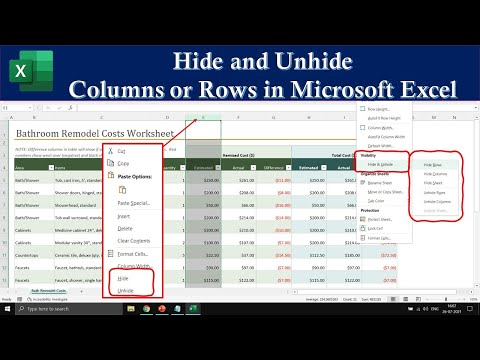
In this tutorial, we explain two methods for hiding and unhiding columns and rows in Excel: using the Format drop-down from the Home tab and utilizing the right-click context menu.
Method 1: Format Drop-down
- Select the column or row you wish to hide.
- Navigate to the "Format" option under the "Cell" section of the "Home" tab.
- Point to "Hide and Unhide," and then select "Hide Columns" or "Hide Rows" as needed.
Method 2: Right-Click Context Menu
- Simply right-click on the column or row you want to hide.
- From the context menu, choose "Hide."
Bulk Actions: Discover how to select and hide multiple columns or rows simultaneously, even if they aren't adjacent. Use the Ctrl key to make this process a breeze.
Revealing Hidden Columns and Rows: If you ever need to unhide a column, learn the simple process of selecting the neighboring columns and right-clicking to choose "Unhide."
Quick Unhide: In Microsoft Excel, uncover hidden columns or rows by double-clicking the border between column and row headings. It's a quick and efficient way to reveal hidden data.
Recover Everything: Should you wish to unhide all columns or rows in your worksheet, we've got you covered. Learn how to select the entire worksheet and effortlessly unhide hidden elements.
- Explore more tutorials and resources at our website: [Learn More]
theteacherpoint.com
📌 Stay Connected:
- Twitter: twitter.com/TheTeacherPoint
- Facebook: facebook.com/TheTeacherPoint
- Instagram: instagram.com/TheTeacherPoint
- Pinterest: in.pinterest.com/TheTeacherPoint
Excel mastery is just a click away. Join us in this tutorial, and you'll unlock the power of Excel's hiding and unhiding features, making your spreadsheet management more efficient than ever before.
Don't forget to hit the thumbs-up button, leave a comment to let us know your thoughts, share this video with your friends, and subscribe for more enlightening tutorial videos.
Thanks for watching and excel in your Excel journey! 🌟📊
#exceltutorial #msexcel #excel #exceltips
Key Points:
- Preserve Your Data: Discover the magic of hiding columns and rows without deleting them. Your data remains intact, and any formulas within are still functional.
- Optimize for Printing: Learn how to tailor your worksheet for printing by selectively hiding columns or rows, ensuring your documents look exactly the way you want.
- Visual Presentation: Perfect your visual presentations by temporarily concealing certain columns or rows that may not be relevant during your demonstration.
Tutorial Highlights:
In this tutorial, we explain two methods for hiding and unhiding columns and rows in Excel: using the Format drop-down from the Home tab and utilizing the right-click context menu.
Method 1: Format Drop-down
- Select the column or row you wish to hide.
- Navigate to the "Format" option under the "Cell" section of the "Home" tab.
- Point to "Hide and Unhide," and then select "Hide Columns" or "Hide Rows" as needed.
Method 2: Right-Click Context Menu
- Simply right-click on the column or row you want to hide.
- From the context menu, choose "Hide."
Bulk Actions: Discover how to select and hide multiple columns or rows simultaneously, even if they aren't adjacent. Use the Ctrl key to make this process a breeze.
Revealing Hidden Columns and Rows: If you ever need to unhide a column, learn the simple process of selecting the neighboring columns and right-clicking to choose "Unhide."
Quick Unhide: In Microsoft Excel, uncover hidden columns or rows by double-clicking the border between column and row headings. It's a quick and efficient way to reveal hidden data.
Recover Everything: Should you wish to unhide all columns or rows in your worksheet, we've got you covered. Learn how to select the entire worksheet and effortlessly unhide hidden elements.
- Explore more tutorials and resources at our website: [Learn More]
theteacherpoint.com
📌 Stay Connected:
- Twitter: twitter.com/TheTeacherPoint
- Facebook: facebook.com/TheTeacherPoint
- Instagram: instagram.com/TheTeacherPoint
- Pinterest: in.pinterest.com/TheTeacherPoint
Excel mastery is just a click away. Join us in this tutorial, and you'll unlock the power of Excel's hiding and unhiding features, making your spreadsheet management more efficient than ever before.
Don't forget to hit the thumbs-up button, leave a comment to let us know your thoughts, share this video with your friends, and subscribe for more enlightening tutorial videos.
Thanks for watching and excel in your Excel journey! 🌟📊
#exceltutorial #msexcel #excel #exceltips
About this tutorial
The Teacher published this 4:55 video tutorial on October 27, 2016. It has been watched 135,089 times on YouTube.
- Channel
- The Teacher
- Category
- Education
- Duration
- 4:55
- Published
- October 27, 2016
- Views
- 135,089
- Likes
- 814
Tags
Share
This tutorial in other languages
- FRComment masquer / afficher les colonnes et les lignes dans Microsoft Excel 2016 Tutorial
- ESCómo ocultar columnas y filas / mostrar en Microsoft Excel 2016 Tutorial
- PTComo ocultar / Mostrar colunas e linhas no Microsoft Excel 2016 Tutorial
- ITCome nascondere / Scopri colonne e righe in Microsoft Excel 2016 Tutorial
- DESo blenden / Sichtbar machen Spalten und Zeilen in Microsoft Excel 2016 Tutorial
- NLHow to Hide / Unhide kolommen en rijen in Microsoft Excel 2016 Tutorial
- RUКак скрыть / показать столбцы и строки в Microsoft Excel 2016 Tutorial
- PLJak ukrycia / pokazania kolumn i wierszy w programie Microsoft Excel 2016 Tutorial
- JAMicrosoft Excelの2016チュートリアル/非表示の列と行を非表示にする方法
- ARكيفية إخفاء / إظهار الأعمدة والصفوف في Microsoft Excel 2016 دروس
- HIकैसे छिपाने के लिए माइक्रोसॉफ्ट एक्सेल 2016 ट्यूटोरियल में / सामने लाएँ स्तंभों और पंक्तियों
- IDCara Sembunyikan / Unhide Kolom dan Baris di Microsoft Excel 2016 Tutorial