Playback starts YouTube’s embedded player (privacy-enhanced mode).
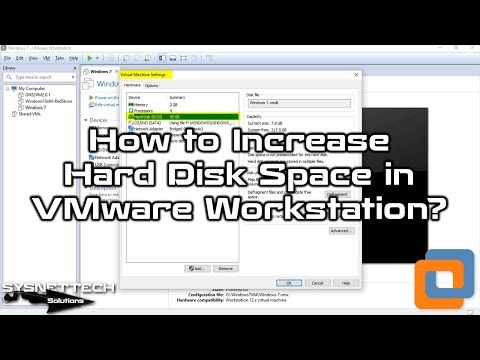
How to Increase Hard Disk Space in VMware Workstation 15/14/12 | SYSNETTECH Solutions
ChannelSYSNETTECH SolutionsDescription from the creator
This video shows you the steps to increase the disk space of a virtual machine running on VMware Workstation 15/14/12 installed on the Windows 10 operating system.
✅ S U B S C R I B E ► goo.gl/8d0iG9
✅ Article ► sysnettechsolutions.com/en/increase-hard-disk-s…
✅ The video has been updated: youtube.com/watch?v=rlx4baQULz4
To increase #hard #disk space:
Step 1: If you have not already installed the #VMware software on your Windows computer, please refer to the following article:
➦ sysnettechsolutions.com/en/install-vmware-works…
Step 2: After installing the virtualization program on your Windows 10 computer, after you create a new virtual machine and install a new operating system over it, you can easily do so if you want to re-increase the disk space of the virtual machine.
Step 3: To increase disk space, turn off the virtual machine.
Step 4: Click on the Hard Disk device of the virtual machine where you want to increase the disk size.
Step 5: After the Virtual Machine Settings window opens, click Hard Disk again.
Step 6: From the options on the right side of the Hard Disk settings window of the virtual machine, click the Expand Disk Capacity button.
Step 7: Specify the maximum hard disk size you want to set and click on the Expand button.
Step 8: Wait for VMware to expand Disk Space.
Step 9: After increasing the disk size of VM, close the Info window by clicking the OK button:
Step 10: Close the VM Settings window.
Step 11: Run the virtual machine.
Step 12: Click on My Computer and check the size of the C: drive. Check that the disk space does not increase.
Step 13: Right-click / Manage my computer.
Step 14: Click Disk Management in the Computer Management window.
Step 15: Right-click on the C: drive.
Step 16: Click Next in the Extend Volume Wizard window.
Step 17: Select Disk0 or Disk1 in the Selected section and click Next.
Step 18: Expand the virtual machine's disk space, then click Finish to close the window.
Step 19: Finally, turn on My Computer again and check the status.
Step 20: Don't forget to subscribe to our YouTube channel for more videos on VMware virtualization training!
───────────────BEST PRODUCT────────────────
✅ Buy ► bit.ly/Windows10Pro64Bit
───────────────RELATED VIDEOS───────────────
➊ How to Install Windows 10 on VMware
➦ youtube.com/watch?v=ddyMJGXy-ZM
➋ How to Install Windows 8 on VMware
➦ youtube.com/watch?v=JPIVscF5Jcg
➌ How to Install Windows 7 on VMware
➦ youtube.com/watch?v=wU7iQ4TAHeg
➍ How to Install Windows ME on VMware
➦ youtube.com/watch?v=HfwDq2H-4XE
➎ How to Install Windows 2000 on VMware
➦ youtube.com/watch?v=65m-jl20xV4
───────────────FOLLOW US───────────────────
✔ Facebook
➦ facebook.com/SysnettechSolutions/
✔ Twitter
➦ twitter.com/SysnettechS/
✔ Pinterest
➦ pinterest.com/SysnettechS/
✔ Instagram
➦ instagram.com/sysnettech_solutions/
✔ LinkedIn
➦ linkedin.com/in/tolqabaqci/
███████████████████████████████████████████
✅ S U B S C R I B E ► goo.gl/8d0iG9
✅ Article ► sysnettechsolutions.com/en/increase-hard-disk-s…
✅ The video has been updated: youtube.com/watch?v=rlx4baQULz4
To increase #hard #disk space:
Step 1: If you have not already installed the #VMware software on your Windows computer, please refer to the following article:
➦ sysnettechsolutions.com/en/install-vmware-works…
Step 2: After installing the virtualization program on your Windows 10 computer, after you create a new virtual machine and install a new operating system over it, you can easily do so if you want to re-increase the disk space of the virtual machine.
Step 3: To increase disk space, turn off the virtual machine.
Step 4: Click on the Hard Disk device of the virtual machine where you want to increase the disk size.
Step 5: After the Virtual Machine Settings window opens, click Hard Disk again.
Step 6: From the options on the right side of the Hard Disk settings window of the virtual machine, click the Expand Disk Capacity button.
Step 7: Specify the maximum hard disk size you want to set and click on the Expand button.
Step 8: Wait for VMware to expand Disk Space.
Step 9: After increasing the disk size of VM, close the Info window by clicking the OK button:
Step 10: Close the VM Settings window.
Step 11: Run the virtual machine.
Step 12: Click on My Computer and check the size of the C: drive. Check that the disk space does not increase.
Step 13: Right-click / Manage my computer.
Step 14: Click Disk Management in the Computer Management window.
Step 15: Right-click on the C: drive.
Step 16: Click Next in the Extend Volume Wizard window.
Step 17: Select Disk0 or Disk1 in the Selected section and click Next.
Step 18: Expand the virtual machine's disk space, then click Finish to close the window.
Step 19: Finally, turn on My Computer again and check the status.
Step 20: Don't forget to subscribe to our YouTube channel for more videos on VMware virtualization training!
───────────────BEST PRODUCT────────────────
✅ Buy ► bit.ly/Windows10Pro64Bit
───────────────RELATED VIDEOS───────────────
➊ How to Install Windows 10 on VMware
➦ youtube.com/watch?v=ddyMJGXy-ZM
➋ How to Install Windows 8 on VMware
➦ youtube.com/watch?v=JPIVscF5Jcg
➌ How to Install Windows 7 on VMware
➦ youtube.com/watch?v=wU7iQ4TAHeg
➍ How to Install Windows ME on VMware
➦ youtube.com/watch?v=HfwDq2H-4XE
➎ How to Install Windows 2000 on VMware
➦ youtube.com/watch?v=65m-jl20xV4
───────────────FOLLOW US───────────────────
➦ facebook.com/SysnettechSolutions/
➦ twitter.com/SysnettechS/
➦ pinterest.com/SysnettechS/
➦ instagram.com/sysnettech_solutions/
➦ linkedin.com/in/tolqabaqci/
███████████████████████████████████████████
About this tutorial
SYSNETTECH Solutions published this 5:56 video tutorial on November 4, 2017. It has been watched 6,058 times on YouTube.
- Channel
- SYSNETTECH Solutions
- Category
- Education
- Duration
- 5:56
- Published
- November 4, 2017
- Views
- 6,058
- Likes
- 33
Tags
Share
This tutorial in other languages
- FRComment faire pour augmenter l'espace disque dur dans VMware Workstation 15/14/12 | SYSNETTECH Solutions
- ESCómo aumentar el espacio en disco duro en VMware Workstation 15/14/12 | SYSNETTECH Soluciones
- PTComo aumentar o espaço em disco rígido no VMware Workstation 15/14/12 | SYSNETTECH Solutions
- ITCome aumentare spazio su disco rigido in VMware Workstation 15/14/12 | SYSNETTECH Solutions
- DEWie 15/14/12 Festplattenspeicher in VMware Workstation erhöhen | SYSNETTECH Lösungen
- NLHoe te verhogen schijfruimte in VMware Workstation 15/14/12 | SYSNETTECH Solutions
- RUКак увеличить место на жестком диске в VMware Workstation 15/14/12 | SYSNETTECH Solutions
- PLJak zwiększyć miejsce na dysku twardym w VMware Workstation 15/14/12 | SYSNETTECH Solutions
- JAVMware Workstationの15/14/12でのハードディスク容量を増やす方法| SYSNETTECHソリューション
- ARكيفية زيادة مساحة القرص الثابت في محطة إم وير 15/14/12 | SYSNETTECH حلول
- HIकैसे VMware कार्य केंद्र 15/14/12 में हार्ड डिस्क अंतरिक्ष में वृद्धि करने के लिए | SYSNETTECH समाधान
- IDCara Meningkatkan Hard Disk Space di VMware Workstation 15/14/12 | SYSNETTECH Solusi