Playback starts YouTube’s embedded player (privacy-enhanced mode).
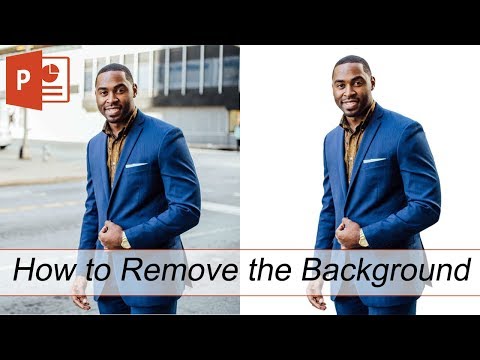
How To Remove The Background From An Image (PowerPoint 2019)
ChannelNuts & Bolts Speed TrainingChapters
Description from the creator
Learn how to remove the background from an image in PowerPoint 2019 using either the set transparent color command (to remove white backgrounds) or the remove background tool (to remove complicated backgrounds)... no Photoshop required!
🚀 UNLOCK the critical PowerPoint shortcuts trusted by industry leaders like KKR, American Express, HSBC, and more inside our free course here ► bit.ly/Learn-Critical-Shortcuts
TABLE OF CONTENTS FOR THIS VIDEO:
0:00 Intro examples of pictures
1:18 Method #1: Set Transparent Color
1:57 Examples of backgrounds that don't work
2:32 Method #2: Remove background tool
3:17 Mark areas to keep (mark areas to remove)
4:11 Removing a complicated image background
6:02 Resetting your picture background
6:34 Limitations of the remove background tool
7:08 Summary of these two PowerPoint tricks
7:37 Advanced picture effect examples
⚑ SUBSCRIBE to get our latest PowerPoint tips and tricks bit.ly/PPT-Subscribe-Today
WHERE WE RECOMMEND FINDING POWERPONT TEMPLATES ONLINE
► bit.ly/Slide-Cow-PowerPoint-Templates
► bit.ly/Envato-Elements-for-PowerPoint
To learn more about our PowerPoint training seminars, premium PowerPoint Speed Training courses, and other useful PPTR resources, visit our website below:
► bit.ly/PowerPoint-Speed-Training
For a step-by-step walkthrough of removing an image background (w/ pictures), see my blog post below. nutsandboltsspeedtraining.com/powerpoint-tutori…
To learn how to crop photos in PowerPoint, check out our blog post below.
nutsandboltsspeedtraining.com/powerpoint-tutori…
===================================
Method #1: Set Transparent Color
===================================
1. Picture tools Format Tab
2. Color
3. Set Transparent Color
This method is the fastest way to remove a white background from an image like in a stock photo or product demonstration photo (or any other type of image where the background is a solid white color).
The key here is that the background needs to be clean and crisp to properly remove the white background. If it is a gradient or a close color to the bit of the photo you want to keep, you will need to use the remove background tool.
===================================
Method #2: The remove background tool
===================================
1. Picture tools format tab
2. Remove background
This is the best way to remove complex picture backgrounds in PowerPoint 2019.
Selecting the command, PowerPoint turns your image magenta. It's important to remember that whatever is magenta is what PowerPoint will remove from your picture, while whatever is not colored is what PowerPoint will keep.
PowerPoint usually does a good job at guessing what you want to remove, but if it doesn't get it correct you can use the two tools to help PowerPoint out.
1. Mark areas to keep
2. Mark areas to remove
🚀 UNLOCK the critical PowerPoint shortcuts trusted by industry leaders like KKR, American Express, HSBC, and more inside our free course here ► bit.ly/Learn-Critical-Shortcuts
TABLE OF CONTENTS FOR THIS VIDEO:
0:00 Intro examples of pictures
1:18 Method #1: Set Transparent Color
1:57 Examples of backgrounds that don't work
2:32 Method #2: Remove background tool
3:17 Mark areas to keep (mark areas to remove)
4:11 Removing a complicated image background
6:02 Resetting your picture background
6:34 Limitations of the remove background tool
7:08 Summary of these two PowerPoint tricks
7:37 Advanced picture effect examples
⚑ SUBSCRIBE to get our latest PowerPoint tips and tricks bit.ly/PPT-Subscribe-Today
WHERE WE RECOMMEND FINDING POWERPONT TEMPLATES ONLINE
► bit.ly/Slide-Cow-PowerPoint-Templates
► bit.ly/Envato-Elements-for-PowerPoint
To learn more about our PowerPoint training seminars, premium PowerPoint Speed Training courses, and other useful PPTR resources, visit our website below:
► bit.ly/PowerPoint-Speed-Training
For a step-by-step walkthrough of removing an image background (w/ pictures), see my blog post below. nutsandboltsspeedtraining.com/powerpoint-tutori…
To learn how to crop photos in PowerPoint, check out our blog post below.
nutsandboltsspeedtraining.com/powerpoint-tutori…
===================================
Method #1: Set Transparent Color
===================================
1. Picture tools Format Tab
2. Color
3. Set Transparent Color
This method is the fastest way to remove a white background from an image like in a stock photo or product demonstration photo (or any other type of image where the background is a solid white color).
The key here is that the background needs to be clean and crisp to properly remove the white background. If it is a gradient or a close color to the bit of the photo you want to keep, you will need to use the remove background tool.
===================================
Method #2: The remove background tool
===================================
1. Picture tools format tab
2. Remove background
This is the best way to remove complex picture backgrounds in PowerPoint 2019.
Selecting the command, PowerPoint turns your image magenta. It's important to remember that whatever is magenta is what PowerPoint will remove from your picture, while whatever is not colored is what PowerPoint will keep.
PowerPoint usually does a good job at guessing what you want to remove, but if it doesn't get it correct you can use the two tools to help PowerPoint out.
1. Mark areas to keep
2. Mark areas to remove
About this tutorial
Nuts & Bolts Speed Training published this 8:33 video tutorial on November 3, 2019. It has been watched 702,387 times on YouTube.
- Channel
- Nuts & Bolts Speed Training
- Category
- Education
- Duration
- 8:33
- Published
- November 3, 2019
- Views
- 702,387
- Likes
- 9,300
Tags
Share
This tutorial in other languages
- FRComment faire pour supprimer l'arrière-plan image Un (PowerPoint 2019)
- ESCómo quitar el fondo de una imagen (PowerPoint 2019)
- PTComo para remover o fundo de uma imagem (PowerPoint 2019)
- ITCome rimuovere lo sfondo da un'immagine (PowerPoint 2019)
- DEWie man den Hintergrund von einem Bild (Powerpoint 2019) entfernen
- NLHoe het verwijderen van Achtergrond uit een beeld (PowerPoint 2019)
- RUКак удалить фон с изображения (PowerPoint 2019)
- PLJak usunąć tło z obrazu (PowerPoint 2019)
- JA画像(パワーポイント2019)からバックグラウンドを削除する方法
- ARكيفية إزالة الخلفية من صورة (باور بوينت 2019)
- HIकिसी छवि से पृष्ठभूमि निकालें कैसे (PowerPoint -2019)
- IDCara Hapus Latar Belakang Dari Sebuah Gambar (PowerPoint 2019)